
2024
PopClip - A Must Have Productivity App

PopClip is a highly configurable app that lets your perform an amazing number of actions on any text you select on your display. I immediately miss it if I am working on a strange computer and on my 18-month exile to PC land at work, I searched in vain for a PC alternative. Due to Apple’s stringent sandboxing rules, PopClip is no longer available in the App Store, although it is still under active development. If you have an App Store version, it will be recognized and converted when you download the update from the developer’s site. New extensions are being added constantly. If you are a developer, there is a guide available to creating your own custom extensions.
My personal PopClip actions are:
- Correct Spelling
- Search in Google
- Open Link
- Bookmark Link in Raindrop.io
- Send link to Omnivore
- Send to Day One
- Send To Email
- Create TextExpander snippet
- Create Message
- Add as task to Things3
- Send to Drafts
- Copy as Markdown
- Send to ChatGPT
- Slugify Text
- Send to Obsidian
There are many, many more extensions available to download in the
extensions gallery in
the following categories:
- Text editing
- Text transformation
- AI tools
- Markdown
- Text stats
- Text lists
- Text display
- Text to speech
- Language and translation
- Notes and knowledge management
- Writing apps
- To-do apps
- Calendar apps
- Contact apps
- Drag and drop
- Launcher utilities
- Native macOS apps
- Search engines
- Maps
- Social networking
- Music
- Link shorteners
- Phone numbers
- Dictionaries
- Developer tools
- Clipboard tools
For new users, a two-year
license is $12, and a lifetime license is $22. PopClip is also
available as part of Setapp.
29 New Apps Added at Mac Menu Bar

Recently Added |
MacMenuBar.com
- Keep it Shot - This menu bar app uses AI to evaluate and rename your screenshots, either in bulk or as you take them. (Freemium)
- Easy Move+Resize - This menu bar app adds “modifier key + mouse drag” move and resize to your MacOS. (Free)
- EasyDict - This menu bar app lets you look up words or translate text. It can automatically detect the language of the input text, supports input translate, select translate, and OCR screenshot translate. (Free)
- MenuBar Next - This menu bar app displays the first line of a text file in your menu bar (Free)
- DynamicLake Pro - DynamicLake transforms your dynamic island into so much more. It lets you effortlessly control essential system functions such as volume, brightness, and keyboard backlight. Take control of your music, scheduling, weather, and much more. (Paid)
- PasteKit - PasteKit lets you record sound (system sound, microphone, etc.), video, and screenshots in one simple, all-in-one solution. And any recordings you make are automatically copied to the clipboard, allowing you to put them wherever you like. (Paid)
- GlimpseEase - This menu bar app automatically monitors your Stripe transactions, keeping you informed without the constant need to glance at your phone during work hours. (Feemium)
- MenuBar Weather - MenuBar Weather displays all major weather information for your current location at a glance. It updates hourly or every significant location change. (Free)
- Text Workflow - Text Workflow lets you automate text transformations. The program has a menu bar app that allows users to choose a workflow to convert the text from their clipboard.(Paid)
- Week Number - This menu bar app shows the week number. The prefix is customizable. (Free)
- HueMenu - With a single click in your menu bar, you can change the color and brightness of your Philips Hue lights, as well as turn them on or off. (Paid)
- Steecky - Steecky is the text editor located in your menu bar. It’s always accessible, whether you’re working on something important or browsing the web. Steecky stores your entries as you type, ensuring that all information is retained. (Free)
- Hammer - Hammer is a menu bar Icon app that assist its users in converting their clipboard data from one form to another quickly. (Paid)
- HistoryHound - This menu bar app lets you do a fast keyword search on the entire content of all web pages you’ve visited recently, plus all those that you’ve bookmarked. (Paid)
- Pomodoro Timer - This menu bar app is a minimalistic pomodoro timer and todo tracker. Stored data never leaves your device. (Paid)
- Battery Charge Reminder - This menu bar app lets you set an upper battery limit and a lower battery limit and even the frequency of the reminder notifications. (Free)
- QuickFindler - With QuickFindler, you can add your frequently opened folders, files, apps, and websites to the icon, and then open them conveniently using shortcuts. (Freemium)
- Finicky - This menu bar app allows you to set up rules that decide which browser is opened for every link or url. (Free)
- Brew Service - This menu bar app lets you (re)start and stop homebrew services. (Free)
- Icon Preview - Preview how your app icon will look in the menu bar. You can also drag and drop an image onto the menu bar icon to preview it there. Ideal for developers and designers to perfect the look of their app icons. (Free)
- Glinet Wireguard - This simple menu bar app allows you to quickly switch wireguard peers. (Free)
- Turnip - Turnip is a time tracker for freelancers and small businesses that integrates with the tools you already use. It also comes with stats and charts to visualize your time by day, week, and month. (Freemuim)
- Pin Frame - This menu bar app is a stick-on-top file viewer. It lets you place a window on top of anything else, but also adjust the window opacity and interactive mode. (Freemium)
- Zonerly - This menu bar app lets you find the correct time across multiple zones for traveling, planning meetings, calling abroad and so on. Offline mode is supported. (Paid)
- NeSleep - This menu bar app prevents any Mac from entering sleep mode, providing hassle-free protection against unexpected sleep cycles. (Free)
- AudioBuddy - If you are dissatisfied with the default Mac text-to-speech voices, this menu bar app replaces them with OpenAI. There’s a max limit of 4096 characters. (Free)
- Folderizer - This menu bar app allows you to create custom folder icons by selecting your preferred color, icon and even your own photos to accompany it. (Paid)
- iBlurred - This menu bar app allows you to blur out sensitive information. You can resize each blurred part of your screen to meet your preferences. (Free)
- Hot Corners Toggler - With this small menu bar app you can quickly toggle hot corners on and off. (Free)
Better Touch Tool Favorites

I’ve owned Better Touch Tool for years and only used it for a few things but since getting an iMac and a Magic Track Pad a few months ago, I have been making more and more use of it. Along with Raycast, Keyboard Maestro, PopClip and Hazel, it is one of the core Mac automation tools in my Applications folder. You can user the supported triggers and inpiut actions to automate almost any task. Additionally, it has :
- A clipboard manager
- Screenshot tool and editor
- Customizable window snapping & resizing & moving tools
- Window switcher
The developer is so confident in the abilities of his app, his
website contains a challenge; If you find something you can't do with
Better Touch Tool, let me know. He offers a 45 day free trial and only
charges $12 for a license with two years of updates or $24 for a
lifetime of updates. The app is also available on Setapp. There is a whole library of actions you can
download if you set up a free account on his website.
- F4 = ⌘+space, which triggers Raycast
2. fn+e = Raycast emoji picker
3. fn+v = Raycast clipboard manager
4. ⌘+Q = runs Apple Script asking "Are you sure" before quitting programs
5. shift+shift = opens/closes Notification Center
6. CTRL+CTRL = reveal desktop
7. option+option = Mission Control
8. esc+esc = start screen saver
9. three-finger click = MissionControl
10. four-finger click = lock screen
11. one-finger click, bottom left = Google Search
12. Microsoft Edge - three-finger swipe left = previous tab
13. Microsoft Edge - three-finger swipe right = next tab
14. Microsoft Edge - three-finger swipe up = new tab
15. Microsoft Edge - three-finger swipe down = close tab
16. Microsoft Edge - three-finger force click = ⌘+click (middle button replacement)
17. Hyper Key+Letter to launch Edge, Drafts, Path Finder, Ivory, Obsidian, Things 3, home folder, trash
Other Automation Apps
Keep It Shot

A new program was just added to SetApp and I decided to take it for a spin. Keep It Shot is an app that uses AI in the form of OpenAI’s ChatGPT or Microsoft’s Azure API. SetApp users can opt for an AI plan with that service. Keep It Shot is a tool that can evaluate and rename your screenshots, either in bulk or as you take them. You can use plain language to describe your naming preferences if you have any (e.g., Don’t use underscores)Once scanned and renamed, you can use a fully private, local search to find screen shots containing keyword related images.
If you aren’t a Setapp user, you can use the app for free to generate 15 renamed screenshots per month. The standard plan is $8 a month and affords you 300 renamed screenshots and for $24 a month heavy users like designers and product mangers can get 2000 renames.
On the privacy front, Keep It Shot does not store your images. The app
is under continuous development with an ambitious roadmap on its web
site. The developer seems open to user feedback based on a previous
Reddit thread from when the app was first released.
Daisy Disk, Best in Its Class

While trying out a new file manager today, I discovered that Google Drive had created two copies of itself on my hard drive, including several folders of files I’d designated to maintain locally. Because of the mysterious voodoo Apple has cursed cloud storage with, I decided to use a disk analyzer to see how my disk space was allocated and the tool I chose was Daisy Disk.
Daisy Disk is an app that needs little introduction to seasoned Mac users. It is a disk space analyzer so well designed that it has won Mac App Store awards in three different years. For under $10, you get a best in class utility that’s fast and reliable. If you’ve ever had a case where seemingly large chucks of your hard drive were showing up as mysteriously in use, you can use Daisy Disk’s power of scanning as an administrator to track down the culprit. Daisy Disk scans internal and external drives whether they are SSD or HDD. It scans local and network physical and virtual drives. You can also scan cloud storage. Only you get to decide what to delete, System files are automatically safeguarded.
Did I mention it’s fast? Other long time Mac disk scanning utilities like Grand Perspective and Omni Disk Sweeper may be free, but they are slow, very slow. They work OK, but no one would consider them best in class.
A single license lets you install Daisy Disk on up to five Macs. The developer offers educational discounts.
Open Core Legacy Patcher

OpenCore
Legacy Patcher is a free and open-source tool designed for
individuals who want to run newer versions of macOS on older,
unsupported hardware. It achieves this by patching macOS and modifying
it to work with these older models. It is based on OpenCore, a modern
and versatile bootloader for macOS. This is what the developers have to
say about compatibility with the Sequoia beta: “I am going to say this
preemptively:
- No, OCLP does not support macOS 15 yet
- No, I don't even know if it still supports Intel yet
- No, there are no ETAs
- No, please do not install it on release and then complain that it doesn't work
No ETAs for Sequoia support. Don't ask, don't try installing it. If you
try installing it, we won't help you."
Source: OCLP macOS Sequoia
Beta Status Update & WARNING!!! (youtube.com)
Having established that, if you aren’t familiar with OCLP and you have an older Mac you’d like to upgrade past its supported version of macOS, you are in luck. I recently had to turn in my 2023 M2 MacBook Air for AppleCare support and was left with a 2014 MBP as a backup. It only had the latest OS it would officially support on it and when I tried to install a few of my most used programs, I got shut down because things like Raycast and DropOver didn’t work. Luckily, OCLP exists and I was able to get past the constraints imposed by Apple.
Here’s how it works:
- The first step of ensuring whether your model is supported is by
checking the Supported
Models page.
2. Download and build macOS Installer
3. Run the OpenCore-Patcher.app
4. Reboot and boot OpenCore
Once you've installed macOS through OpenCore, you can boot up and go through the regular install process. To boot without the USB drive plugged in is quite simple:
- Download OpenCore Legacy Patcher
* Change Patcher settings as you'd like
* Build OpenCore again
* Install OpenCore to internal drive
* Reboot holding Option, and select the internal EFI
And voila! No more USB drive required.
MagicMenu from iBoysoft - Not Recommended
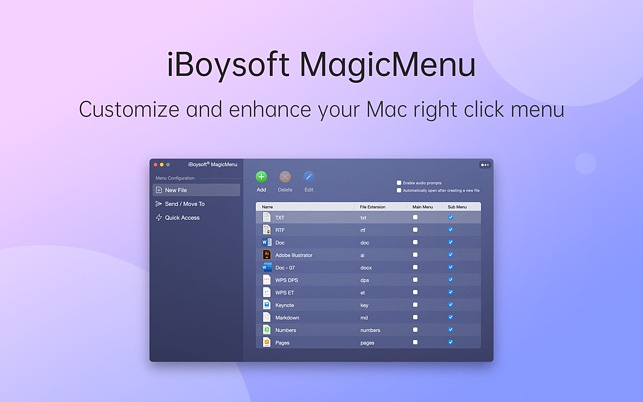
I recently saw a recommendation for MagicMenu
from iBoysoft on Reddit and decided to try out the app. According to
my records, it’s the 1663rd app I have purchased from Apple, and it is
the first one that I have ever requested a refund on. The app actually
works as described, but the information on its free trial and cost of a
yearly subscription was wrong. As soon as I installed the app, I
received a message that the free trial was expired. I’ve never installed
it before, so it wasn’t a case of previously using it. When I decided to
purchase a one-year subscription, I was billed $19.99 rather than the
$9.99 it clearly states as the price in the product description on the
app store.
The app is designed to add functionality to the right-click context menu in Finder. It only works in Finder and nowhere else. It adds the following functions.
- Add a shortcut to create a new file
- Add a folder shortcut to Copy To
- Add a shortcut to Quick Access to an Item
- Quickly move or send files to a certain location
- Completely uninstall unwanted applications
- Find duplicate files and clean up
- Detect similar photos and clean up
- Find junk files and clean up
- Compress files to archive them
Almost all of these actions are found in my preferred file
manager, Path Finder or in
single purpose utilities like App Cleaner, the native
Photos app, Duplicate
Detective and Keka. Other
Finder replacements, like Commander
One offer custom right-click menus as well. If you just want right
click actions in the finder, Qmenu
is only $.99, and 2menu
is $2.99, although both are from Chinese developers if that gives you
pause.
I don’t ordinarily write negative reviews but there were just too many red flags on this app and not enough value for something with a relatively high subscription price.
What Is Your ALT+TAB Solution on Your Mac?

In Windows, when you press the ALT+TAB key combination, you are presented with all of the open windows on your machine, and you can cycle through them by repeatedly pressing the tab key. On a Mac, the equivalent, COMMAND+TAB functions as an application switcher, not a window switcher. No matter how many windows your apps have open, they only show up once on the resulting display. The free and open-source Mac utility, AltTab, offers a solution to this lack of functionality. It offers a highly customizable way to customize your experience, mimicking what Windows does and more:
- Switch focus to any window
- Minimize, close, full screen any window
- Hide, quit any app
- Customize AltTab appearance (e.g. show app badges, Space numbers, increase icon, thumbnail, title size, etc)
- Custom trigger shortcuts with almost any key
- Blacklist apps you don't want to list or trigger AltTab from
- Dark Mode
- Drag-and-drop things on top of window thumbnails
I don’t really care about having the Windows experience, but I want more than what macOS offers natively, so I use the Application switch built in to Keyboard Maestro, which allows me to have not only open apps appear when I press COMMAND+TAB, but also my most frequently used apps. I use this in combination with Mission Control Plus which allows me to combine the built in Mission Control feature with the ability to close apps. Keyboard Maestro offers the following shortcuts:
- Press "q" to mark (or unmark) an application to be quit.
- Press "k" twice to mark an application to be force quit.
- Press "s" or "h" to mark (or unmark) an application to be hidden.
- Press "l" or "z" to mark (or unmark) an application to be launched.
- Press "a" to hide (or show) "always included" applications. Press "e" to show (or hide) "always ignored" applications.
- Press "c" to select the current application.
- Press "f" to select the Finder.
- Press "d" to switch directly to the current app and hide other applications.
Other keyboard driven application switchers include:
HyperSwitch
WindowSwitcher
Switch
Witch
Contexts
Applite - An App Store for Homebrew

Applite is a free application manager using a graphical user interface for apps installed using the CLI Homebrew package manager. Applite allows you to download, manage and update your Homebrew installed apps, even the ones you installed prior to using Applite. It has a clean and simple user interface and is designed for non-technical users. It is free and open source. There are no trackers.
Every application in the Homebrew Catalog is available through Applite. When you launch an app downloaded with Applite, the built in Mac security apps, Gatekeeper and Xprotect will examine it to make sure it is safe to run. Most of the apps in the homebrew catalog are notarized but not all of them are sandboxed, meaning that some may run with elevated privileges. Be careful when downloading applications that few others have downloaded.
You can use your existing version of Homebrew or you can install a separate version just to use with Applite.
The following categories of apps are available:
- Browsers
- Communication
- Productivity
- Office Tools
- Menu Bar
- Utilities
- Creative Tools
- Media
- Developer Tools
- IDE Tools
- Terminals
- Virtualization
- Gaming
- VPN
- Password Managers
EtreCheckPro, System Report on Steroids

EtreCheckPro is an app that displays important system configuration details and allows users to copy that information for analyzation and use elsewhere. It helps identify and address system issues by generating detailed reports after analyzing the system’s performance. It is often requested by experts among Apple Support Communities to help diagnose issues for people requesting help. EtreCheck automatically removes any personally identifiable information from the output.
EtreCheck will automatically alert you to serious problems like adware, insufficient RAM, or a failing hard drive.
Using the program is simple. At startup, it asks you to choose a problem from a list or you can choose “just checking”. Then you click the start button and wait a few minutes while the program runs a scan. When it’s complete, information is provided in the following categories.
Major Issues - Anything requiring immediate
attention
Minor Issues - Anything that could
potentially negatively affect performance
Hardware
- Includes computer, RAM, processor, battery (includes cycle
count and percentage available) and video
System -
Informations on your most recent notifications from apps with
notifications enabled, virtual memory, diagnostics performed in the last
60 days with links to the logs containing the reports
Storage - Information on every partition describing
what it is used for, an option to scan your HD for a usage report,
Details on your Time Machine backups to include snapshots on your local
HD
Network - Detailed info on every network
interface, information on enabled sharing services, a section on Top
Processes Snapshot by Network Use listing the top five
Security - Lists status of built in tools like
Gatekeeper, notes if you are running AV software, lists all enabled
proxies and sharing services. Gives detailed info on all unsigned files
to include unsigned launchd files, unsigned running apps, unsigned login
items and total unsigned apps installed.
Software
- Information on System Extensions, Kernel Extensions, System Launch
Daemons, System Launch Agents, Launch Daemons, Launch Agents, User
Launch Agents, User Login Items, Applications
Performance - Detailed reports on CPU usage, memory us and energy use
Report - a plain text report that can be emailed or posted in a tech support forum
The program to run the report is free.
There is an in-app purchase ($17.99 for up to six machines) to upgrade
the program for people who want the following features:
1. See
computer-generated Solutions - for people who don’t want to post
anything on the internet
2. View detailed results and supporting
information about hardware, operating system, storage, networking,
software, and performance
3. Dive deep into analytics
4.
Compare your computer and your report to others
The program is available here.
(Note: There is an anonymous and poorly written document floating around the Internet purporting that EtreCheckPro is malware. The EtreCheckPro developer says the article was written by a long-time stalker of his engaged in serial harassment. I believe him but use your own judgment.)
Dropover, Best in Class

There is no shortage of shelf apps for the Mac. With popular apps like Yoink, Unclutter and Dropzone in the mix, Dropover Pro, a $5.99 app in the App Store still manages to rise to the top based on price, usability and popularity. Its premise is simple, grab any content type from files, including folders, documents, images, URL’s, text snippets to even web images from your browser with your cursor, shake your mouse and a shelf appears on the screen where you can park the item while you make your next move. You can also designate folders to automatically create a shelf whenever a file is added, a feature I use with my downloads folder.
Dropover is integrated with multiple cloud services. You can move items from a shelf to iCloud, Dropbox, Google Drive, AWS, OneDrive and Imgur and instantly receive a shareable link.
If you are gathering files from various locations, you can have multiple shelfs open at once. Each shelf has a quick action menu that allow you to use the share sheet or native menu to send the file by email, Airdrop or Messages. Other file operations like image resizing, PDF stitching and text extraction are also available.
To differentiate shelfs, you can give them custom names and colors. Shelfs can be docked to the side of the display and temporarily hidden until you need them. You can reopen your last 10 shelfs if you need to reuse them. Items on the shelf can take advantage of Quicklook and you can add to a shelf from the clipboard. The developer has also added Shortcut and Widget support to the app. There are keyboard shortcuts available to create and use shelfs with using the mouse. There are even Raycast and Alfred integrations.
Enhance Apple Shortcuts with These Apps
When I leave work on the days my wife works from a home, I just
press an icon on my phone that sends her a text to let her know I’m
leaving and approximately what time I will be home. In the morning, I
start a daily note in Obsidian and with a couple of clicks a weather
forecast and my daily appointments get added. When I’m ready to begin
working on a certain type of project at work, I just select an item from
a dropdown menu and all the apps I need for the project open up. All of
these tasks and dozens more are accomplished with the help of Apple’s
Shortcuts app, a built-in feature on the current versions of macOS an
iOS.
To enhance your shortcut experience, there are a few apps you can install that add capabilities to the native functionality.
- Adds functionality for Audio transcriptions, Bluetooth, Color, Data,
Device functionality, Dictionary, File Management, Formatting, Images,
Lists, Location, Math, Music, Numbers, Text, URLs, Video and much
more.

Toolbox
Pro - Adds actions for Audio, Calendar, Contacts, Date & Time,
Dictionaries, Files, Health, Images, Location, Math, Media, Reminders,
System Actions, Text and more
Data
Jar - Lets you persist key value pairs inside the app Mine holds
information on my App wish list, Coffee habits and snippets to use in
other shortcuts.
- Use your Mac to design automations that can be triggered at certain times of day or by the location of associated iOS devices. Most useful for Homekit devices and qualified notification settings.
Actions
for Obsidian - Adds missing functionality to Shortcuts that allow
you to do things like import content from the web, import from your
calendars and contacts, integrate health data with notes and more
To find shortcuts that may enhance your workflow, check:
Routine Hub
Matthew Cassinelli
Shortcuts Gallery
Seasons Streaming Companion

For many, the desire to watch all of the latest shows on streaming channels is complicated by the expense of multiple subscriptions. It seems like every month one or more of the channels I subscribe to is raising their price or instituting advertising that I have to pay to opt out of. The smartest strategy to cope with this is to only have active subscriptions to the channels you’re going to be watching during a given period. With channels renewing on different days and some programs being released once a week vs. others being dropped all at once, it can be difficult to map out a strategy that makes sense, but as we used to say in the olden days, there’s an app for that.
Seasons, released in April 2024 walks you through a setup process that has you adding shows from your various watchlists, then adding your channel subscriptions along with their cost and renewal dates. It will tell you how much you are spending per day for your current subscriptions. It will also calculate for you when you should unsubscribe and resubscribe from various channels to maximize your entertainment dollar. You can add both current and upcoming shows as well as movies. Unfortunately, it does not import watchlists, so you will have to add everything manually. On the flip side, you don’t have to use other apps to add shows and Seasons has its own recommendation algorithm based on your interests and user ratings.
Currently, Seasons has a lifetime license available for $3.99 on the app store.
A Privacy and Security Toolkit

In the modern age, it takes a real strategy to protect yourself
from invasive mega-corporations who want to track you, bad actors on the
malware front and in your face non-stop advertising. Whatever tools you
choose have to balance with usability because we all have work we have
to get done.
Nord VPN
My first level of protection starts with my VPN choice, Nord. I run Nord on all my devices, Macs, iPhones, iPads and Apple TV. I don’t have a compatible router, but it can be installed on ones that are. Nord has many security features including a malicious URL blocker, web tracker blocker, ad blocker, URL trimmer and a DNS filter to block ads and malicious domains before they reach my device.
Before I got a VPN, I used Open DNS, which I can highly recommend for some basic protections (but without the privacy features).
Little Snitch Firewall
Little Snitch from Objective Development is truly the most configurable consumer oriented firewall for the Mac platform. The Little Snitch Network Monitor shows you where your Mac connects to on the Internet. You decide what you want to allow or deny. If an app has no need to access the Internet, you can cut off its access. It’s easy to use and configure and as a bonus, you can download and install preconfigured block lists from several sources to make your computer safe.
Other firewall options are Lulu from Objective-See and Lockdown Privacy Desktop, which is what I install on my Mom’s Mac because it is set it and for get it.
Block-Block for Realtime Protection
BlockBlock
monitors common persistence locations and alerts whenever a
persistent component is added. It alerts you whenever something is
installed and you can decide whether to allow that or block it. It’s a
free product. You can get more features in the paid version of MalwareBytes or use their
free scanner that must be run manually.
uBlock Origin for Browser Based Protection
There are many factors that go into making a selection of what browser to use. I personally use Microsoft Edge for several reasons. I use the uBlock origin multi-spectrum content blocker plugin to block ads, trackers, malicious URLs and more. Among the most security conscious Mac users who don’t need to use a Chromium browser, it is generally accepted that Firefox with uBlock Origin provides the best experience. Upcoming changes in Chromium browser plugin specifications, known as Manifest 3, may weaken the effectiveness of uBlock Origin on Chrome and Edge.
These products all work together to provide as safe an environment as I feel I can craft on my Mac. If you have ideas for improvement, please contact me.
Things You Can Do with Obsidian

Obsidian is a pretty well know app, especially among the more technically inclined crowd. At its core, Obsidian is a free note taking app that saves all it’s content as plain text Markdown files on local storage, whether that be on your Mac, phone or iPad. There are also Windows, Android and Linux versions and many options for syncing (iCloud, Syncthing etc,) including a $4 a month option built into the app. What gives Obsidian superpowers are the 1600+ plugins, all free, that you can use to make the program do all kinds of customizable things.
Here are a few examples:
1) Consolidate your books read, music
listened to, and movies and TV watched into a super media database using
RSS More
Information
2) Keep a journal that syncs your completed to-dos,
appointments, and the weather along with whatever content you manually
enter More
Information
3) Backup your bookmarks, notes and highlights from
Raindrop.io More
Information
4) Serve as a local archive of web pages you want
to keep for reference More
Information
5) Publish straight to blogging services More
Information
My resources kit for beginners.
If you are interested in learning Obsidian, please check out the complete list of my tips, workflows and resources. Feel free to shoot me any questions.
Apps That Do One Thing Well
One thing that happens to some apps over time is bloating through
feature creep. Customers demand constant updates to justify
subscriptions or to satisfy some imaginary metric in their heads thats
their apps aren’t abandoned and the next thing you know, your favorite
notes app has AI and your calendar apps can order you an Uber and it
just all gets out of hand. That’s why I like apps that do one thing well
and that’s it. I have a few favorites.
Mission Control Plus

Mission Control Plus
adds the ability to close and minimize apps and windows from the Mission
Control Screen. That's it and that's enough. When you have to many apps
open and your workspace is getting cluttered, just invoke Mission
Control with a hot corner or F3 and start clicking some X buttons.
QuitAll
QuitAll labels itself as a
fresh start without a restart. While it's possible to quit all open apps
with an AppleScript or a Keyboard Maestro macro, QuitAll lets you toggle
between quitting and force quitting your open apps. Quit one, some, or
all apps from one tidy spot. Apps will prompt you to save any unsaved
work before they close. You can even adjust your settings to quit
background apps if you want to.
One Thing
One Thing by Indy App
developer Sindre Sorhus lets you put a single task or goal in your menu
bar. Based on the principal that "You can achieve almost anything in
life — as long as you focus on achieving one thing at a time. It’s a
time-tested strategy that’s been shared by many successful people."
Play: Save Videos, Watch Later

There are lots of places to find YouTube videos aside from the website itself. You see links on social media, in texts from friends in blog posts and elsewhere. Using the universal app, Play ($2.99 on the App Store), from Apple developer Marcos Tanaka, you can add videos to your own personal database that has many more features than the native “watch later” list on the Google owned site. Adding a video is as simple as using the share sheet, although you can paste single or multiple URLs directly in the Play interface. You can import playlists if you already have some built. Once you have a list of videos in the app, you can sort and view them by any metadata criteria, including release date, length, and creator.
If you have the video downloader, Downie by developer Charlie Monroe installed, you can download videos straight from play using the hot key ⌘+D. Play has widgets and extensive shortcut support if that is your jam. By being a universal app with iCloud sync, Play makes it easy to collect video while using your iPhone. Then you can easily organize them using the more roomy Mac interface and then watch them using the Play app on AppleTV. The in-app player on each platform allows you to use Invidious, so ads are not a problem.
As a premium/subscription based feature, you can subscribe to YouTube
channels with filtering. If a creator makes videos on a variety of
topics but you only want the ones on Obsidian, you can create a filter
so that only those video are imported. You can set up auto-tagging based
on metadata to group videos to your specifications. The channels section
of the app is separate from your playlists. There, you can choose to add
to playlists, mark as watched or delete the video according to your
needs.
Default Folder X an OG App For Mac Power Users
Most long-term Mac users have at least heard of if not used Default Folder X
(DFX). The program traces its roots all the way back to DefaultD
released in 1987. I’ve owned a copy since before I had Gmail since a
search for my original purchase only turned up an upgrade offer from
2005 for $2.50! The program’s purpose is to streamline and enhance
finding, opening, saving and moving files and folders.

Your open and save dialog boxes are
enhanced with an overlay that will leave you wondering why Apple hasn't
managed to build this into the OS. The overlay contains dozens of
features. Some of the most prominent are:
- Setting a default save folder on a per app basis
- Saving the last folder you worked in as the location for your next save
- Navigating with the mouse or keyboard through a list of your most recently used and/or favorite folders
- Using an open finder as a save location by holding down a modifier key (I configured it for Control), hover over an open window on any display, and click to select it
DFX gives open/save dialog boxes many of the powers of the finder: renaming files, using Quicklook, using the right-click context menu to do things like compress files. The settings allow you to open any folder on your Mac with a user-definable shortcut key. Actual Finder Windows are enhanced with a new shelf to use as a temporary holding area for multiple files and folders. A DFX button is added to both the Finder and Mac menu bars, giving you instant access to your favorite disk locations. If you have multiple Macs, you can sync the settings between them with iCloud.
Default Folder X is a one time purchase for $39.99. There are typically several years between upgrades and existing license holders are granted a discount when that happens. The program is also available through Setapp.
BlockBlock and KnockKnock from Objective-See

Anyone who tells you that Macs don’t get viruses is misinformed,
and you shouldn’t rely on that person for computing advice. Mac malware
exists. Having said that, the average Mac user is in much better shape
than the average Windows user because the bad actors of the world tend
to concentrate on the platform with the largest market share.
Additionally, those who have a modern Mac running a fully up to date OS
have built-in
behind the scenes protection that requires them to very little in
order to be safe. If that’s you and you get all your software from the
App Store, move along and have a nice day. But, if you download software
from developer web sites, Github or if you are living the Pirate’s life
(you gangster, you), it’s probably a good idea to take the extra step to
protect yourself.
The Objective-See Foundation is a non-profit 501(c)(3) corporation that has been around since 2015. It provides free, open-source security software for the Mac platform
BlockBlock
BlockBlock
is a utility that loads at login and monitors your Mac for the
installation of any persistent program, a category that includes most
malware. When BlockBlock encounters a new persistent installation, it
alerts you and asks for your input. Do you want to allow this or forbid
it? “If the process and the persisted item is trusted, simply click
‘Allow’. If not, click ‘Block’. Both actions will create a rule to
remember your selection (unless you selected the ‘temporarily’
checkbox). If you decide to block an item, BlockBlock will remove the
item from the file system, blocking the persistence.”
KnockKnock
KnockKnock
serves as an on demand file scanning utility. “Press the ‘Start Scan’
button to instruct KnockKnock to scan known locations where persistent
software or malware may be installed. By design, KnockKnock simply lists
persistently installed software. Although by default signed-Apple
binaries are filtered out, legitimate 3rd-party software will likely be
displayed.
“If the item is an executable binary, KnockKnock automatically queries VirusTotal with a hash of the binary in order to retrieve any information. While VirusTotal is being queried, this button displays ‘■ ■ ■’. Once the query is complete, the title of the button is automatically updated with either the detection ratio, or a '?' if the binary is not known to VirusTotal.”
“With the query complete, the button can be clicked to reveal a popup containing VirusTotal-specific information about the file. If the file is unknown, clicking the ‘submit?’ button will submit the file for analysis. Known files contain a link to the full analysis report and a ‘rescan?’ button that will rescan the file.”
Other Options
Objective-See makes other security
products including LuLu, an
open-source free firewall and ReiKey, which
detects keyboard trackers.
If your primary security concerns center around places you go online vs. the software you install, I would also suggest running a periodic scan with the commercial product, Malwarebytes, which has a free version for manual scans and a paid version for more extensive real-time protection.
AnyList for Recipes, Shopping and More

Mac users are blessed with several very good recipe collection
apps, including AnyList, Paprika and Mela, all of which allow you to clip
recipes you find online into a database and personal cookbook. AnyList
and Paprika also have built in grocery lists that sync via the cloud,
while Mela uses Apple’s Reminders app for grocery list management,
including the shopping specific features included in iOS 17.
AnyList and Paprika both have extensive meal planning features. They create a calendar which you can share like any other. You can also share all information via cloud syncing and built in email capabilities. Anylist features include widget and shortcut support, while Paprika’s do not.
Where AnyList stands alone is the incorporation of other list types. It can manage three types of lists: grocery lists, categorized lists and simple lists. I have used it as a packing and camping list for years using variations of the same templates based on the type of trip. It integrates easily with Siri and with Amazon Alexa, making voice control in the kitchen or on the road a breeze.
AnyList is a universal app that also features a fully functional web version so that you can access all the features from a Windows computer or a work Mac where you can’t install the software. The Android version uses the same database as the iOS version so if you live in a multi-platform home, you can still use it. It is a subscription-based app with a single license going for $9.99 a year and a household license going for $14.99.
List features include:
- Quickly add and cross off items. Autocomplete suggests common items as you type.
- Add notes to list items to indicate quantity, brand, coupons, etc.
- Create multiple lists to organize items by store or occasion.
- Grocery items are automatically separated into categories.
- Create your own custom categories.
- Reorder categories to match the layout of your local store.
- Save items as favorites, then browse your favorites and add them to your current shopping list.
- View recent items from your past shopping trips, then add them back to your current list.
- Everyone creates their own AnyList account, so you can share some lists, while keeping others private.
- Optional push notifications let you know when a shared list has been modified.
- Choose a color for each list to help distinguish lists.
- Move or copy items between lists.
Recipe Features Include:
- Enter your own recipes, or copy & paste them from another source.
- Add ingredients from your recipes to your shopping lists with a single tap.
- Organize recipes into collections by type or occasion.
- Search your recipes by name or ingredients.
- Print recipes, or send via email.
- Share your recipe collection with a trusted partner. Any changes to recipes will be instantly visible to both of you.
Note: There is another relatively new recipe and list app available, Crouton which I have not had a chance to review, but I would be interested in knowing more about it if anyone has used it.