
Six Free Utilities, Zero Subscriptions
TL;DR: Five free Mac utilities worth a look this week: a menu-bar fix for notification banners landing on the wrong monitor, a drag-and-drop media compressor, a keyboard-backlight scheduler, an unusually hard-to-skip screen-break app, a notch utility with AI-agent alerts, and a local-only document search tool that cites its sources.
The apps I have been testing this week include a couple of entries from someone whose Mac was doing X when they wanted it to do Y, so they built an app to make it do what they wanted. I wish I had those chops, although with AI, the days of being locked in to someone else's UI choices isn't the limiting factor it once was.
Make Banners Appear Where You Want Them
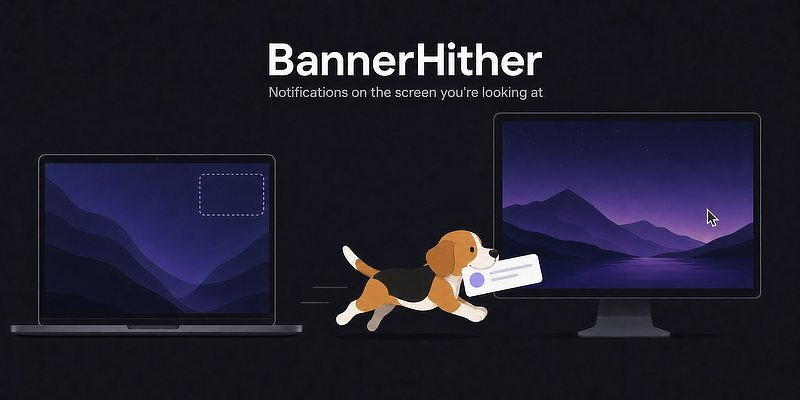
BannerHither — free. A small menu-bar utility solving one specific multi-monitor annoyance: macOS always shows notification banners on the "main" display, which in many multi-monitor setups isn't the screen the user is actually looking at. BannerHither redirects banners to the display in use.
Drag And Drop File Compression
Kompakt — free, open source (MIT). A compact Mac menu bar app for compressing and converting images (PNG/JPG/WebP/GIF/SVG) and video (MP4/MOV/M4V) by drag-and-drop — no file pickers or export dialogs, it appears the moment you drag media in. Distributed as a signed DMG off GitHub Releases.
Turn Off Keyboard Backlight on Demand
Nocturne — free, donationware (Buy Me a Coffee). A small menu-bar app that turns off the built-in keyboard backlight when you don't need it — all day, on a schedule, or from sunrise to sunset based on location — and hands it back untouched when done.
A Hard-to-Dismiss Screen Break Announcement
Screen Break — free. A menu-bar break-reminder app that opens a full-screen guided rest on every display when it's time to step away, deliberately designed to be hard to dismiss meaninglessly: a passcode unlocks an early rest, and manual restarts and temporary quits are limited. Configurable 30–50 minute work sessions with 5-minute rests, smart idle reset (doesn't count time already spent away from the computer), and busy auto-defer (detects media playback, calls, presentations, or full-screen work and holds off). Localized in seven languages. Distributed as a direct download.
A Free Multi-Featured Notch App Aimed at Devs
Notchly — free, open source (MIT). A macOS utility that turns the MacBook notch into an interactive "Dynamic Island"-style space: music controls (Apple Music/Spotify, including lock-screen controls), battery/charging status, volume/brightness indicators, swipe gestures, and focus-mode animations. Its standout feature is "Codex Alerts" — AI coding-agent notifications (Codex, and by extension tools like Cursor) that surface approval requests or completed-task alerts directly in the notch via a local Stop hook, aimed at developers who want passive status visibility without app-switching. Built natively in Swift/SwiftUI, signed and notarized, actively maintained.
Search Local Documents, Get Citations
Minna — free, open source. A local-first search index plus an AI assistant restricted to answering only from the user's own indexed documents on their Mac, with citations to a specific document for every claim. The developer describes it as a student's own answer to the "LLM makes things up" problem.
McKinley: The SF Symbols Editor Apple Never Built
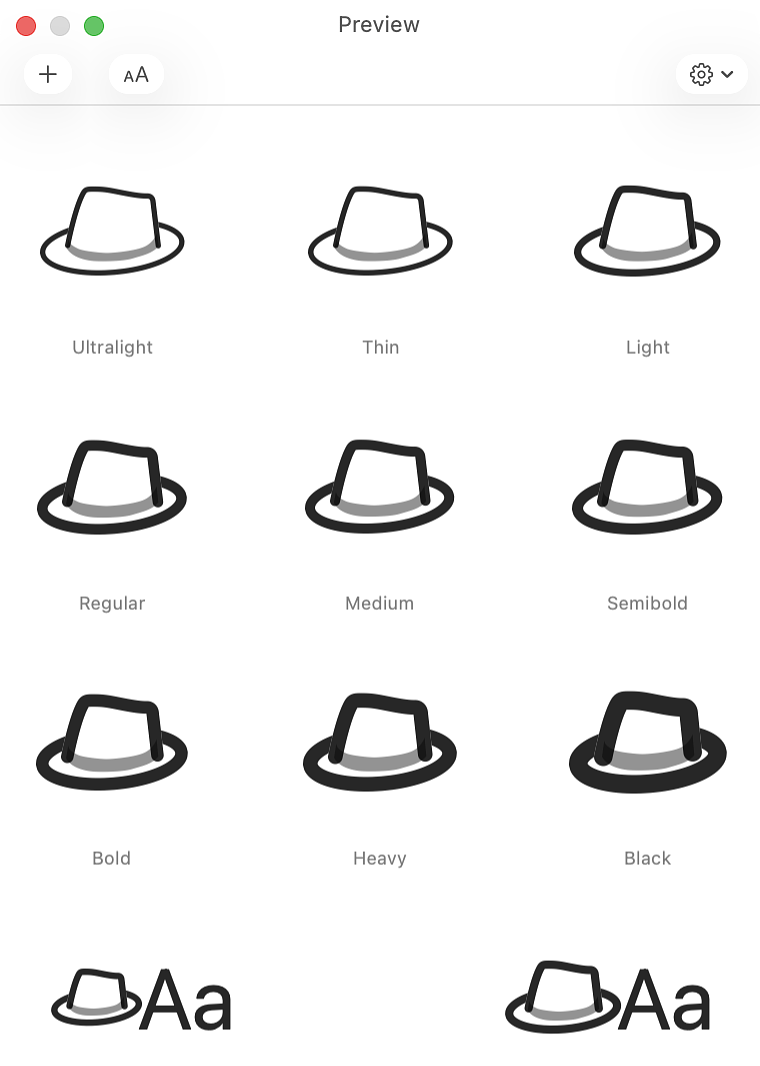
The Apple-created graphics that appear on your folders are called SF Symbols. There are thousands of them, and they're designed to stay legible in multiple sizes and weights, from tiny up to headline-sized. Apple allows you to create your own, in a process that turns out to be pretty complicated when done correctly. You're drawing potentially nine weights (Ultralight through Black) at three scales, making sure the strokes stay visually consistent at every combination, making sure the whole thing still reads as the same symbol from thin to bold, and doing it all in a way Xcode will accept without silently failing. Most people who've tried this by hand in Illustrator or Sketch will tell you it's tedious, error-prone, and genuinely difficult to keep consistent.
McKinley is a dedicated app built to solve exactly that problem. It's a vector drawing tool, but unlike a general-purpose one, it already understands the SF Symbols format: the weight system, the scale system, the export rules Xcode expects. You draw a shape once, and McKinley handles generating and keeping consistent the different weights and sizes that shape needs to become a real, working custom symbol, rather than you manually redrawing (and re-aligning) it nine times. It can start from an SVG you already have or from a blank canvas, it live-previews your symbol using Apple's actual rendering engine, so what you see is what will really show up in an app, and when you're done it exports straight into a format Xcode can use. It launched September 7, 2026, runs on macOS 15 and up, and it's made by one developer, Amy Worrall, under the name Double & Thrice Ltd.
I don't have many developer chops, so this isn't going to end up in my daily driver stack, but I was intrigued because John Gruber, from Daring Fireball, raved about McKinley as "a remarkable 1.0." Double & Thrice provided me with a reviewer's license, and I installed and tested it.
Several things were impressive. The documentation, including a list of the app's limitations, is well done. When the app encounters an issue, the error messages are descriptive and helpful. To my eyes, the symbols it creates are indistinguishable from the ones in Apple's built-in set.
The kicker is the pricing. Gruber called McKinley a serious professional tool for dev shops and graphics pros. £55 / €65 / $60, one-time. There's a 15% launch discount (down to roughly £46.75 / €55.25 / $51) through September 14, 2026, and a free 14-day trial that's described as fully functional, not a crippled demo. For a solo-developer niche tool, that's a reasonable way to let it prove itself before you pay.
Normally, I list alternatives to apps when I review them, but there doesn't seem to be anyone else making anything that does what McKinley does. That kind of original thinking is rare, so hats off to the dev.
Five Free Apps With No Telemetry & No Accounts That Do One Thing Well: TetherShot, Folder Forge, Image Fuel, doktor, and Kompakt
TL;DR: Five free, mostly open-source, no-telemetry Mac utilities from this week's testing: docktor (dock widgets + hover previews), Kompakt (drag-and-drop image/video compression), TetherShot (live iPhone screen capture over USB/Wi-Fi), FolderForge (rule-based folder icon styling), and ImageFuel (import-free folder browsing with RAW support). Each gets a free alternative below if you want to compare before committing.
Removing Irritation
My app testing time this week was spent on free apps, most of them open source and all privacy-respecting. No accounts needed. No telemetry. I've been looking for original, niche apps that do one thing well.

docktor calls itself the dock you deserve. It's free, notarized, requires no account, and comes from a solo dev who regularly responds to users with new features and bug fixes. The app fills the unused side space on either end of the Dock with customizable widgets (music, calendar, weather, system stats) and adds hover previews of a running app's open windows without clicking. If you're a widget person, this gives you a few new options.
Alternative: HyperDock has done Dock hover previews for years and is worth a look if that's the one feature you actually want, though it doesn't fill unused Dock space with widgets the way docktor does -- check current macOS compatibility before buying, since I haven't tested it myself on this release.
Kompakt is a native Mac menu bar app for compressing and converting images and video with a drag-and-drop interface that pops up automatically the moment you drop a file. Images cover PNG, JPG, WebP, GIF, and SVG; video is limited to MP4, MOV, and M4V. Free and open source under MIT, distributed as a signed DMG off GitHub Releases. The dev's roadmap includes watched folders, Finder actions, and Shortcuts support. I can see setting up some helpful shortcuts using this.
Alternative: ImageOptim is the longtime free, open-source, drag-and-drop standard for image compression on Mac. It doesn't touch video, so if Kompakt's video side is what sold you, ImageOptim isn't a full swap.
TetherShot is a proper Mac utility, not just a menu bar toy. It captures a live display, not a simulation: your connected iPhone's actual screen over USB or Wi-Fi, saved as a pixel-perfect screenshot. Free and open source, no account, no analytics, no cloud relay. Take all the screenshots you want without syncing or AirDropping anything.
Alternative: QuickTime Player already does this for free and it's built in -- connect your iPhone by cable, pick it as the camera source under File > New Movie Recording, and you can record or grab a frame of the live screen. It's a recording-first workflow rather than a one-tap screenshot, and it needs the cable; TetherShot's Wi-Fi option and one-hotkey capture are the actual time-savers if you do this often.
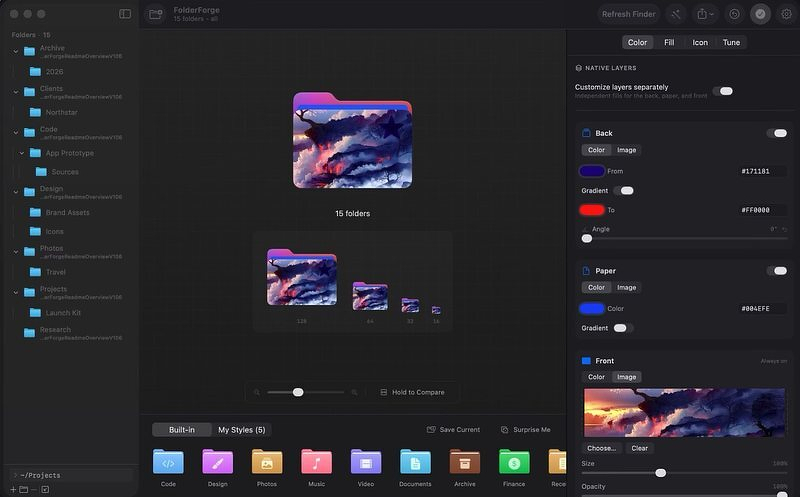
Apps that customize folder appearance in Finder have been around for a while, and they're fine for the primary folders in your home directory. If you want smart folders and reusable presets that apply by name, contents, or marker files using recursive styling, FolderForge fits the bill -- it applies a visual system across an entire folder tree. Runs locally, no account, no telemetry. MIT-licensed on GitHub; v1.0.8 is signed and notarized by Apple.
Alternative: Rainbow Folder -- Icon changer is a simple App Store option for changing individual folder colors and icons. It's manual, one folder at a time -- it doesn't have FolderForge's rule-based, apply-to-a-whole-tree automation, so it's a fit only if you don't need the bulk styling.
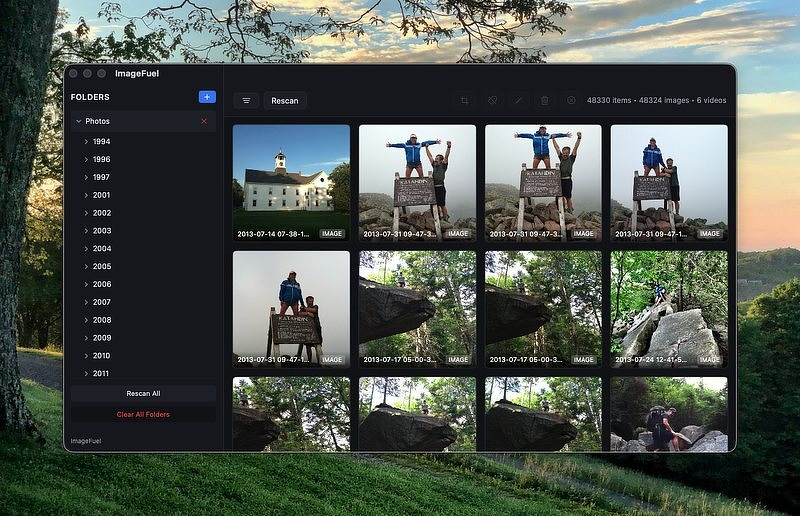
Point the app at any folder, or several, and instantly see every image and video in a clean, scrollable grid. No importing. No library to manage. No waiting. It reads files where they already live, including JPEG, PNG, video, and RAW. It loads quickly and makes browsing photos easy.
- Search by filename or path with a fast, keyboard-friendly search modal (Cmd+F)
- Filter to images only, videos only, or everything
- Sort by date, name, or a custom order you drag yourself; each folder remembers its own sort
- Browse RAW files from Canon, Nikon, Sony, Fujifilm, Olympus, Panasonic, Pentax, and DNG
- Open any file in a fullscreen lightbox
- Crop images with live pixel dimensions
- Apply color filters to one image or an entire batch
- Inspect and strip metadata
- Rename files in bulk
- Create subfolders from the sidebar
- Send deleted files to the Trash or a folder you choose
Alternative: XnViewMP is the free, cross-platform standard for exactly this job -- instant folder-based browsing with real RAW support, no import step. It's a dated interface next to ImageFuel's cleaner grid, and it doesn't have ImageFuel's crop/metadata/batch-rename tools built into the same window, but it's the closest thing to a direct, feature-for-feature comparison if you want to try before committing to either.
Remove an Irritation
None of this is life-changing software, and none of it asks to be. Every one of these five does one narrow job, does it for free, and stays out of your way otherwise: no accounts, no telemetry, no subscription creeping in later. That's the actual differentiator this week, not any single feature. If you only try one, make it whichever solves a problem you already have -- docktor if you stare at your Dock all day, ImageFuel if you're sick of importing photos just to look at them, TetherShot if you've ever emailed yourself an iPhone screenshot. The rest can wait.
Unless otherwise noted, the alternatives mentioned above are based on research and not individual testing.
Five Free and Low Cost Apps: Holeberry, Dock Party, Neon Vision Editor, MojiBar and Snick
Here are the best apps I tested this weekend. Two will save you time, two are fun ways to waste it on UI tweaks, and one's for a certain psychological profile. I'm sure you can figure out which one.
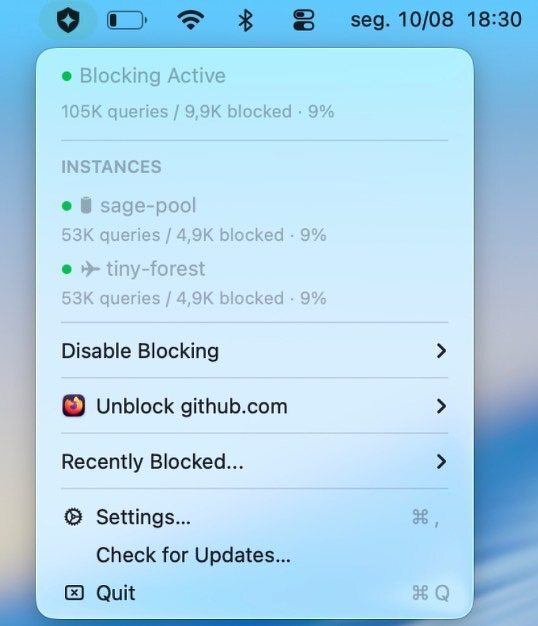
Holeberry - A native Swift 6 app for macOS 14 and up, built by developer Pedro Vieira, Holeberry puts the Pi-hole controls you actually use right in your menu bar. See real-time blocking status and query stats without keeping a dashboard tab open. You can disable blocking for five minutes, an hour, or indefinitely, giving you the same toggle as Pi-hole's own web UI, just one click closer. The feature that actually earns the download is per-tab unblocking. Holeberry reads the active tab in Safari, Chrome, Chromium, Firefox, or Zen, and when a site is broken because Pi-hole blocked something on the page, it can identify and allowlist that domain without making you dig through the query log yourself. That's a workflow improvement, not a cosmetic shortcut, and it's the reason to care about this app at all. (FOSS)
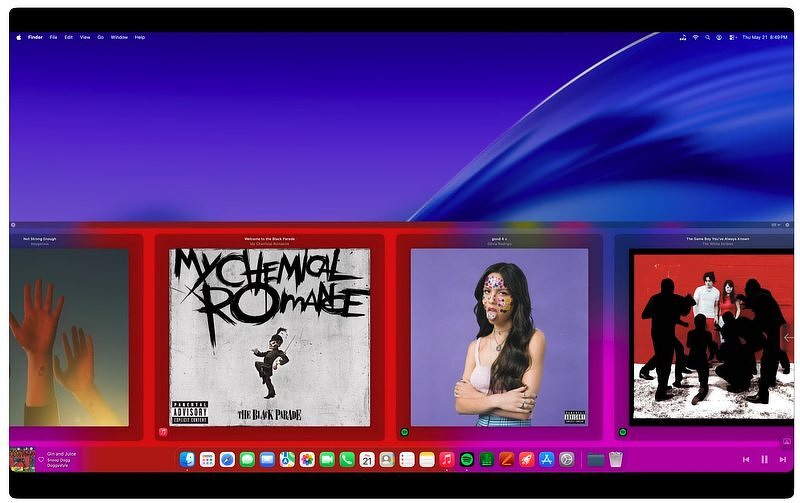
Dock Party - Dock Party watches Spotify or Apple Music via system audio and turns that into a light bar running along the edge of the Dock. Track name, artist, and album art appear beside it, a progress bar runs along the Dock's edge, and playback controls sit right there without requiring you to switch apps. It also adds Amplitude, Pitch, and Waveform visualizer modes, so the light bar moves with the music instead of just sitting there. ($4.99)
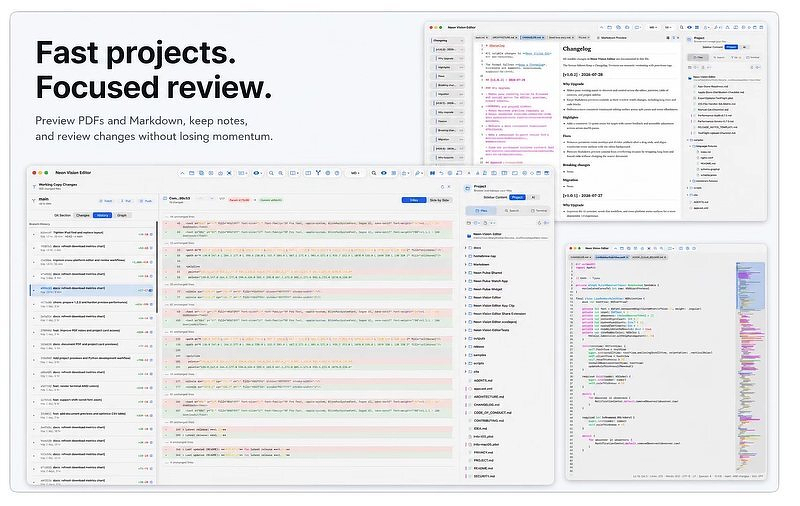
Neon Vision Editor - It's a text and code editor for macOS, iPhone, and iPad aimed at developers, writers, and sysadmins who value speed and a small footprint over a massive plugin ecosystem. Syntax highlighting covers Swift, Python, JS/TS, Go, Rust, SQL, Markdown, and more. There's a recursive project sidebar, Quick Open, Find in Files, a code minimap, and Git tooling for status, history, and diffs. A CSV/TSV table mode and Mac-hosted SSH remote editing round things out, and Vim keybindings are there if you want them. AI code completion exists but is opt-in, limited to minimal cursor-context text, and sent only to a provider you choose yourself. Leave it off, and the app makes no network calls at all. (Free/$4.99)
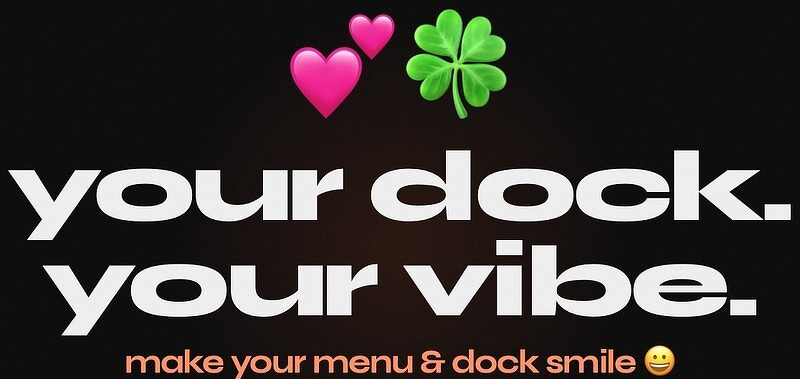
Mojibar - Mojibar replaces your Dock icon and menu bar icon with any of 3,600-plus emoji. Make sure you use this link to find the app because there's more than one out there with the same name. ($0.99)
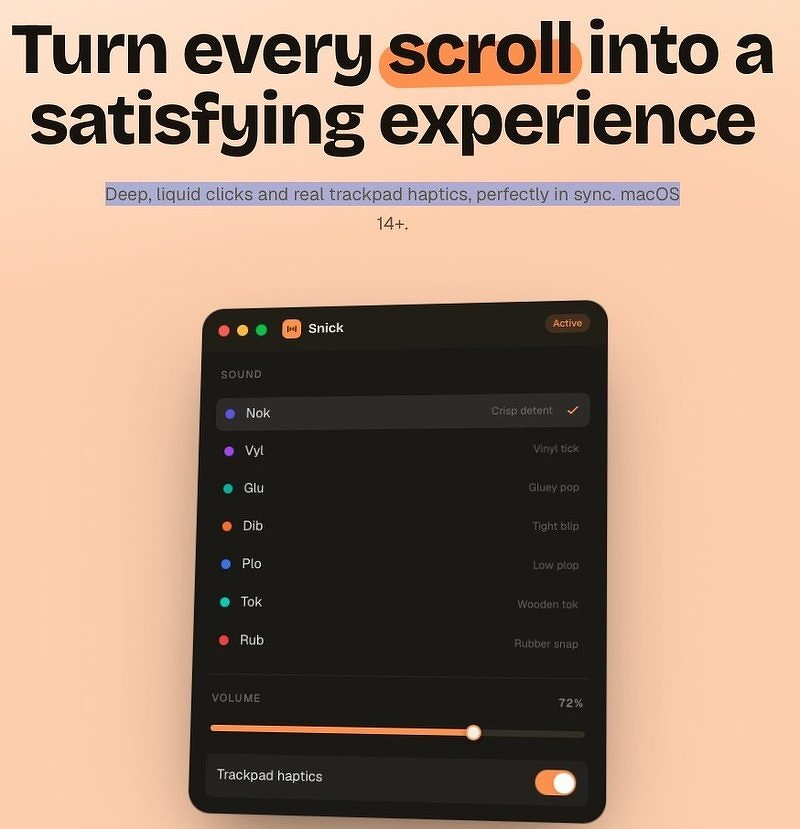
Snick - Snick turns your trackpad into a ratchet, complete with sound and haptic feedback. That's it. That's the app. Strangely enough, it got on my radar through enthusiastic reviews. Some people need feedback from their devices. They're the ones leading the mechanical keyboard movement, using Thock for the sound effects, and they're the audience for this app.
AppAddict Records 1,000,000th View
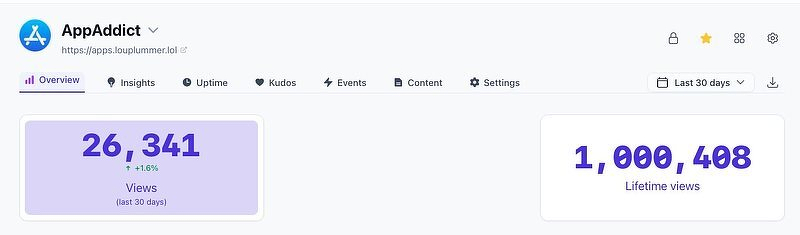
When I wrote and published my first software review in 2024, I had no idea I'd still be going strong after 500+ reviews. Thank you to all of my fellow App Addicts and all the developers out there who keep writing high quality Mac software.
Five Unique Free Apps
Here are five free Mac applications you've most likely never come across. A project template/scaffolding automator, a local music player, resize batch images, a posture app that takes Advantage of the AirPods motion sensors, plus a financial calculator for cash flow simulation.
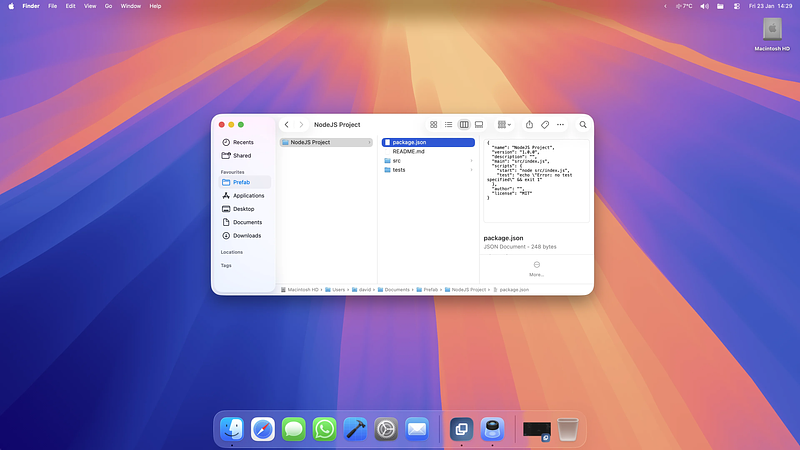
- Prefab - Capture a folder structure as a reusable "blueprint," add variable placeholders to names and contents, then deploy it anywhere via the app, menu bar, or Finder right-click. Deployment can chain actions: git init, npm install, opening the project in an editor, arbitrary terminal commands. Built for developers but pitched at anyone with a repeatable folder-setup ritual: lawyers, researchers, creatives.
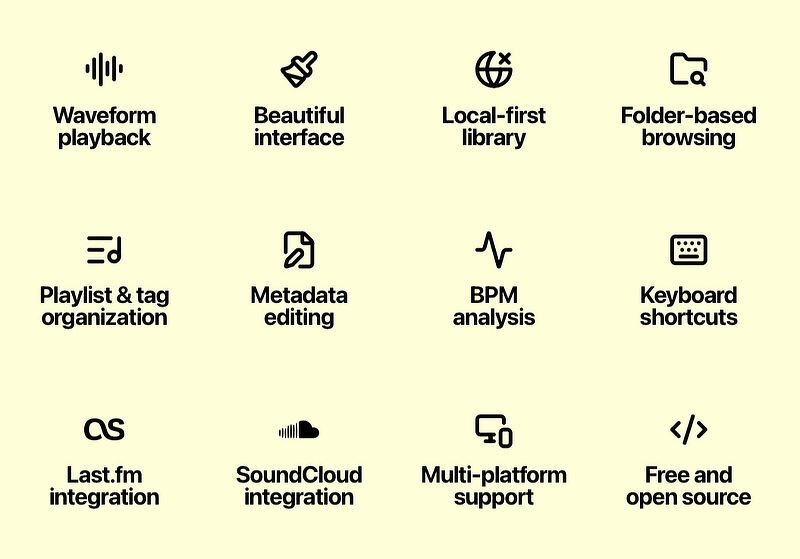
- Playhead - Local-first music player for people who keep their own files instead of streaming. The pitch is "waveform-first": it generates and caches waveform data so you can see and scrub a track's structure instead of a plain progress bar. Two browsing modes, Library and Folder (preserves your existing structure), aimed at DJs, producers, and messy real-world collections. Supports MP3, FLAC, WAV, AIFF/AIF, M4A, OGG, OPUS, AAC; includes a metadata editor.
- IResize Pro - Batch image resizer. Set a target width or height, it scales proportionally and keeps your originals. Outputs JPEG/PNG/TIFF/GIF; imports JPG/PNG/GIF/TIFF/HEIC/BMP/WebP. Includes batch renaming, an optional colored border, and an upscaling prompt for undersized images.
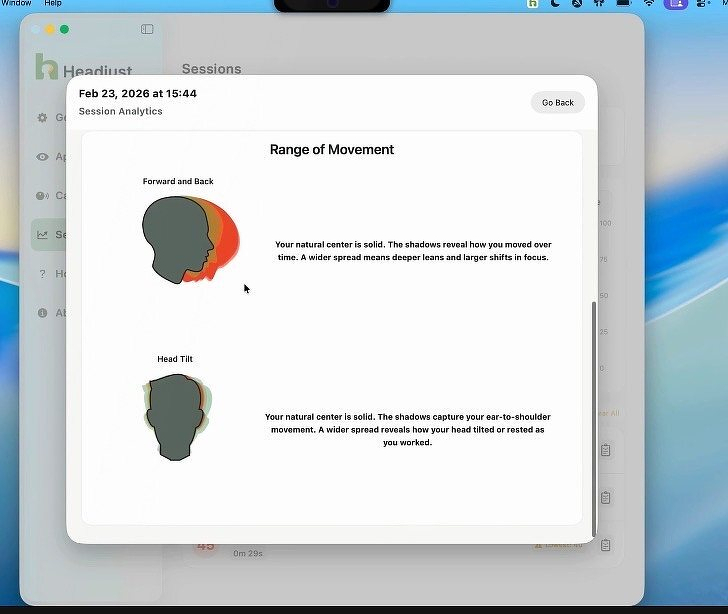
- Headjust - Native Mac app that uses the head-motion sensors already built into compatible AirPods/Beats to make posture drift visible without policing it.
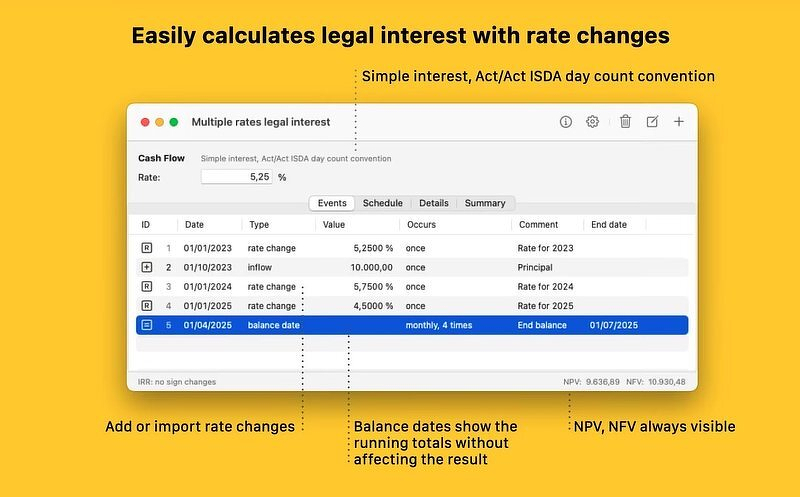
- InterestThing - Mac-only financial calculator for modeling cash-flow problems (loans, leases, valuations, financial planning) as a timeline of discrete events instead of a fixed template. Each event -- inflow, outflow, unknown, fixed principal, interest-only payment, rate change, balance date -- can be one-off or periodic, fixed or gradient amounts, paired with one of four interest types (simple, capitalized simple, capitalized simple with US Rule, compound) and three time-interval methods
Five Free Apps Alternative to Paid Apps
Are you paying for an ad blocker, folder automation, notes & PKM and image editing ? You don't have to.
- wBlock - a next-generation ad/content blocker for Safari: 750,000 rule capacity across 5 Safari content-blocking extensions (150k each), ~40MB idle RAM by running Safari's native content-blocking API out-of-process, Protocol Buffers + LZ4 filter storage, HTTP conditional-request updates, and iCloud sync of filter selections/custom lists/userscripts/whitelist. It bundles an Element Zapper, "Tube Cleaner & Player Cleaner" userscripts that restore native Picture-in-Picture/background playback on media sites, a full Greasemonkey-API userscript engine, UserCSS support, custom AdGuard-syntax filter-list import, per-site controls, a blocked-request logger, and regional filters. Open source on GitHub
- Wick - Wick brings timers, stopwatches, and alarms to the Mac with menu bar and Lock Screen access, a fully custom Liquid Glass material on macOS 26+, and -- its standout claim -- the first app to integrate with Alcove. Positioned as the polished Clock app Apple never finished
- Forel - An open-source (GPLv3) folder-automation app for macOS, pitched explicitly as a free Hazel alternative: watch folders, match files by name, extension, kind, size, date, tags, or Finder color label, then move, rename, tag, or run a script automatically.
- Nodes - A local-first markdown note-taking and PKM (personal knowledge management) app: plain markdown files kept directly on-device (open the folder in Finder, nothing is locked in), double-bracket links with rename-safe link following, tag-based organization instead of folders, semantic + keyword search, a force-directed graph view, a growth timeline, and PDFs/images embedded as notes alongside writing. Its most distinctive claim is "the quiet part": tag/description/reminder suggestions from a local LLM that runs entirely on-device -- the developer states it works with Wi-Fi off.
- ImageFuel is a lightweight Mac app for browsing images and videos without importing them into a library -- point it at any folder and get an instant scrollable grid, with filename/path search (Cmd+F), image/video/all filtering, sort by date or name, a fullscreen lightbox, in-app crop, metadata stripping, and move-to-trash from the grid.
Previous Collections
Lore: A Free App for YouTubeVideo Downloading, also Builds YouTube Playlists Without Signing In
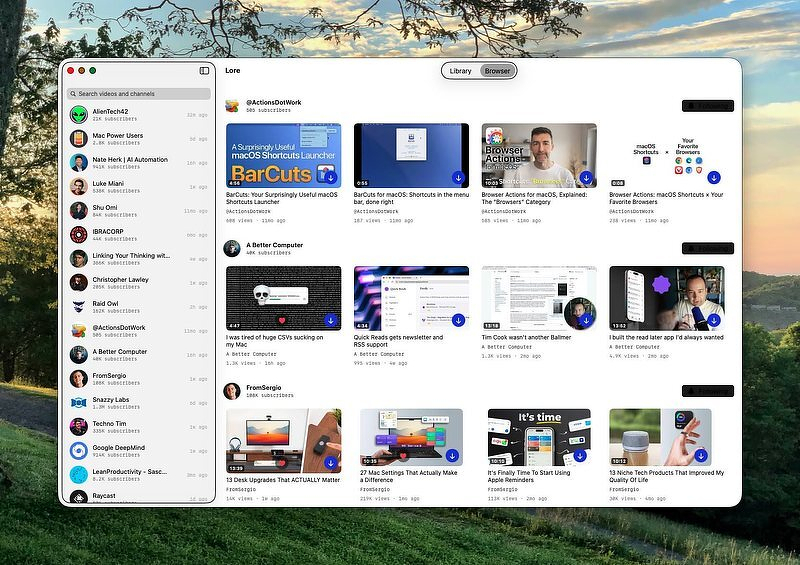
TL;DR: Lore is a free Mac app that follows YouTube channels over plain RSS, no algorithm, no Google account, then archives what you keep as a permanent offline file with transcript search, highlights, and SponsorBlock built in. The site's source-code link 404s, so don't take open source on faith. Alternatives for readers who want a lighter touch: FreeTube (free, open source, no algorithm, no download) and Grayjay Desktop ($9.99 one time, aggregates YouTube with other platforms).
Blog title: Lore Solves a Problem Neither of My Last Two Posts Could
Reddit title: Lore: The Mac App That Skips YouTube's Algorithm and Keeps the Video Even After YouTube Doesn't
Lore Solves a Problem Neither of My Last Two Posts Could
When you find a video you want to archive, any app that merely organizes links isn't an archive at all. It's a bookmark service. There's a use for that, but if you need a quality local copy of the information, you need a proven download and catalog app. After evaluating the top contenders, I chose Lore, a native Mac app built by a solo developer, Adrian Galilea. It solves two of YouTube's problems in one place: it follows channels without an algorithm, and it keeps what you save even after YouTube stops hosting it.
Five features for power users
- The built-in browser follows channels over plain RSS. No algorithm, no home feed, no recommendations. No Google account required.
- Web ingest archives any link as one self-contained offline file, subtitles, chapters, and metadata baked in. This needs
yt-dlpandffmpeginstalled separately; Lore will tell you which one is missing if you're not set up, but it doesn't install them for you. Set them up yourself ahead of time to avoid the interruption. - Transcript search runs across your entire library, powered by SQLite full-text search. Find the video where someone actually said the thing, instead of scrolling ten channels trying to remember which one it was.
- Highlights let you mark a moment with a keystroke, edit the clip against the transcript, and export it as a standalone video file.
- SponsorBlock auto-skip, chapter markers with hover-frame previews, and full keyboard-driven navigation, all of it working offline once a video is archived, plus Spotlight, Shortcuts, and Siri actions to play, pause, skip, or archive a link without opening the app.
It's free. No purchase, no subscription, no App Store listing; support is optional through Ko-fi or GitHub Sponsors. Development has been unusually aggressive: 28 versioned releases between June 11 and July 6, 2026, most of them driven by direct user feedback.
Although the landing page on Lore's website has a link to view the source code, it 404s, pointing at a GitHub page that no longer exists. I'm not sure what that portends, but be aware of it before you install.
The feature that shall not be added
The developer has also publicly turned down adding related-content recommendations, writing that it feels at odds with the reason people use the app in the first place, and that it won't ship unless it can be done without becoming distracting. That's a stronger commitment than a marketing line; it's a maintainer talking themselves out of a feature that would have been easy to justify.
Added to my toolbox
I've been burned by a video disappearing, and I just don't trust YouTube to keep hosting things I care about. If you're on macOS 26 with Homebrew already comfortable in your workflow, Lore does more in one app than anything I've discovered while writing this series. The transcript search alone is worth the price of admission, and the price of admission is nothing.
Alternatives
FreeTube, an app I have used and recommended for years, does the algorithm half of this, and it can download individual videos too, but it stops there. Free, open source, and already reviewed here on the blog. It builds a local, unranked feed from your subscriptions using its own extractor, no Invidious required, and has been shipping steadily through 2026. The download button saves a file to disk with a choice of format and quality; what it doesn't have is anywhere to manage those files afterward. No downloads tab, no in-app library, no transcript search. You get the file; Lore gets you the file plus a permanent, searchable home for it.
Grayjay Desktop is worth a mention for a different reason: it aggregates YouTube alongside other platforms, Twitch, Odysee, PeerTube, into a single feed with no algorithm by default. One-time purchase, $9.99, from the FUTO team. Until recently, Mac build currently needed a manual terminal command to get past Gatekeeper, but the current version does not.
Unless otherwise noted, anything mentioned above beyond Lore is based on research, not testing on my end.
Who this isn't for
If you're not on macOS 26 yet, this is off the table until you are. If you don't want to install yt-dlp and ffmpeg separately, the web-ingest half of the app won't work for you out of the box. And if open-source code matters to your trust in a tool, Lore doesn't currently back up its own claim to it.
More in this series
The Extension Aided Method of Ignoring thee YouTube Algorithm
TL;DR: Control Panel for YouTube, UnTrap, and DeArrow all quiet YouTube down without making you leave the account, the browser, or the ecosystem behind. That's the whole point and the whole limit: you still get Google's ranking, you just stop looking at what it hands you. Control Panel is free and open source on Chrome and Firefox; the native Safari app is $3.99 once, no subscription. UnTrap is $4.99 once for all 250+ controls; an optional $3.99/month or $35.99/year adds cross-device sync and unlimited AI video summaries, which send content to a third party. DeArrow fixes a different problem, clickbait titles and thumbnails, not the algorithm, and is free with an optional $1 license.
Saying No to Video Crack
Yesterday, in the second installment of this series on building a better YouTube experience, I wrote about three apps that build a subscriptions-only feed by avoiding the recommendation algorithm entirely. That's the solution I endorse. It's also work: a new app, a different login situation, in one case giving up your account entirely.
Not everyone wants that. Maybe you've got YouTube Premium and don't want to lose ad-free playback. Maybe your watch history and real subscriptions matter more than you want to admit. Maybe you just don't want another app.
There are still options. The three below don't get you off Google's radar. They just make youtube.com stop trying to hand you free samples of video crack.
Control Panel for YouTube
Control Panel doesn't offer a single "distraction-free" toggle. It's dozens of individual switches for deciding what YouTube is allowed to put on screen: disable video previews, hide Shorts entirely, kill autoplay, remove Related videos, strip end cards and end-screen suggestions, turn off the Home feed, hide suggested sections in Home, Subscriptions, and Search, hide comments, remove Premium upsells, tidy the sidebar, and force theater mode to actually fill the window instead of leaving it boxed in.
The Chrome and Firefox extensions are free and open source. The native Safari app, which is how it runs on Mac, is $3.99 once, no subscription, no in-app purchases. Both the Chrome Web Store and Safari App Store listings disclose no data collection. Current version 1.35.2, last updated in July 2026. On iOS and iPadOS the extension has to be manually enabled in Settings after install, a one-time Apple quirk, not a Control Panel problem.
Developer: Jonny Buchanan, soitis.dev.
UnTrap
If Control Panel is the restrained version, UnTrap is the kitchen sink. The developer advertises 250+ controls: hiding Shorts, comments, Related, and suggested videos; removing sidebars, trending tabs, and notifications; redirecting the homepage; blurring or hiding thumbnails; blocking videos, channels, or comments by keyword or regex; scheduled focus sessions and opening delays; custom hotkeys.
On the Mac App Store it's $4.99, one time. All 250+ of the controls above work at that price. The developer said so directly in an App Store response: no subscription needed for those features. What the optional subscription, $3.99/month or $35.99/year, actually unlocks is settings sync across devices and unlimited AI video summaries; without it you still get three summaries a day.
Those AI summaries are the one feature that doesn't fit the spirit of privacy I try to encourage here. Generating them means sending video content to a third-party service, a different privacy posture than everything else UnTrap does locally in your browser. If you use UnTrap, that's the toggle to look at twice, whether or not you ever pay for the subscription.
It runs on Safari, Chrome, Firefox, Edge, Opera, and Brave. One real limit on iOS: the Safari extension doesn't work inside the YouTube app itself, only inside Safari.
Developer: Yevhen Tretiakov.
DeArrow
Control Panel and UnTrap fight what YouTube puts around the video. DeArrow fights what's on the thumbnail.
It crowdsources replacement titles and thumbnails: viewers submit plain, descriptive titles and screenshots pulled from an actual timestamp, then vote on the best ones. With no submission yet, DeArrow auto-formats the original title into proper Title Case or Sentence case instead of leaving the arrows and shocked faces alone, and swaps in a random in-video frame for the thumbnail instead of whatever the algorithm favored.
This isn't solving the same problem as the other two. It's not hiding recommendations; it's making the ones you do see less manipulative. Worth running alongside either of the above, not instead of them.
Open source, built on the same codebase as SponsorBlock by the same developer, works on Chrome, Firefox, and Safari for macOS and iOS. Free to use, with a $1 one-time license if you want to support it.
What I left out
Unhook is the extension most people mention alongside these three, but I'm not testing it because it doesn't have a Safari build. Switching browsers regularly to cut down on fingerprinting means a tool that excludes one of the three I use isn't a real option for me. If you're locked into Chrome or Firefox and don't share that constraint, it's worth a look, but it doesn't meet my needs.
Unless otherwise noted, anything mentioned above beyond Control Panel, UnTrap, and DeArrow is based on research, not testing on my end.
Who this is for
If you're keeping your Google account and your Premium subscription, browsing youtube.com in Safari or Chrome, and you just want less noise while you're there, start with Control Panel. It's free on Chrome and Firefox, $3.99 once on Safari, does the most with the least, collects nothing, and never asks you to subscribe to anything. Add UnTrap, $4.99 once, if you want deeper filtering by keyword or channel. The subscription is skippable unless sync or unlimited AI summaries actually matter to you, and if privacy is the reason you're here, that's the toggle to leave off either way. Add DeArrow regardless; it solves a problem the other two don't touch, and it's free.
What this doesn't do
None of this stops YouTube from knowing what you watch. It doesn't stop the algorithm from running. It just stops you from seeing only what Google decides is best for you, which means best for Google.
The apps in my previous post isolate you from Google. These three just make it easy to ignore. Both are legitimate solutions. They're not the same when it comes to your privacy. You turned the volume down. Google’s still in the room
How to Experience YouTube With No Algorithm
TL;DR: Play, Yattee and Unwatched all refuse to let YouTube pick your next video; each builds a feed from your subscriptions instead of Google's ranking. Play is free to download with the channel-following features behind Premium at $2.99/month, and it's the only one of the three that isn't locked to a single backend. Yattee runs through public Invidious and Piped instances, which Google has been blocking since 2024. Unwatched pulls from YouTube's own RSS feeds and Data API instead, which should make it sturdier, but needs macOS 15.
Play, Yattee and Unwatched Won't Fix YouTube's Algorithm. They Just Won't Ask It.
I wrote last time about paying for YouTube Premium after years of running my own ad-blocking stack. Premium immediately silences ads. That's the extent of its problem-solving. It didn't buy me a say in what shows up next. The recommendation engine is still running, still deciding, still doing the exact job it was built to do: keep me watching something, whether or not that something is what I came for.
That's the part no subscription fixes. The algorithm doesn't check whether you paid before it decides what to put in front of you.
So I went looking for apps that don't ask it in the first place.
Ranking happens whether you pay or not
YouTube's Home tab, the sidebar, and the autoplay queue are all running the same job: predict what keeps you watching, then show you that. It works whether you're a free user with ads or a Premium subscriber without them. The engine doesn't know or care which one you are. Turning off autoplay helps. Hiding the sidebar helps. Neither one changes what's happening upstream; the feed is still built by ranking, and ranking is still the thing making the decision.
The only way around that is a feed that isn't ranked at all. Something that shows you new uploads from channels you follow, in the order they were posted, and stops there.
The obvious solution has been in front of me for a while.
Play
I've used Play for over two years and reviewed it previously.
Play started as a save-for-later app. Give it a video URL through the clipboard or Share Sheet and it builds a personal video database that you can organize with tags and other metadata.
That's still useful, but Play has grown into something more interesting.
With Play Premium, you can follow YouTube channels directly. Each channel can have its own filters, so following somebody doesn't have to mean accepting everything they publish. If a creator covers five subjects and you only care about one, Play can filter the incoming videos before they reach you.
That turns subscriptions into something much closer to RSS.
The Channels section becomes a continuously updated timeline of new videos from sources you deliberately selected. There is no recommendation engine sitting between the publisher and you.
The part that makes Play different from Yattee and Unwatched: the in-app player isn't locked to one backend. You can play through Invidious, through Piped, through a custom site you point it at, or straight through YouTube itself. If you go the YouTube route directly, you can hide Shorts. That means Play doesn't live or die by whether a given Invidious instance is up this week; it's a hedge built into the app instead of a single point of failure.
The catch is price.
Play is free to download, but the channel-following features that make it especially useful for this workflow require Play Premium at $2.99/month, $19.99/year or $99.99 lifetime.
It's a universal app with iCloud sync, so the same subscriptions follow you from iPhone to Mac to Apple TV.
Developer site | Mac App Store
Yattee
Yattee is a free, open source SwiftUI app for Mac, iOS and tvOS that plays YouTube through Invidious or Piped, two open source front ends that stand between you and Google's servers. You point Yattee at an instance, add channels as favorites, and it builds a feed from exactly those channels; nothing else. SponsorBlock and Return YouTube Dislike are built in.
Everything depends on those instances staying up. Google has been blocking Invidious instances at the IP level since 2024, and that fight was still going on through 2026, with public instances getting hit with CAPTCHAs, throttling and outright blacklisting. Piped has reportedly held up better under the same pressure, but neither is infrastructure you control. Unlike Play, Yattee has no fallback to YouTube directly if your instance goes down; the proxy is the only door.
I don't like the friction Invidious introduces. More than once, the few minutes I set aside to watch videos have been consumed with fixing a buggy back end. If your experience has been different, Yattee is popular for a reason. Use it and enjoy. It's just not for me.
Unwatched
Unwatched is a free, open source, native Swift app; macOS 15 or later on the Mac, iOS 17 or later on the phone. The difference from Yattee: it pulls from YouTube's own RSS feeds and the YouTube Data API instead of routing through a third party front end. That's a different kind of dependency, not zero dependency; you're still relying on Google's API staying available and its quotas staying reasonable. But you're not waiting on a volunteer-run proxy server to survive the week.
Don't charge into the Unwatched setup by adding 200 must-watch channels in one go. You'll get rate limited and frustrated.
Unwatched doesn't handle playlist organization, and the developer says as much directly in an App Store reply, pointing users toward Play. Which, at this point in the post, shouldn't surprise anyone.
You can also skip the app entirely and read the same channel feeds in a regular RSS reader. NetNewsWire is free and open source and will do it. Inoreader is the paid service I use and prefer, but nothing about this approach requires paying for it.
Alternatives
FreeTube does the same job on the desktop side, and it's one I have used and reviewed here. It builds its feed locally from subscriptions, doesn't require Invidious to function since it has its own extractor, and has been shipping updates steadily through 2026. It's one of the few Electron apps I'd install anyway.
Grayjay Desktop belongs on this list even though I have only started testing it. It's a one-time $9.99 purchase from the FUTO team that aggregates YouTube alongside other platforms into a single unranked feed, no algorithm unless you log in. The Mac build previously needed a Gatekeeper bypass, which is the kind of friction that either doesn't bother you or ends the conversation immediately. As of this writing, it is notarized.
Grayjay is also the one app here that runs on a phone that isn't an iPhone. The license covers macOS and Android, and there's no iOS version; FUTO's own FAQ says an iPhone build isn't coming in the near future because the team is focused on making the Android app first-class. Play, Yattee and Unwatched all run on iPhone and none of them run on Android, so if your Mac sits next to a Pixel, Grayjay is the only entry on this list that follows you to both.
Who this is for
If you want one app that follows you across every Apple device, saves videos alongside subscriptions, and doesn't put all its weight on a single third party server, Play is the one I'd point you to first. If your Mac is Apple Silicon and you don't mind depending on a proxy that Google is actively trying to kill, Yattee adds SponsorBlock and dislike counts on top of the unranked feed, free. If you're on macOS 15 and you'd rather depend on Google's official API than a volunteer's server, Unwatched is the sturdier free bet, minus playlist support.
If the algorithm mostly works for you, you're probably reading this wondering why anyone would go to this much trouble and expense to get away from something that just suggests videos. That's a fair question.
I've run all three. None of them gets you off Google's radar entirely.
What I actually want from YouTube
There's no single app here that fixes YouTube, because the app was never the whole problem. Google still builds the feed on youtube.com; these three just stop asking it to.
No "you might also like." No endless Home feed. No algorithm deciding that because I watched one video about replacing a refrigerator water filter I have apparently developed a lifelong passion for appliance repair.
I don't actually want Google to find more things for me to watch. I already have more interesting books, movies, music, podcasts, articles and videos than I'll ever have time to consume.
The scarce resource isn't content anymore. It's attention.
So my ideal YouTube gives the algorithm as little work to do as possible.
I pick the channels. I pick the videos. I decide when I'm finished.
Then YouTube shuts up.
YouTube Premium kills the ads but doesn't solve the real problem. Here's the stack I use to do that.
TL;DR: Paid for YouTube Premium after years of DIY ad-blocking. Ads are gone; the algorithm, the clutter, and the impermanence aren't. Building a stack of small tools instead of hunting for one app that fixes all four. First post in a series; toolbox preview inside, full reviews coming.
Google did not design YouTube to entertain you or to inform you. Every major design choice points toward one purpose: to make you watch more YouTube. Watching more leads to one of two outcomes: your attachment to the platform gets stronger, or you get shown more advertising. For a lot of people, it's both.
For a long time, bragging about how you managed to watch YouTube without being subjected to ads was a particular kind of geek flexing, and an annoying one. The problem few people admit to is that avoiding advertising isn't a fix, it's a moving target. Anyone who tells you they've permanently solved it is trying to sell you something.
Turning the YouTube experience into something usable and enjoyable requires you to become your own IT department. That's definitely a downside for some. If you enjoy tinkering, it may not bother you much. I started using YouTube in December 2005, the month it debuted. That is to say I've watched the user experience decline in quality for twenty years. For most of that time I kept the ads off through whatever it took: ad blockers, standalone apps, Invidious instances, switching to whichever browser handled YouTube best that year. A few months ago, I decided there were better uses of my time than maintaining that fight. As much as I hated to do it, I subscribed to YouTube Premium and eagerly waited for a better experience. I didn't really get one.
The Problem Isn't Ads. It's Design.
Advertisements are only one of four major pain points to using the platform. Paying for Premium doesn't solve the other three.
- Ads. If you're not paying, you're watching them or fighting them somehow. Premium solves this one.
- The algorithm. YouTube decides what gets put in front of you next. Premium doesn't buy you a different recommendation engine.
- Clutter. Shorts on the home page, autoplay previews, recommendations everywhere, interface elements devoted to pulling you into something else. Individually they're minor annoyances. Together they make YouTube worse at simply showing you what you came to see.
- Impermanence. YouTube gives you lists, not a real personal library. Watch Later is useful, but it lives entirely inside someone else's service. Videos disappear. Channels disappear. Things you know you've watched become surprisingly hard to find again.
The Easy Solution
There isn't one.
Fighting a platform that doesn't answer to you is the toll for staying in control of your own experience, and nobody refunds the time you spend on it. If you've got limitless energy, fight on every front: email, search, maps, storage, video, all of it, all the time. Most of us don't have that budget. The honest move is picking which fights are worth spending it on this year and letting the rest go without guilt.
I want to decide how I discover videos. I want to decide what appears around the player. I want better ways to organize the things I intend to watch later. And when something matters enough that I don't want it disappearing because a creator, a copyright holder, or Google changes something, I want my own copy.
There isn't one app that does all of that. That's the point.
Instead of looking for a mythical "YouTube replacement," I've started treating YouTube the way I treat a lot of other technology: as infrastructure underneath a collection of smaller tools. One tool can handle viewing. Another can clean up the browser interface. Another can manage subscriptions without an algorithm deciding what deserves my attention. Another can download and archive the things I actually want to keep.
The result is less like replacing YouTube and more like building my own multi-part client for it.
The Toolbox, By Problem
Each of these gets its own real look later in the series. For now, sorted by which of the four problems above it actually solves:
Ads & sponsors
Escaping the algorithm
- Yattee
- Grayjay
- FreeTube
- PocketTube
- RSS curation via Inoreader or NetNewsWire
Cleaning up the interface
- Control Panel for YouTube
- Unhook
- Improve YouTube!
- BlockTube
- Enhancer for YouTube
- Turn Off the Lights
Keeping what matters
If you have a favorite that isn't here, let me know.
What's Coming
The next few posts get into the actual tools: apps that get you out of the recommendation feed entirely, ways to strip the clutter out of the browser experience, and how to actually keep the videos you don't want to lose. Premium's verdict, when it comes up again, is not a blanket yes. It's worth the money if your time is worth more than $15.99 a month to you and ads were the fight costing you that time. If ads were never the fight, paying Google more won't touch the one you're actually still in.
Caption Snap: Meeting Transcriptions With No Bot, No Model to Download, No Data Transferred and No Drain on Your CPU - Free Trial, One Time, $9.99
TL;DR: CaptionSnap is a $9.99 one-time menu bar app that saves your Teams, Zoom, and Google Meet transcripts by reading the live captions the meeting app already displays. No audio recording, no bot in the call, no cloud, no model download, and Accessibility is the only permission it asks for. Speaker names come from the platform, so attribution is a lookup instead of a guess. You have to enable captions yourself, transcripts are only as good as the platform's captioning, and it requires macOS 26 on Apple Silicon.
CaptionSnap Reads the Captions Your Meeting App Already Shows You
Here is a list of the many things I don't like about transcription apps.
- Using one in a meeting often means a bot joins the call and you have to explain it to everyone.
- Local models require a huge download.
- Remote models send my conversations to somebody else's server.
- They require numerous privacy and security exemptions.
- Local models are processor intensive.
Well, I found an app that doesn't do any of those things and still delivers better-than-average accuracy while using a tiny percentage of my CPU. It's called CaptionSnap.
The trick
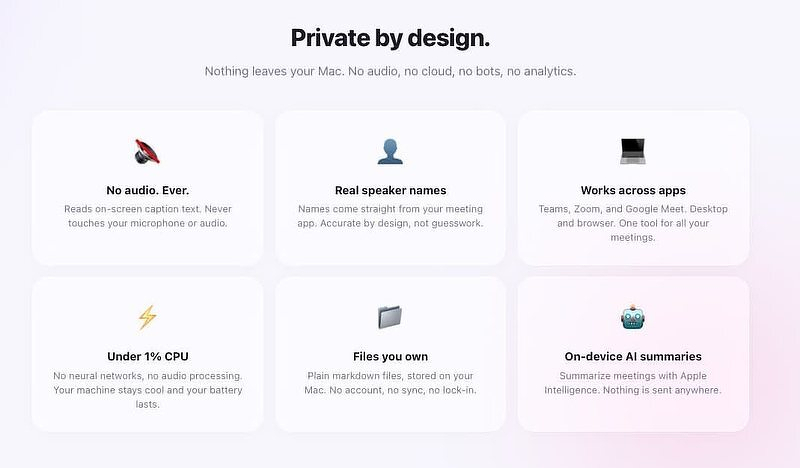
Teams, Zoom, and Google Meet already transcribe your meeting. That's what live captions are. The text is right there on screen, generated by the platform, attached to the correct speaker, and then thrown away the second the call ends.
Every other tool in this category ignores that and starts over from scratch. Record the audio, run it through a model, guess at who said what, hope the diarization holds up. CaptionSnap just reads the captions the meeting app is already displaying and writes them to a Markdown file with timestamps and the speaker names the platform supplied.
That one decision is the premise for the whole app. It's why there's no model download, no audio pipeline, no microphone prompt, and no bot in your call. There's nothing to overcharge you for.
What that buys you
Real speaker names, not guesses. The names come from the meeting platform, so "who said that" is a lookup, not an inference. Whisper-based tools get diarization wrong constantly on four-person calls with crosstalk. This sidesteps the problem instead of solving it.
One permission. Accessibility. That's it. No Screen Recording, no microphone, no camera (CaptionSnap FAQ). If you've ever watched a meeting app collect four permissions on the way in, you know why that matters.
Minimal CPU. Not a tuning achievement. There's no neural network running, so there's nothing to burn cycles on. Your fans stay quiet and your battery survives a day of calls.
Plain Markdown on your disk. No account, no sync, no server, no export step. The developer claims the app makes no network connections at all (CaptionSnap homepage). Optional summaries run through Apple Intelligence on-device.
It works behind other windows. The meeting can sit in the background while you do actual work, and the transcript keeps filling in.
What it does not do
- It does not turn captions on for you. Live captions are off by default in Teams, Zoom, and Meet, and you have to flip that switch yourself before CaptionSnap has anything to read (CaptionSnap FAQ).
- It does not record audio, so there's no recording to go back to when the transcript is wrong.
- It does not fix bad captions. If Teams mangles a name or drops a clause, that lands in your file exactly as mangled. Your transcript is only as good as the platform's captioning, and the marketing line "accurate by design, not guesswork" is about who said what, not about the words.
- It does not run on Intel, and it does not run below macOS 26. Apple Silicon and Tahoe or nothing. (I have not tested it on the macOS 27 Golden Gate beta.)
The potential gotcha
CaptionSnap has to be running in your menu bar when the meeting starts. It does not turn on captions in Teams, Google Meet, or Zoom for you, so that's your job too. CaptionSnap provides instructions for each platform. As long as you don't disable captions later, the setting should hold between restarts of each app, but verify it yourself. The worst version of this is finding out after the meeting that nothing was captured.
Who this is for
This is for you if you take meeting notes on a Mac, you don't want a bot announcing itself in a client call, and you'd rather have a plain text file than a web dashboard. If you aren't fond of explaining to IT why you need an app with Screen Recording permission, CaptionSnap doesn't put you in that conversation.
Who this is not for
This is not for you if you need the audio and not just the text, or if you work with people who never enable captions. Don't get it if you're on Intel or an older macOS, or if you want AI-generated action items and CRM sync. For that last one, this is deliberately the wrong tool and the subscription products below are the right ones.
The alternatives
macOS Live Captions. Free, built in. Vanishes when you dismiss it, no speaker names, no timestamps, nothing saved. Useful in the moment, useless a day later.
MacWhisper. Free tier, or €64 one-time for Pro (macwhisper.com). Transcribes local audio with Whisper and Parakeet, records Zoom, Teams, Webex, Skype, and Discord without a bot, and Pro includes automatic meeting start and end detection plus speaker recognition. Much larger tool, much larger job. It does the model download and the CPU work that CaptionSnap avoids, and in exchange it also handles interviews, lectures, podcasts, and system-wide dictation. If you need transcription generally and not just meetings, this is the one. I wrote about it in 2024: MacWhisper - Transcription Powerhouse.
Granola. Free Basic tier with limited history, $14 per user per month for Business, $35 for Enterprise (granola.ai/pricing). Also avoids joining as a bot, but it processes in the cloud and is built around AI-enhanced notes and team integrations rather than a raw transcript you own.
Otter.ai. Free tier at 300 minutes per month, Pro at $16.99 per user per month billed monthly or $8.33 billed annually, Business at $30 monthly or $19.99 annually (otter.ai/pricing). This is the thing CaptionSnap is reacting to: it joins your Zoom, Teams, and Meet calls as a notetaker, and everything lives on Otter's servers. I've used Otter for dictation, but not for meetings.
Unless otherwise noted, the alternate apps mentioned above are based on research and not individual testing.
Price and verdict
Fourteen-day trial, no credit card, then $9.99 once for up to three Macs, with a 30-day refund policy (CaptionSnap pricing). Ten dollars, paid one time, against $14 to $17 a month for the subscription notetakers.
This is Wes Stockfisch's first shipped app. I give developers the benefit of the doubt, but be aware, there's no maintenance track record here, and the macOS 26 plus Apple Silicon requirement means you need a current M-series machine. But the idea is right. The captions already exist. Reading them instead of recreating them is the kind of obvious move nobody made because, well, they mnight have been overthinking it on this..
One caveat before the verdict: I haven't been able to test this extensively. Retirees don't have a lot of Zoom calls. But in the testing I was able to do, CaptionSnap held up.
In my opinion, ten dollars to stop explaining a bot to clients is not a hard decision.
Autoshelf Has an MCP Server You Probably Don't Need and The Rule Engine Is Weak - A Review
TL;DR: AutoShelf ($19.99 one-time) ships an embedded MCP server that works, but do you actually need that? An AI model can write a launchd LaunchAgent and a shell script once and it runs forever, no app, no daemon, no purchase. The MCP's real value only shows up once you're managing enough rules to want conversational audit and editing instead of hand-maintained scripts, and even there, my hands-on testing found the rule engine underneath thin: no dynamic subfolder sorting, limited management by file size, and an action list a fraction of Hazel's. AutoShelf delivers less using AI than its marketing promises and loses the file-organizer argument outright.
AutoShelf
I've had a Hazel rule watching my Downloads folder since before I can accurately date it. It reads PDF invoices and files them by vendor, decompresses ZIPs and moves the app inside to Applications, converts HEICs to JPG, and hands ebooks to Calibre and audiobooks to Audiobookshelf without me touching any of it. That's the bar. A new license for Hazel is $42, which is steep for some and I've written before about cheaper options. AutoShelf wants to be added to that list, and it's making its case with a feature none of those alternatives had: an MCP server for use with AI agents plus a CLI.
More Than Just Simple File Management
- An MCP server built into the app binary, not a plugin bolted on after the fact. Point Claude Desktop, Cursor, Codex, or Windsurf at it and describe a rule in plain English instead of building it in a UI.
- A companion CLI for scripting rule creation and running jobs from the terminal, the same engine the MCP server talks to.
- Where-from metadata as a condition, so a rule can act on which browser or app downloaded a file, not just its type or name.
-
OCR and Live Text matching as of version 2.2, so a rule can file a scanned invoice by what's written on it. Not new ground: Hazel's
Contentsattribute has done on-the-fly text recognition on images and text-layer-less PDFs for years, it's the mechanism behind the vendor-filing rule in the intro. AutoShelf catching up to a feature Hazel already had is parity, not an edge. - Multi-action, chainable rules: move, tag, rename, and archive to ZIP in a single pass, added in the 2.0 rewrite.
Is It Better Than Hazel for Working With AI?
Does anyone even need a layer between a prompt for file management and their file system? For a well-defined one-off job, not really. A capable AI model can write a launchd LaunchAgent with a WatchPaths key, native FSEvents, no polling loop, and a small shell script that switches on extension and moves the file. Write it once and it runs forever: no app, no background daemon, no $19.99. That's possible without Hazel or AutoShelf.
An MCP connection can do something a bespoke script can't: with it running, AutoShelf can immediately edit any rule with natural language, without you having to track down the launchd job and script you created six months ago. I created eight AutoShelf rules and asked Claude to check on them through the MCP connection; it returned current rules, current paths, and current enabled/disabled flags. A launchd script has no equivalent self-report; ask it "what are you doing" six months from now and the honest answer is "go read the shell and simulate it," and any edit needs a launchctl unload/load before it's live. MCP matters once you're managing enough rules that you'd rather audit, pause, or edit them by asking than by maintaining scripts by hand, or you want the GUI, activity log, and undo the app provides that a bare launchd job doesn't have unless you build it yourself.
Against Hazel specifically, AutoShelf is still ahead on this one front. Hazel doesn't have an MCP server and doesn't claim to; anything an AI does to a Hazel rule today runs through a general-purpose file-editing layer poking at Hazel's XML underneath, which is fragile and unsupported. So among app-based rule engines with a GUI and an activity log, AutoShelf's MCP integration is real. On my Mac, it was easy to set up and worked as advertised on the first try.
The Rule Engine Underneath Doesn't Hold Up
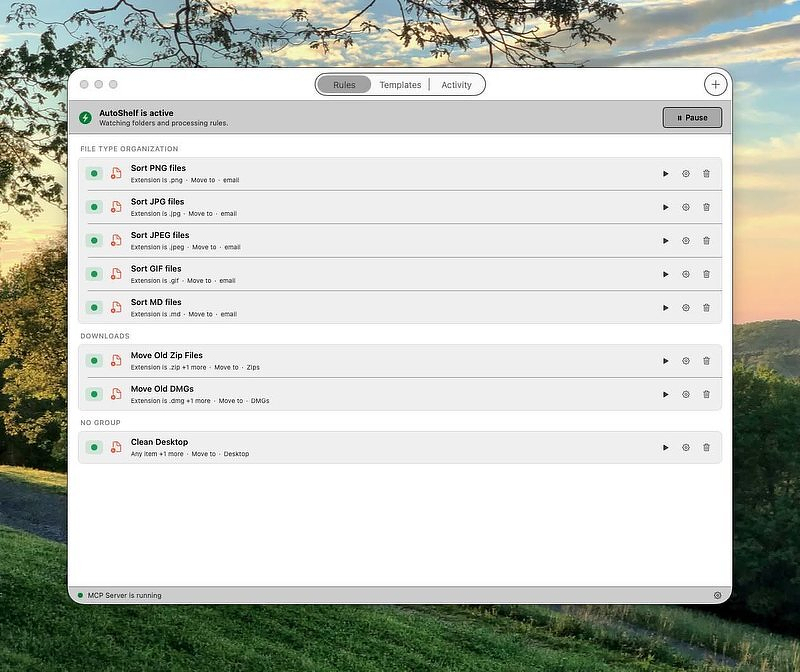
This is where my hands-on testing exposed the weaknesses in AutoShelf. It can't sort a folder of mixed files into subfolders by extension unless you create every destination subfolder yourself first and then write a separate rule for each file type. I had to build five nearly identical rules, "Sort PNG files," "Sort JPG files," "Sort JPEG files," "Sort GIF files," "Sort MD files," each one hand-built with its own hardcoded destination path. Hazel does the same job with a single "Sort into subfolder" action and a pattern; AutoShelf makes you write and maintain N rules for N extensions.
Two more gaps from my testing: size conditions only go down to whole megabytes, no decimal places, so you can't write a rule for anything under 1 MB or between whole-MB steps. More importantly, AutoShelf's action list (Move, Copy, Trash, Rename, Add Tag, Archive to ZIP, Optimize, Convert Image/Video/Audio, Photos import) is a fraction of Hazel's, which adds sync, upload, tags, color labels, comments, alias creation, three Music/Photos/TV import targets, and five different scripting hooks (Shortcuts, AppleScript, JavaScript, Automator, shell) on top of pause, notify, and rule-chaining controls.
The Recursion Illusion
AutoShelf's App Store listing says it will "watch any folder you choose, including nested subfolders," and the 1.5 changelog calls it "Nested Folder Watching." (App Store listing) But on its own Product Hunt launch, the developer told a commenter directly that watched folders are top-level only, files dropped into a subfolder are not picked up, and true recursion is a tracked feature request, not a shipped one. (Product Hunt) Read charitably, "nested folder watching" means you can manually add specific subfolders you already know about as additional watch targets, one at a time. That is not the same as what Hazel does, which is recursive: add one "Run rules on folder contents" rule and Hazel will walk into subfolders of subfolders it has never seen, at any depth, applying your existing rules the whole way down. (Noodlesoft manual) That's a real discrepancy between AutoShelf's marketing copy and its confirmed current behavior, and now my own rule list shows the practical cost of it: I'm hand-maintaining what Hazel would do with one rule.
Who This Is For, and Who Should Stay on Hazel
If your files land flat, one folder, no meaningful variety in file type, and you are considering a $19.99 one-time tool with a working AI hook, AutoShelf's free tier is worth an afternoon. If your needs are more complex, stick with Hazel. My own eight-rule test folder is the case study: if you have more than three or four file types, or anywhere the folder structure has depth, AutoShelf turns into more manual rule-building than the automation it's supposed to replace.
The Apps I Use So Apple Can't Take Everything
TL;DR: Part two of the Apple Account series. Backup apps that pull your iCloud data down to storage you control, email providers that speak IMAP/CalDAV/CardDAV so Apple's own apps keep working without iCloud, ways to buy and track software outside the App Store, and a password manager that isn't Keychain. My own five picks are at the end, along with why you should be testing a restore every quarter.
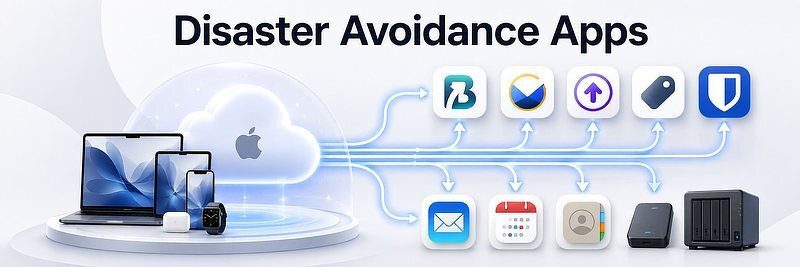
Disaster Avoidance Apps
Yesterday I laid out what happens when Apple closes your account: your identity if it's an @icloud.com address, your photos and messages, your purchases, your hardware in every practical sense, and a 2023 federal ruling that says suspicion is the only standard Apple has to meet. That post was the bad news.
This is the other half. These are the apps and services that move your data out from under a single Apple Account, what each one actually protects, and where each one falls short. There are more options here than anyone needs, and I have not run most of them. At the end I'll tell you the five I actually use and why I stopped looking after those.
iCloud Backup Apps
- BackiGo. Photos, videos, iCloud Drive and Contacts, backed up and restored to USB, NAS, or cloud storage you control. Drive versioning, scheduling, incremental backups, optional client-side encryption, and browsable restoration. I reviewed it here: BackiGo is a Dependable and Full Featured iCloud Backup Solution.
- Parachute Backup. Downloads iCloud Photos and iCloud Drive to external drives, NAS, or cloud folders. Handles originals, edits, Live Photos and Shared Albums, with scheduling and full, incremental or mirror modes. My review: Parachute Backup, Specially Designed for iCloud and Photos. Restore to a location that doesn't depend on the same Apple Account, or you've built a circle. The original dev sold the app and I moved to Backigo.
- Time Machine, with one warning that undoes the whole thing if you miss it. Turn off Optimize Mac Storage in your iCloud settings. Leave it on and macOS keeps only stubs of your iCloud files locally, so Time Machine dutifully backs up the stubs and you find out the day you need the originals.
Standards-Based Providers for Email, Calendars and Contacts
You can keep using Apple's Mail, Calendar and Contacts without tying any of the data to your Apple Account, by pointing them at a provider that supports IMAP, CardDAV and CalDAV. Reminders is the exception; Apple moved it to a private format, though Things 3 can pull to-dos out of a designated Reminders list into its own inbox.
Five providers with full IMAP/CardDAV/CalDAV support on macOS:
- Fastmail. JMAP, IMAP, CardDAV and CalDAV, with push sync on Apple devices. Custom domains and third-party app access both come with the Individual plan; the cheaper Basic business plan has neither, so don't buy that one for this purpose. I've been using Fastmail for two years, and it also runs an MCP server if you want your mail reachable from an AI agent.
- Mailfence. IMAP, CalDAV and CardDAV syncing straight into Apple Mail and Calendar. Belgium-based, EU jurisdiction.
- Posteo. IMAP, POP, CalDAV and CardDAV for €1 a month, which makes it the cheapest option on this list by a wide margin. Germany-based with serious privacy protections. It does not support custom domains, so it solves the provider problem without solving the address-ownership problem.
- Mailbox.org. CalDAV and CardDAV plus ActiveSync, with a bundled office suite. Germany-based, 30-day free trial.
- Runbox. IMAP with CalDAV and CardDAV. The Runbox 7 web interface is still in development, so plan on using it through standard clients.
All five work natively with macOS Calendar and Contacts. Fastmail has the smoothest CalDAV experience of the ones I've touched. Posteo is the cheapest. Mailfence leans hardest on open standards.
Software Acquisition and Licensing
Whenever you have the choice, download applications directly from the developer rather than from the App Store, so your access survives your Apple Account. You give up automatic updates, Family Sharing, and in a few cases unlimited installs.
Updaters that close the first gap:
- Updatest. Menu bar updater that scans each app's own metadata to find its update source, covering Homebrew, Mac App Store, Sparkle, Electron and GitHub Releases. $12.99 one-time for 3 Macs, $24.99 for 10. Fourteen-day trial, 30-day money-back guarantee. Requires macOS 15 or later.
- Nektony App Cleaner & Uninstaller. Broad app coverage with direct update installation, and it handles uninstalls too. $24.95 a year. It's fast and doesn't miss much - but that subscription...
- Latest. Free and lightweight. Checks Mac App Store and Sparkle apps only, so expect it to catch a fraction of what the paid tools track. It's free, but it misses things the paid apps pick up.
- TrashMe 3. Cleaner and uninstaller with update detection as a side feature, plus duplicate files and startup item management. $17.99 one-time, 15-day trial.
- Homebrew with topgrade. One terminal command updates Homebrew packages, Mac App Store apps and system tools. Free, broadest coverage, and the only one here that expects you to be comfortable at a prompt. I run this every four hours with launchd.
Then track the licenses somewhere you can export from:
- License Store. Library for keys, license files, invoices and expiration dates, with drag-and-drop app import and export to CSV, JSON or its own .ls format. $7.99 one-time for the current major version, one user, up to five Macs. Requires macOS 26, which rules it out if you haven't moved to Tahoe. It syncs through iCloud, which is the dependency this whole post is about. Treat the sync as convenience between your own Macs and the manual export as the backup. Export to JSON or CSV on a schedule, put the file wherever your other backups live, and import it once to confirm the round trip works before you need it to.
- AppVault. The everything option: app snapshots with restore, unified updates across Sparkle, Homebrew, Mac App Store and Electron, a license vault with CSV import, spending tracker, deep uninstall with 14-day quarantine. $21.99 one-time, lifetime license, 3 Macs. I'm currently testing this.
An Independent Password Manager
Keep your passwords, recovery codes, server credentials and export encryption passwords outside iCloud Keychain. Then protect the new vault's recovery material somewhere else again, or you've just relocated your single point of failure.
- Bitwarden. Open source, end-to-end encrypted, cross-platform. The free tier covers unlimited passwords on unlimited devices, which is all most people need. Premium is $19.80 a year and adds encrypted file storage and YubiKey support.
- 1Password. $3.99 a month for individuals. Autofill, Watchtower breach alerts, 14-day trial, and the most polished Apple-side experience of the group. I stopped uing this when it went electron.
- KeePass. Free, open source, entirely offline, AES-256 by default, extended by community plugins. No sync and no polish; you build both yourself. The right answer if you want zero dependencies and the wrong one if you want it to just work.
Unless I've said otherwise above, the apps in this post come from research rather than daily use. The five below are the exception.
What I Actually Run
Five, and the list has been stable long enough that I've stopped shopping.
BackiGo pulls my iCloud Photos and Drive down to local storage on a schedule. It's the only one on this list that gets irreplaceable data out of Apple's custody.
Fastmail holds my mail, calendars and contacts on a domain I own, and Apple's own Mail, Calendar and Contacts talk to it over IMAP, CalDAV and CardDAV without knowing the difference. Two years in. If Apple closed my account tomorrow, my address would still work, which was the whole point.
Updatest keeps the direct-download side of my Mac current. Buying from developers instead of the App Store costs you automatic updates, and this is what I bought to pay that cost back.
License Store holds the keys and invoices for everything I didn't buy through Apple. The JSON export goes out on a schedule and lands with my other backups, per the caveat above.
Bitwarden keeps my passwords and recovery codes out of iCloud Keychain. The free tier does everything I need and I pay for Premium anyway, because a project I depend on this much should get some money from me.
Test the Restore, Not the Backup
None of this counts until you've restored from it. A backup you have never pulled a file out of is not a backup; it's a hypothesis with a progress bar. Once a quarter, pick something you'd hate to lose, a photo from ten years ago, a document with a deadline attached to it, and restore it to a machine that isn't signed in to the account you're insuring against. Open it. Confirm it's the full-resolution original and not a thumbnail, that the metadata came along, that the encryption password you set eighteen months ago still unlocks the archive. The failures I've seen were never missing backups. They were backups that ran green for two years and turned out to be empty, stale, or locked with a password nobody wrote down.
All Your Eggs in One Basket, The Apple Disaster Scenario
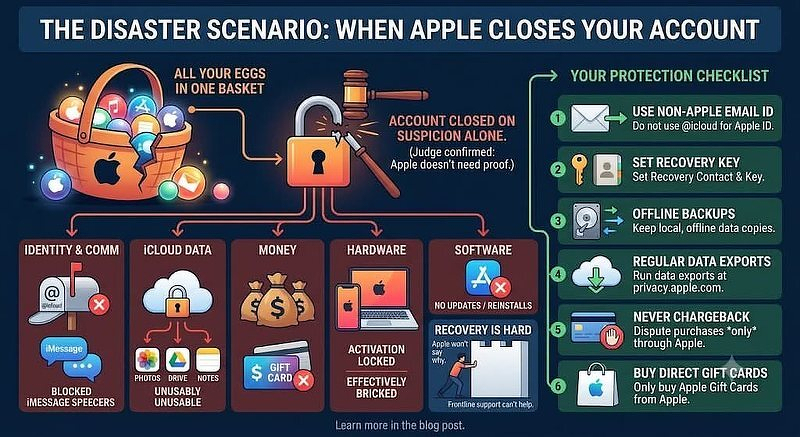
TL;DR: Mac power users vet apps carefully and then hand their entire digital life to Apple without a second thought. Apple can close your account on suspicion alone, keep your unspent balance, and never tell you why; a federal judge confirmed all of that in 2023 and threw the case out. An Apple Account is simultaneously an authentication system, cloud-storage account, software license repository, device-activation credential, communications identity, and payment account. A full lockout can therefore affect data, purchases, services, and hardware management at once.This post covers how accounts get closed, what you lose when it happens, why getting back in is so hard, and eleven things to do about it now.
All Your Eggs in One Basket, The Disaster Scenario
When the conversation turns to abandoning third party apps in favor of using Apple's default stack, I keep waiting for someone to mention the huge red flag that should instantly discourage making that move without taking some intense protective measures.
The steps I take before adding an app to my workflow are second nature. but detailed. They are probably the same steps most of you take. First I evaluate the feature set to see if it meets my needs. I look at the privacy policy, the cost of buying the app, and the cost of keeping it updated. Any app that takes a significant investment of money or time gets some research about the developer or the company behind it. Sometimes a one-person development team means the app dies when the dev loses interest. Finally I look at what third-party services the app depends on. Dropping $90 on an app Google can kill with an abitrary decsion isn't a deal breaker every time. Just most of the time.
Until last December, I did not apply the same scrutiny to the infrastructure underneath all of it, the company behind much of my digital life. I'm talking about Apple. An entire career in Mac support didn't give me a full understanding of what losing access to an Apple Account would do to someone personally and professionally.
Then Paris Buttfield-Addison, who has written more than twenty books on Apple development and helps put on the longest-running Apple developer conference Apple doesn't run itself, found his account closed for reasons Apple would not specify. After some of the biggest names in Mac journalism publicized the case, his account was restored, but Apple has refused to go on the record with any details about why it happened or, more importantly, what you and I could do to keep it from happening to us.
Suspicion is the Standard
It's more common than you'd think.
- Using a gift card, even one from a major retailer, that's been tampered with without your knowledge
- Filing a chargeback with your credit card company instead of letting Apple arbitrate a dispute over a purchase
- Making one too many refund requests
- Hijacked credentials
- Using Advanced Data Protection and losing access to your recovery credentials
- An arbitrary decision by Apple with no explanation, which happens to developer accounts as well
None of this requires Apple to be right. In 2023 a federal judge dismissed a class action over exactly this question, and the reasoning matters more than the outcome. Matthew Price ran multiple chargebacks on in-app purchases that didn't work, some of them after Apple's own support told him to take it up with his bank. Apple terminated his account, kept the $7.63 balance sitting in it, and cut him off from what he says was $24,590.05 in purchased content. Judge Haywood Gilliam dismissed the case without leave to amend: "It is simply immaterial whether Plaintiff's multiple chargebacks were actually fraudulent or manipulative because even as alleged, Apple suspected that they were." Suspicion is the standard, and you agreed to it when you accepted the terms. The same terms say you "shall not sue or recover any damages from Apple" over a decision to terminate your access.
What Actually Breaks
- Identity. If your Apple Account is an @icloud.com / @me.com / @mac.com address, closing the account kills the email address. Everything that uses it for password resets, two-factor, and billing now points at a dead mailbox.
- iCloud data. Photos, Messages history, iCloud Drive, Notes, contacts, calendars, Safari data and Passwords all become inaccessible.
- Account balance. Any unused Apple Account credit is stranded, and a court has already said Apple has no obligation to give it back.
- Purchased software and media. Apps, books, films, music. The apps are what most people will miss; you can't update them and you can't reinstall them.
- Hardware. Your iPhone, iPad, Watch, AirPods, Apple TV, HomePod and Macs are effectively bricked. Not literally dead, but unable to sync, update, or function normally. Devices sign out of iMessage and can't sign back in.
- Activation Lock. A device tied to an account you no longer control can't be cleanly released, and erasing it does not clear the lock.
- Subscriptions. Apple One, iCloud+, Apple Music, App Store subscriptions and anything else billed through Apple.
- Apple Developer ID. Apps in review, TestFlight, certificates, provisioning profiles and App Store Connect, all gone.
- Access to Apple's support channels. The Secure File Transfer system Apple uses to collect your documentation requires an Apple Account sign-in, and so do most of the escalation paths Apple suggests. A locked account can't ask for help about being locked.
Why Getting It Back Is Hard
Apple won't tell you why your account was closed, reportedly out of fear that its fraud prevention methods will be reverse engineered. Frontline support staff don't have access to the reason either, so they can't find out on your behalf and they can't escalate your issue. Making a new account on hardware already linked to suspected fraud can earn you another ban for attempting to circumvent fraud prevention. I could find no documented path to export data from a closed account.
How to Protect Yourself
- Never buy an Apple Gift Card from anyone but Apple. If you get one as a gift, that's a harder call.
- Never attempt a credit card chargeback on an Apple purchase of any kind.
- Turn on Stolen Device Protection, which means committing to 2FA, a passcode, Face or Touch ID, Significant Locations and Find My.
- Shield your device passcode in public, every single time, and make it a complex alphanumeric string instead of six digits.
- Set up a recovery contact and a recovery key.
- Some forum users keep a second Apple Account for media and purchases. I haven't tested it, but the logic holds.
- Do not use an @icloud.com address as your Apple Account.
- Own your email domain.
- Keep local, offline copies of everything.
- Run a data export on a schedule at privacy.apple.com.
- Whenever possible, download software from the developer rather than the App Store.
Tomorrow I'll post the apps and methods that let you keep using Mail, Calendar, Photos, Contacts and file storage without putting all of it inside one account Apple can close on suspicion.
When You Need a Mac, But All You Have is a Phone - The Verdict on Four Free Alternatives to Leaving Work Undone
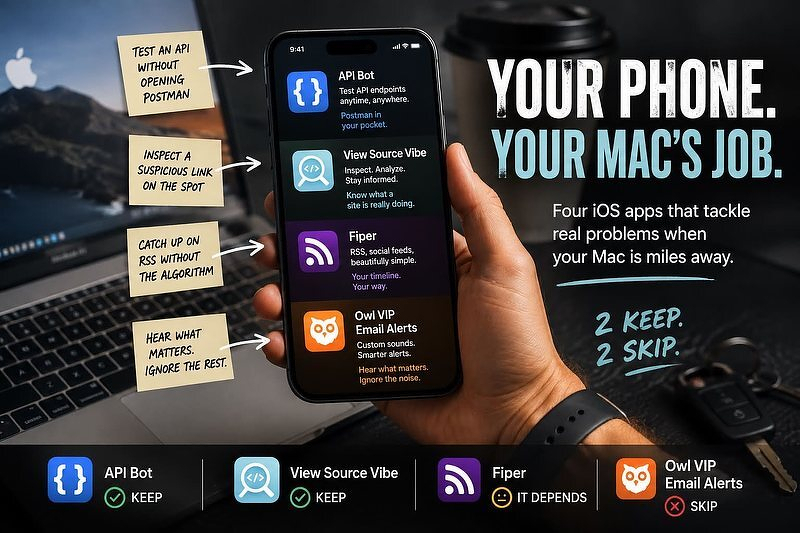
TL;DR: Four free iPhone apps that handle jobs you would normally do on your Mac: API Bot for testing endpoints, View Source Vibe for inspecting a suspicious link, Fiper for algorithm-free RSS, and Owl VIP for sender-level email notifications. Two earn a place on your phone. Fiper loses to NetNewsWire for anyone reading this blog, and Owl VIP charges a subscription for something iOS Focus Modes mostly do free. None has a native Mac app.
Every so often, something breaks and you are nowhere near your computer.
An endpoint starts returning 500 errors while you are sitting in a parking lot. Someone texts you a link and you want to see what trackers it loads before you trust it. You are waiting on one critical email, but your phone keeps buzzing about newsletters.
These are Mac jobs. Your Mac is at home.
The obvious move is to reach for your phone. The obvious problem is that most "mobile versions of desktop tools" are just cramped, feature-starved versions of software you already own. The phone only wins when it does something your Mac cannot: being in your hand when you are away from your desk.
That is the filter I applied to these four apps. Two pass it cleanly. Two do not.
One technical note up front: none of these four has a native Mac app. Some will launch on an Apple silicon Mac, since iOS apps show up there by default unless the developer opts out, but what you get is a fixed, phone-shaped window that will not resize. Treat these as phone tools, full stop.
If you write or maintain APIs, Postman, Insomnia, and Bruno are likely glued to your workflow. They also assume you have a full keyboard and a large monitor. API Bot takes the opposite approach.
It is Postman built specifically for an iPhone screen. You can construct HTTP requests, set headers and query parameters, inspect JSON responses, and save requests as collections.
The use case is narrow, but real: you are away from your desk, an endpoint is behaving oddly, and you want to fire off a quick GET request to staging. It is not a replacement for Bruno on your desktop. It is the difference between diagnosing an outage immediately and waiting three hours until you get home.
It is free, and runs on iOS and iPadOS 13.0 or later. Confirm the permissions in the App Store yourself before installing, as there is little independent track record yet. As a focused utility for an away-from-the-desk problem, it earns its spot.
A competitior, HTTPBot: API & HTTP Client does what API Bot does and ships on iOS, iPad, and macOS.
Viewing page source on a phone sounds like a gimmick. View Source Vibe turns it into a pocket web inspector.
Beyond raw HTML, it includes a Timeline view, OpenGraph social previews, a Cookie Privacy Lens, a Tracker Radar, Header Intelligence, and a Security Score Card. If someone sends you a link that feels off, this lets you inspect headers and tracking scripts on the spot before handing over your attention.
Also free, and it carries a "Data Not Collected" privacy label.
Here is the catch: the developer explicitly notes the app was "Built with Vibes (and Flutter)," indicating heavy use of AI-assisted coding. I have no issue with vibe-coding, but software that grades other sites on security while being built via LLM prompts demands healthy skepticism. Use its site analysis to satisfy your curiosity; do not rely on its Security Score Card as a formal audit.
Fiper is an RSS reader designed to look like an Instagram feed rather than a list of text headlines.
It shows a chronological timeline without algorithmic sorting, auto-detects feeds simply by pasting a URL, and pulls in Bluesky, Mastodon, and Pixelfed accounts alongside traditional blogs. That is a thoughtful design position for people who find classic RSS intimidating.
It also has the weakest case for readers of this blog.
If you are reading a Mac utility site, you have almost certainly solved RSS already. NetNewsWire is free, open source, and native on Mac and iOS. Reeder is beautiful. Feedly and Inoreader have a decade of infrastructure behind them.
Fiper is a pleasant, free app. Recommend it to family members who want off algorithmic feeds but will never set up NetNewsWire. For power users, there is no reason to switch.
Owl VIP attempts to fix phone notifications at the sender level.
It hooks into Gmail to give you global notification toggles (VIP-only, All, or None), custom quiet hours, and per-sender audio alerts from a library of 80+ sounds. Being able to triage who emailed you by ear without picking up your phone is a clever idea.
The problem is the business model and the built-in alternatives.
The app is free to download, but requires a paid subscription to connect a Gmail account. Nearly everything it does can be built for free using Gmail's native filters combined with iOS Focus Modes. Paying a recurring subscription strictly for custom notification sounds is a hard sell.
It also only works with Gmail. Spend twenty minutes configuring Focus Modes first.
My Take
- API Bot is an easy download if you deal with APIs and ever need to test an endpoint on the go.
- View Source Vibe answers a specific question when inspecting suspicious links, provided you treat its security scores as informational.
- Fiper is a great recommendation for non-technical friends, but skip it if you already run NetNewsWire or Reeder.
- Owl VIP Email Alerts has a clever audio trick, but iOS Focus Modes cover most of its feature set without a subscription.
Three of these four apps have virtually no independent review track record. That is normal for early indie software, but it means you are the test case.
Unless otherwise noted, the alternate apps mentioned above are based on research and not individual testing.
TextSniper, MacPilot, Unite Pro, PDF Squeezer and Video Paw on Sale from Their Devs Until Friday for %75+ Off
You have a chance this week (ending August 7th) to pick up five apps at the lowest prices I've seen them listed for. Sale Details.
Reviews of Apps I Have Personally Tested
- TextSniper - Better Than Native OCR | AppAddict ($7.99- On Sale For $1.99 -%75) Hit a hotkey, drag a box over anything on screen (a locked PDF, a video frame, a screenshot someone sent you), and the text lands on your clipboard; it also reads QR codes and barcodes and can speak the captured text aloud. OCR runs entirely on your Mac. textsniper.app, App Store
-
MacPilot Tweaks Some Hard to Get To Settings in macOS ($29.95 -On Sale For $3.50 -88%) - A GUI over roughly 1,200 hidden macOS settings and
defaults writetweaks: show hidden Finder files, kill the startup chime, add Dock spacers, change the screenshot format, run maintenance scripts, all without opening Terminal. koingosw.com - Unite 5 - Site Specific Browser ($39.99 - On Sale For $5.00 -%87 off) Turns any website into an isolated, native Mac app that runs as a normal window, a menu bar dropdown, or a sidebar; you get per-app cookies, custom icons, ad blocking, userscripts and CSS, keyboard shortcut remapping, and link routing between apps. Extras like Dock badges, Google/Outlook meeting alerts, and a floating AI companion overlay are the part Safari's "Add to Dock" can't touch. bzgapps.com/unite
The two I haven't tried (yet) are:
VideoPaw ($69.99 - On Sale For $6.50 -%91) - Cisdem's all-in-one media utility: batch convert video and audio across 600+ formats, download clips from supported sites, rip DVD and Blu-ray, compress files, and record screen/webcam with live annotation. Basic editing (trim, crop, merge, watermark, subtitles) is included, so it replaces three or four single-purpose downloads.
PDF Squeezer ($19.99 - On Sale For $3.98 -%80)-- Drag in a bloated PDF and it shrinks by recompressing images and stripping unused fonts and resources, with a side-by-side preview so you can see what quality you're giving up. Batch processing, saved presets, and hooks into Finder, Automator, Shortcuts, and the command line make it a good buy IMHO.
RAD Weather for macOS Shows You Where the Forecasts Disagree
TL;DR: RAD Weather pulls forecasts from four services and shows you where they disagree instead of averaging the disagreement away. Free, with RAD Ultra at $1.99 a month, $19.99 a year, or $99.99 once, plus a MultiPass tier at $2.99 monthly or $29.99 annual. The Mac build is a real Mac app, the subscription is justified by per-forecast data costs, and there is no radar. RAD TV shipped in 7.6.7 and an Apple TV version is announced.
RAD Weather's Unique Feature
Years of obsessive cycling naturally paired with years of obsessive weather forecast following. Although none of us can do anything about the weather (except to move to a new city), I felt compelled to track temperature, wind speed and rain forecasts several times a day whenever I had a big ride scheduled. I collected weather apps and went into mourning when Dark Sky ceased to exist.
Most weather apps are someone's best guess, presented as a fact. Someone, or some algorithm, took several disagreeing weather services, picked one and discarded the rest. RAD Weather doesn't discard anything, and that's the product.
What R.A.D. Cortex Is Doing Under the Hood
The engine has a name now, R.A.D. Cortex, and its job is to pull forecasts from the National Weather Service, Open-Meteo, Environment and Climate Change Canada, and Apple WeatherKit, then compare them. Where the models converge, you get a high confidence rating. Where they split, the app shows you the spread instead of hiding it behind an average. The developer added lead-time-aware weighting in an earlier release, so regional high-resolution models carry more weight for the next few hours while ECMWF gets priority for the extended outlook. That's a reasonable thing to do, and it's the kind of decision most weather apps make silently, if they make it at all.
Five Things That Matter in the Mac Version
- It's a real Mac app. Many weather apps just port their iPad version to Apple silicon and call it a day. CARROT Weather has a standalone Mac app, but it hasn't been updated since 2023. With RAD Weather, you also get Mac widgets, a menu bar item, and iCloud sync with the iPhone and Watch versions. Requires macOS 15.0 or later.
- The multi-source view is the killer feature. Detail cards break out temperature, wind, precipitation, UV, pressure, humidity, visibility, dew point, pollen, air quality and convective risk, and the confidence deep-dive shows you which models fed the number. It's my favorite part of the app and I never stop fiddling with it.
- RAD Atlas is an interactive 3D globe with live conditions, which sounds like a toy and mostly is, but it's a fast way to check what's happening somewhere you care about without typing a city name.
- Brutality Levels adjust the tone of the written briefings across five settings, from professional to unhinged. Similar to CARROT, which is funny, RAD Weather is also funny. Since humor is subjective, I'm not making a call there. If you want a weather app that doesn't talk to you, turn it to professional and it stops.
- The privacy declaration is clean. Rozzi Labs declares no data collected beyond location, not linked to your identity, used only to fetch a forecast, with no tracking or analytics. That's about as good as a networked weather app gets.
What the Subscription Pays For
RAD Weather is free. RAD Ultra is $1.99 a month, $19.99 a year, or $99.99 once, and Ultra is what unlocks the Atlas globe, the extra saved locations, the Savage and Unhinged tone settings, full detail cards and advanced notifications. There's also RAD MultiPass at $2.99 a month or $29.99 a year, which extends across the other Rozzi Labs apps and the radweather.cloud web service.
No one likes an unjustified subscription. I've done my best recently to avoid writing about subscription apps altogether. Weather prediction apps are the exception. Every forecast this app pulls costs the developer money, and he's pulling from four services instead of one; widget and Watch complication refreshes multiply that cost across every user, every day, forever. A one-time purchase doesn't fund a bill that arrives monthly for the life of the app. The developer of CARROT Weather has been making the same argument for years, and he's right.
The whole high-end category runs this way. CARROT Weather is free to download with Premium at $4.99 a month or $19.99 a year and Premium Ultra at $9.99 a month or $39.99 a year. Mercury Weather is free with a subscription at $2.99 a month or $14.99 a year. Hello Weather limits you to a single forecaster and no widgets until you subscribe. Against all that, RAD Weather is one of only two apps here that will sell you a permanent copy. RAD Ultra Lifetime is $99.99, which works out to five years of the annual subscription; Mercury's lifetime is $59.99, or four years of its annual. Neither is a bargain on day one. CARROT has no lifetime tier at any price, which is the part I mind.
Current Shortcomings
RAD Weather doesn't currently offer radar maps, so if that's how you make decisions during rough times, you'll need something else. There are other weather apps with a long and proven track record. Its App Store rating is high, but the number of ratings behind it is still small enough that I wouldn't lean on it.
Other Weather Apps
The alternatives, briefly. CARROT Weather, to which I have subscribed for years, is the incumbent in personality weather and has the better radar and map layer story; note that the standalone Mac app is $14.99 and hasn't been updated since May 2023, so on the Mac you want the iPhone and iPad version instead. Mercury Weather, another app I've used in the past, is the choice if you want calm and legible rather than loud. Apple Weather is free, built in, and fine for the basics. DatWeatherDoe is free, open source under Apache 2.0, installs with brew install --cask datweatherdoe, and puts conditions in your menu bar; you supply your own WeatherAPI key.
Unless otherwise noted, the alternate apps mentioned above are based on research and not individual testing.
Is It for You?
Yes, if you want accuracy and detail from a weather app and you're willing to pay for it. The multiplatform coverage helps too, especially with the recently released full screen RAD TV mode for the Mac and an Apple TV app on the way.
No, if you want radar, or your needs are minimal. For design nerds, the faux terminal presentation may be off-putting. Not being a design nerd, I'm fine with it.
Using Orbit to manage the Google accounts I didn't want
TL;DR: Orbit runs each of your Google accounts in its own isolated WebKit session inside one native Mac window, for $89 one time instead of the $50 to $200 a year the alternatives want. It exists because you can de-Google yourself but you can't de-Google your father. The catch is that it only works as long as Google keeps letting Mac apps sign in, and passkey-only and Advanced Protection accounts already can't.
The Google Accounts I Didn't Ask For
My opinion of big tech companies has hardened over the years. Their business models turned into anti-privacy juggernauts, so I started pulling away from them. In January 2025, after using Gmail for twenty years, I downloaded my entire archive, deleted every message off their servers and moved to Fastmail. Drive went to Koofr. Search went to Kagi. Gemini got replaced by ChatGPT. I left the empty account open since it linked me to a lot of legacy logins and contacts.
Then, nine months later, I became responsible for managing the affairs of my elderly father, something that commonly happens to people in my age group. Dad's life ran through multiple Gmail accounts, personal and professional: his doctors, his investments and the guy who cuts his grass all reached him through Google, the company I had worked so hard to get away from. I couldn't ask an 80-year-old man to move house on the internet. I had to log back in.
That's the part nobody warns you about. You can de-Google yourself in a weekend if you're stubborn. You can't de-Google somebody else, and the account that drags you back in was never yours to begin with.
Browsers do this badly on purpose. Google's account switcher runs every account you sign into through a single browser session, so a security re-check on one can sign you out of all of them at once, and the account you're currently "in" is a state you have to remember rather than see. Everybody who lives this way eventually has the moment where they send, or nearly send, a message from the wrong account. Sometimes that's an embarrassment. Sometimes it's worse.
The fix is an app, and the one I recommend is Orbit from Andrew Kwak at Dearnode. It's a one-time purchase of $89. That's a steep number to look at once, and cheaper than every competitor that charges $50 a year and up.
Each account gets its own sealed WebKit session, with its own cookies and its own sign-in, so signing into one never signs you out of another. ⌘1 through ⌘9 switch between them, all preloaded, with unread badges per account. Inside each one is the real Gmail, not a rebuild through the API, so your labels, filters and keyboard shortcuts are the ones you already have. Calendar, Drive and Meet open in the right account too. I have three accounts in mine.
Why I picked Orbit
Orbit is designed around privacy. It doesn't route your mail through a server it owns. There is no Orbit account to maintain. Analytics are turned off by default. It doesn't phone home, and if Dearnode vanished tomorrow, Orbit would keep working until Google changes something on their end.
Because Dearnode has no servers to maintain, the one-time price is sustainable. Kiwi, the app I used for years with Gmail, committed what I consider an unpardonable sin earlier this year when it stopped honoring lifetime licenses it had already sold and moved every customer to $60 a year. It's not the only casualty in this category: Sidekick was absorbed by Perplexity and shut down in 2025, and Mailplane stopped selling licenses in 2021.
Orbit is written in Swift and runs on WebKit. It weighs 9.9 MB on my system, a far cry from the Electron build behind Shift.
Why it might not work for you
To his credit, Orbit's developer publishes the warnings himself rather than waiting for a reviewer to find them:
- Sign-in is per-Mac. Three machines means three sign-ins, and there's no cross-device sync.
- Accounts using passkey-only sign-in or Google's Advanced Protection Program can't sign in at all, due to a WebKit limitation.
- It's Apple silicon and macOS 14 or later. No Intel.
- It's not on the Mac App Store, because the sandbox would break the per-account isolation the whole app exists for.
And one risk that isn't Kwak's fault and isn't in his power to fix. Orbit works because Google lets a Mac app sign in and render Gmail. Google can withdraw that. It has before: Mailplane stopped selling licenses in 2021 when Google started blocking embedded browsers at the sign-in page, and Mailplane was the same idea as Orbit, Gmail's web interface in a Mac shell. The accounts Orbit can't sign in today, the passkey-only and Advanced Protection ones, are that same door already partly closed.
Kwak has built the parts he controls to fail quietly. If Google reshuffles Gmail's page, an unread badge goes stale instead of your mail breaking, because the mail was never his code. That's the right way to build this. It just doesn't help with the failure that matters, which is Google deciding one morning that apps like this don't get in anymore.
The Others
Every alternative here costs you something. Some want a subscription, some run on a browser engine you didn't ask for, and the free ones make you give up the switching and the badges.
- Mimestream is well liked, and it's also $50 a year.
- Shift is $200 a year and it's Electron. There's a free tier some people will find suitable.
- Kiwi for Gmail was my daily driver for years and it worked. Their decision to stop honoring lifetime licenses blunts any regard I once had for them.
- Ferdium is free and open source. Community-built, Electron, and it will hold multiple instances of the same service. I've run it myself. Free is free.
- Safari profiles are already on your Mac, and I've used them for this. Separate cookies and separate sign-ins per profile, no purchase, no keyboard switching, no unread badges. If you have two accounts, try this before you spend anything.
I haven't personally tested Mimestream or Shift and this information comes from their websites.
Who should buy this
Writing about a Google adjacent app doesn't mean I've reconsidered anything. Fastmail, Koofr and Kagi are still where I manage my own life. But I couldn't de-Google on my father's behalf. Pretending otherwise would have cost him his pharmacy, his insurance and his bank. His accounts aren't a preference, they're an obligation, and the software worth paying for is the software that makes an obligation easiest to manage.
If you're carrying three or more Google accounts you didn't choose, you switch between them all day, and you've had the wrong-sender scare, $89 once is a fair price for never having that thought again. There's a 14-day trial that doesn't ask for a card and a 30-day refund window, so trying it costs you an afternoon.
If you have two accounts, Safari profiles are free. If you want a real native mail client and a merged inbox, Mimestream is the app and the subscription is the tax. And if you run Advanced Protection, Orbit can't sign you in at all, which puts it out of reach for exactly the people its architecture was built to appeal to.
Blankie, A Free and Open Source Ambient Sound Mixer is a Breath of Fresh Air, Right in Your Ear
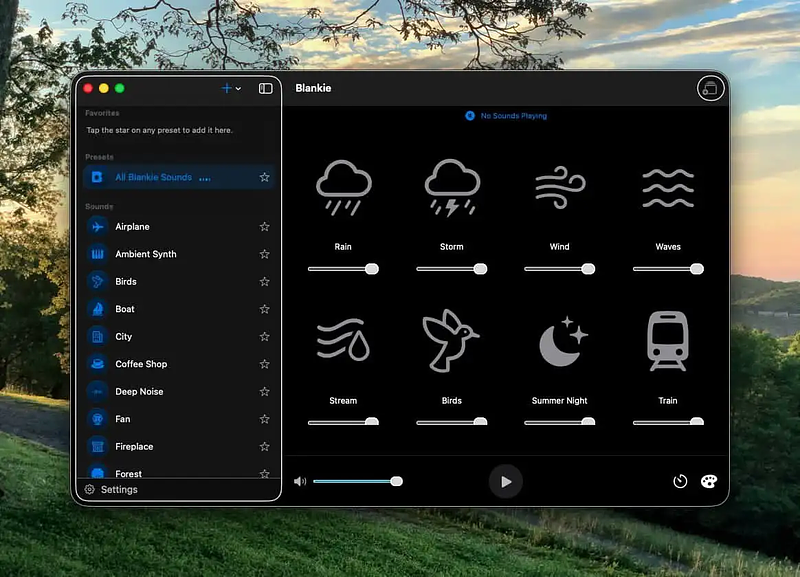
TL;DR: Blankie is a free, open-source ambient sound mixer for Mac, iPhone, iPad and CarPlay; no ads, IAPs, or subscriptions. 24 mixable sounds, saved presets, custom audio import, menu bar control. Stacked against Noizio, Dark Noise, myNoise, and Endel, all of which charge something for depth or convenience Blankie gives away for free.
I'm not usually one to complain about app pricing, but I make an exception when it feels like someone is misrepresenting the complexity of something simple to justify a monetization strategy. Ambient sound apps, at their core, are well-organized loop players, and nothing about them justifies subscriptions, tiered unlocks, and $50 lifetime passes. You get rain, waves, white noise and a coffee shop hum with variations. That's the whole package.
Enter Blankie, a free and open-source ambient sound mixer from developer Cody Bromley that gives you everything you need without insulting your intelligence or your wallet. It also respects your privacy by not collecting any data. It's inspired by Blanket, a Linux app in the same category. Blankie avoids ads, IAPs, subscription tiers and paywalls. It's just free, forever. Better yet, it works on your Mac, your phone, your iPad and your car.
How it works
With Blankie, it's easy to construct custom loops and recall them at will. You get 24 sound elements to experiment with, including several added in the most recent updates: rain, storms, wind, ocean waves, a running stream, birds, forest, crickets, a train, boat, airplane, city hum, coffee shop, fireplace, fan, laundry room, plus a few music-adjacent layers (piano, lo-fi beats, guitar, ambient synth) and the full noise family (white, pink, green, brown).
The features that matter
- Per-sound volume control: every layer has its own slider on top of a master volume, so you're not stuck with someone else's idea of "coffee shop" balance.
- Saved presets: build a mix once for deep work, another for sleep, and switch between them instead of re-tuning sliders every time.
- Bring your own audio: you can import your own sounds or voice notes, and Blankie loudness-matches them automatically so nothing jumps out of the mix. I experimented with the sound of my own box fan and it worked!
- Sleep timer with fade-out: it winds down and stops instead of just cutting off, which matters more than it sounds like it should at 11pm.
- Menu bar control: as of version 2.0 there's a menu bar popover for quick mix and timer changes, plus an option to hide the Dock icon entirely, both added directly in response to user feedback on the App Store.
Do you need an app for this?
One of the under-publicized features available in macOS Accessibility settings is a control for background sounds. You can get a flat layer of white noise without installing anything. If that does the trick to drown out your office mate's Zoom calls, then you're golden. If you want actual combinations you can control, layering rain with a fireplace, mixing to your own balance, saving distinct presets, and importing your own recordings, Apple's built-in version doesn't do any of that.
The apps I complained about
I've tried Noizio and Endel. They work, but they cost more than they're worth.
- Noizio ($9.99 one-time, Mac App Store, also on Setapp) has 40 sounds behind the paid tier versus 5 free, and I covered it here previously; it's the closest direct comparison and the app several Blankie reviewers say they're switching from.
- Dark Noise now runs $2.99/month or $19.99/year for full access after moving off its original one-time-purchase model in 2023, with a free tier limited to eight sounds; there's still a $49.99 lifetime option for people who want to opt out of the subscription entirely.
- myNoise is free to download with a $19.99 in-app purchase ("Full Access") that unlocks its full 300+-soundscape library; it's a much deeper catalog aimed partly at tinnitus masking and therapeutic use, not just background focus noise.
- Endel If you want the adaptive end of this category, runs $19.99/month or roughly $89.99/year (with a ~$249 lifetime option), and generates sound algorithmically rather than letting you hand-build a mix; different product, This may be the most over-priced app I've even seen.
Unless otherwise noted, the alternate apps mentioned above are based on research and not individual testing.
Bottom Line
Use Blankie if you want a free, privacy-respecting sound mixer that doesn't hold features hostage behind a subscription, and you're fine with a smaller sound library (24) than the subscription apps offer in exchange for owning the whole thing outright. If you own something else already or you just really need hundreds of soundscapes and don't mind paying, go with myNoise.