
2025
Background Music - Per App Volume Control and More
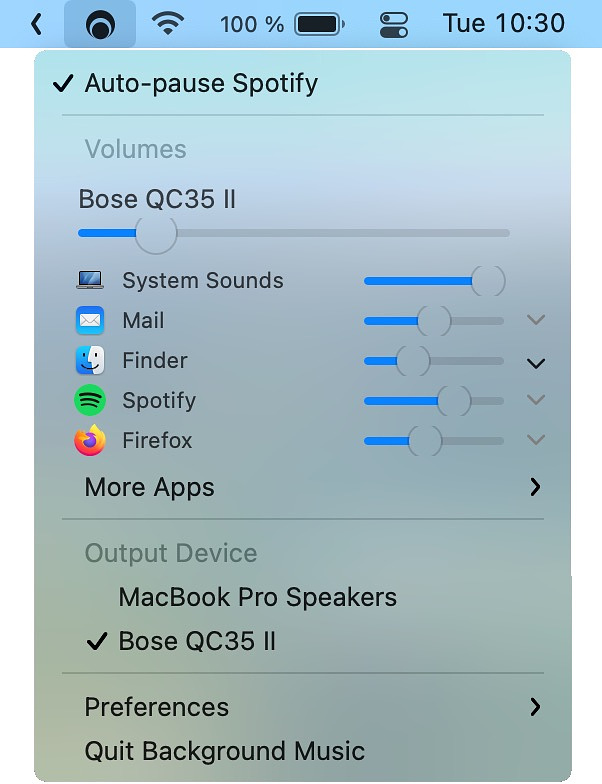
When I am at work, I like to leave my system volume setting in the
midrange. I want to be able to hear incoming mail alerts and calls on
Microsoft Teams. What I expressly do not want is have anything from
YouTube, or any other website suddenly playing through my iMac speakers.
At home, I like to have music playing and I appreciate the convenience
of having it stop and restart automatically if I decide to watch a
video. The free app, Background
Music can handle both of these tasks. You can set the volume for any
app to a custom level (including muted).
The auto-pause feature currently supports the following music players:
You can also record system audio with Background Music. With Background Music running, launch QuickTime Player and select File > New Audio Recording (or New Screen Recording, New Movie Recording). Then click the dropdown menu (⌄) next to the record button and select Background Music as the input device.
You can download Background Music on GitHub.
Homebrew users can install it by running this command in Terminal
brew install --cask background-music
Cheatsheet - Mac, iOS, WatchOS

I have hundreds of contacts and I know almost no phone numbers. My
job requires me to gain entrance to numerous rooms secured with keypad
combinations. Remembering hotel room numbers is always a challenge.
Don’t put a gun to my head and ask me the license plated of my wife’s
car. My solution for quickly referencing these little pieces of
information regardless of whether my phone or computer is in reach or
not is Cheatsheet, a
synchronized notes app I that allows me to enter information on my
computer or phone that I can easily get to from any device, including my
watch, which is a huge help.
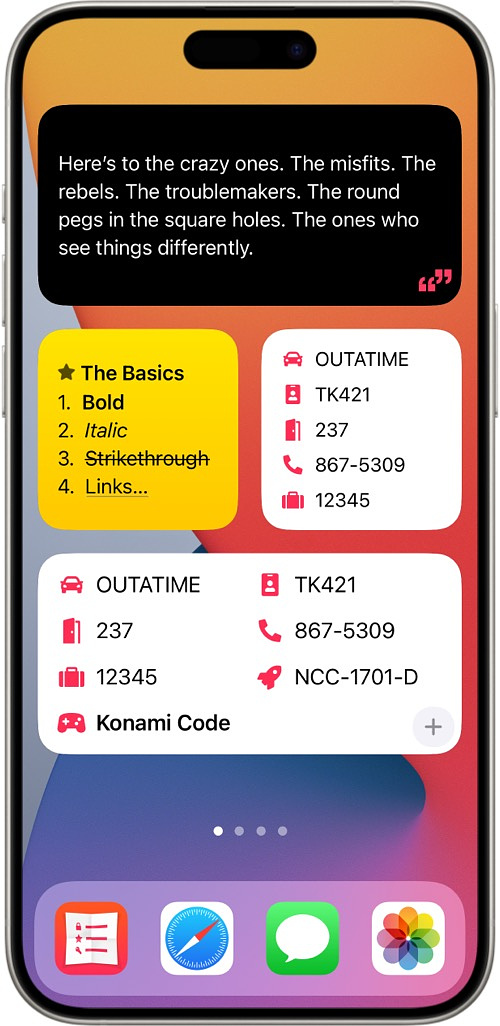
With Cheatsheet, I can format notes with rich text if I want and assign one of 200 icons to them for easy visual recognition. I can search my notes within the app or in Spotlight. I can even create new notes with Siri, including type to Siri. Cheatsheet notes can be organized into folders. For security, the app can be protected by a passcode. Both the Mac and the iOS apps can be accessed via the share sheet or in widgets. The Mac also has menu bar access. There is shortcut support for creating, appending to moving and finding cheats. The iOS app featured a custom keyboard for inserting up to 50 different cheats into other applications.
Cheatsheet has been around for over a decade but is frequently updates. The Mac version costs $7.99 in the AppStore. The iOS version comes in a free and a pro version, which is $5.99 a year but it is what provides the ability to:
• Remove limits on the widget, keyboard, and Watch app.
• Protect
your cheats with Passcode Lock.
• Organize your cheats with
folders.
• Sync your cheats between your devices with iCloud.
If you love the app but hate subscriptions, you can purchase a lifetime
license, albeit for the steep price of $69.99
.
Datacever - Simple Data Control When You Have to Tether Your Mac
I don’t know about you, but whenever I have to tether my laptop to my iPhone, I get nervous about the possibility of some unknown process running in the background and chewing up my data. Even though my mobile provider calls my plan unlimited, I know that there are always gotchas. I tried TripMode a while back, but it was overly complex for my needs, with more settings and options than I wanted to mess with.
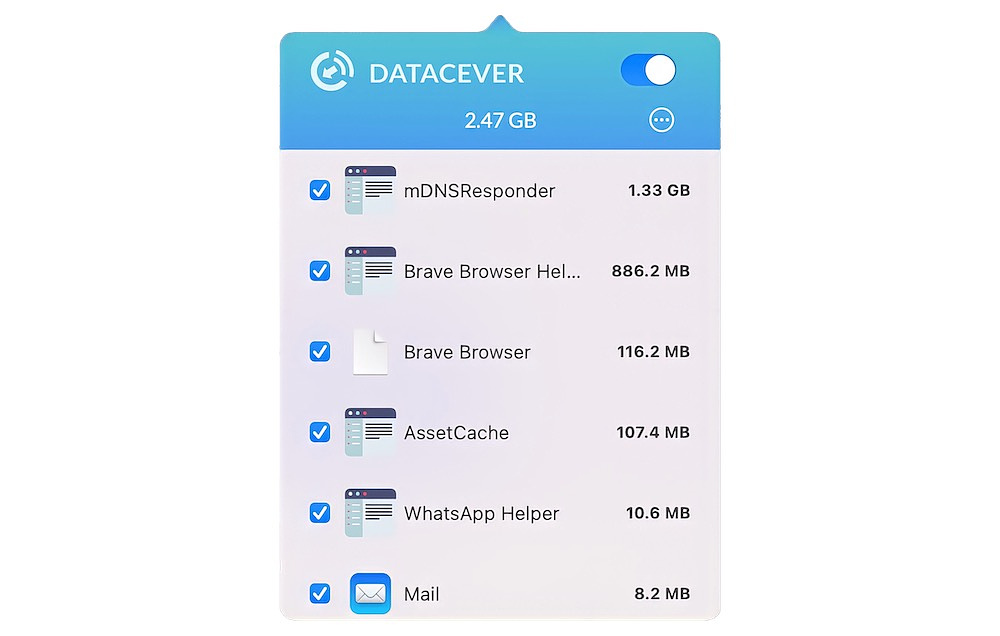
I recently found a much simpler menu bar app that I prefer for its simplicity and ease of use. Datacever by developer sameh sayed is an inexpensive app available from the App Store for $6.99. You can allow or deny any app access to the Internet. For the apps you permit access to, you can set data caps. If you don’t want to set a cap, you can still monitor your traffic on a per-app basis. It does exactly what I need and nothing more. The privacy policy states that no data of any type is collected. Your browsing remains private.
If you have ever looked at the DNS logs of your Mac with the browser not running, you know that there are still plenty of apps trying to call home constantly. Control all of that with Datacever and don’t let your data be wasted by needless telemetry,
Lossless Cut - Save Time When Editing Videos

The command like application, FFmpeg is remarkably powerful but it
is also overly complicated for people who don’t use the terminal much or
who don’t have the headspace to memorize a bunch of esoteric commands.
Thankfully, there are some good front ends. Lossless Cut
is one whose main feature is specifically lossless trimming and cutting
of video and audio files, which is great for saving space by
rough-cutting your large video files taken from a video camera. It is
extremely fast, allowing you to trim the video without having a loss of
quality caused by having to do (slow) any encoding.
Some Example Lossless Use Cases
- Remove commercials from recorded TV shows
- Remove audio tracks from a file
- Combine audio and video tracks from separate recordings
- Split video into segments to meet social media length limits
- Rotating phone videos that come out the wrong way without actually re-encoding the video
Features
- Extract all tracks from a file (extract video, audio, subtitle, attachments and other tracks from one file into separate files)
- Losslessly rearrange the order of video/audio segments
- Take full-resolution snapshots from videos in JPEG/PNG format (low or high quality)
- Import/export segments: MP4/MKV chapter marks, Text file, YouTube, CSV, CUE, XML (DaVinci, Final Cut Pro) and more
- View FFmpeg last command log so you can modify and re-run recent commands on the command line
Many thanks to Scott Kingery from TechLifeWeb blog for pointing out this gem of a product. It's a good blog to add to your RSS reader for tech tips and leads to new software.
You can download Lossless Cut and get additional information on GitHub.
Open Source Doesn't Mean What You Think It Means When It Comes To Safety

What about open-source software?" I hear you say. "I'll just review the source code and determine whether it's malicious".
"I would make several points in response to this. The first is:
"LOL". Any nontrivial program consists of hundreds of thousands to
millions of lines of code, and reviewing any fraction of that in a
reasonable period of time is simply impractical. The way you can tell
this is that people are constantly finding vulnerabilities in programs,
and if it were straightforward to find those vulnerabilities, then we
would have found them all"
From - Why
it’s hard to trust software, but you mostly have to anyway
I’d say more than 90% of the people who choose FOSS over everything
else, don’t have the chops to go to GitHub and look at code to really
determine how safe a program is. I use a lot of FOSS and I have nothing
but appreciation for the people who develop it, but I don’t think for
one minute that it is all somehow safer than any commercial software.
Radarr - Movie collection manager for Legal Usenet and BitTorrent users

When I was a younger man, I’ll admit to living
the pirate life for music and movies. I was around for the original
Napster and the birth of BitTorrent. That all came to a screeching halt
one weekend when I sat down at my computer and couldn’t connect to the
internet. I called tech support, and the stern-sounding lady on the
phone told me to go to my computer and read what was on the screen. It
basically said, “If I ever download something illegally again, my
Internet will be turned off forever.” There was one checkbox, and it
just said “OK.” I had to check it to get my Internet back. That was the
sudden and dramatic end to my life on the high seas. Since then, I have
resisted using a VPN or other methods of accessing content illegally.
For one thing it adds a lot of friction and for another, in the
streaming age you can get just about anything you want without breaking
the bank.
There are legal torrent sites, most notably Archive.org. You can find others with a simple search.
A useful automated too to aid in downloading torrents via an RSS feed is Radarr. It also works on Usenet. Radarr’s features include:
- Adding new movies with a variety of information, such as trailers, ratings, etc.
- Support for major platforms: Windows, Linux, macOS, Raspberry Pi, etc.
- Can watch for better quality of the movies you have and do an automatic upgrade. eg. from DVD to Blu-Ray
- Automatic failed download handling will try another release if one fails
- Manual search so you can pick any release or to see why a release was not downloaded automatically
- Automatically searching for releases as well as RSS Sync
- Automatically importing downloaded movies
- Recognizing Special Editions, Director's Cut, etc.
- Identifying releases with hardcoded subs
- Identifying releases with AKA movie names
- SABnzbd, NZBGet, QBittorrent, Deluge, rTorrent, Transmission, uTorrent, and other download clients are supported and integrated
- Full integration with Kodi and Plex (notifications, library updates)
- Adding metadata such as posters and information for Kodi and others to use
- Advanced customization for profiles, such that Radarr will always download the copy you want
It takes some time and some skill to get Radarr set up correctly, but there are good instructions provided.. There is also extensive documentation..
Resilio Sync - Secure, Private Peer-to-Peer File Sharing
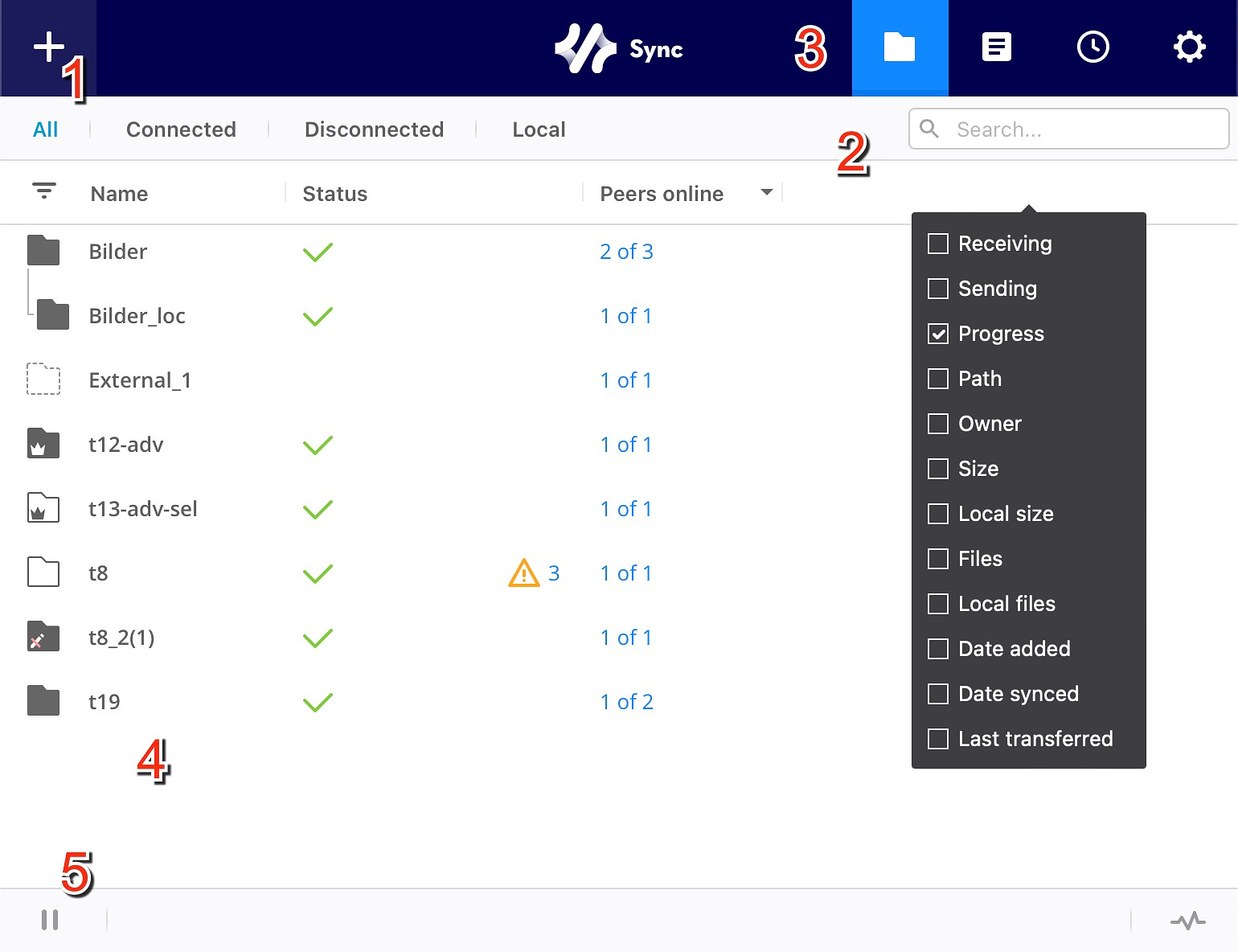
The easiest way to share files between computers or with other users is through a commercial cloud service like iCloud, Dropbox or Google Drive. The problem with using those services is that your data passes through someone else’s computer. If you are sharing apple pie recipes with your Aunt Sue, that’s not a problem, but if your data is ultra-private documents like financial records, proprietary business information or the like, you should consider a product like Resilio Sync, formerly a commercial product, now free for personal use.
Resilio Sync allows you to sync data between computers and to selectively share files with others. There are clients for Mac, Windows, Linux, iOS, Android and several NAS configurations. You can “easily send one or more files to multiple recipients without sharing the whole folder or creating a permanent sync connection. Send photos, videos, movies, or any other large file directly to friends. Cloud free.
You can make sure sensitive data stays in your control. Change access permissions at any time using the ‘Advanced Folders’ feature. You can assign ownership to another user, revoke access, or modify read and write permissions on the fly. Sync has built in encryption.
Automatically sync folders to all your devices. Sync photos, videos, music, PDFs, docs or any other file types to/from your mobile phone, laptop, or other storage devices.
Using ‘Selective Sync’ feature, Sync will create placeholder files in your file-system that can be searched locally. Click to download only the files that you need, when you need them, without having to replicate entire folders on every device.
If you have bandwidth issues, you can set limits on download and upload speeds
Making App Wishlists

Because I like checking out new to me software and writing about
it, I usually install something new just about every day. Reading
r/MacApps and lots of other software discovery sites is how I find new
apps. I’ve experimented with several different ways to keep lists of
apps I want to check out and here are a few of my favorites.
- Listy - A Private List Manager - this is good for both iOS apps and macOS apps. It tracks whether you've downloaded the app or not and gives you info on the app rating, category and developer as well as a link back to the app store.
- App Wish List & Price Tracker - this free iOS only app hasn't been updated since 2018 but it still works well via the share sheet. It has widgets and notifications for price changes and updates.
- AppRaven - Apps Gone Free (and more) - AppRaven lets you watch apps and developers and gives you notifications based on all kinds of criteria. There is a whole community of app fans using this app, writing reviews and giving folks a heads-up when apps have limited free offers. It has every app in the App Store for all Apple Platforms.
- Things 3 - This popular task management app also has features that serve list making well, including share sheet access, deep links, space for notes and more. If you use it for other things, it makes a good place for an apps wishlist. Works on Mac and iOS.
- App Wishlist Pro - An Apple shortcut that works on iOS and macOS
- Various Notes Apps - The benefit to using a notes app is that it keeps your data centralized, has plenty of space to post multiple links regarding one app (e.g., reviews) and doesn't limit you to just the App Store like some other choices.
Putting Mac Apps to Work - Image Management Workflow for Writers

In blogging and in creating instructional documents at work, I go
through plenty of screenshots, stock photography and open-source images
from the web. In the course of crafting a single blog post, I might use
four or five apps.
For screenshots, I use CleanShotX which I call from a keyboard shortcut or the menu bar. It also does annotation. The files are saved to my default screenshot folder that lives on a cloud drive so that I can readily access it from all my computers and devices.
When the file is saved, it activates Clop which optimizes the file size automatically. The optimized file is handed off to Dropover and then an Apple Shortcut (download link) runs that moves the file to another cloud folder, called “Optimized” and which also opens a Dropover shelf so that I can drag the file into place if my current working situation calls for it. Dropover also lets me rename the file, convert to another format and resize the file. I can even open the file in ImageOptim right from the shelf if I want to reduce the file size to a greater extent than Clop performed.
For images other than screenshots, they go straight to my downloads folder, where they get optimized by Clop and then moved to the “Optimized” folder by a shortcut ready for use.
Since I go through numerous images, I don’t want my “Optimized” folder to get bloated, so I use Hazel to move files that are more than one day old. It sorts the files in two ways. Screenshots (which have a special string in the file name)are moved to a “Screenshots-Old” folder. The rest of the image files, which can be jpg, png, svg or webp get sorted by file extension and moved to an archive folder. Hazel does all this based on pre-configured rules, and it all happens automatically.
For images other than screenshots, they go straight to my downloads folder, where they get optimized by Clop and then moved to the “Optimized” folder by a shortcut ready for use.
SwitchResX - Granular Resolution Control

As multiple monitors become more and more common and as the typical user is much more likely to use a laptop than a desktop, dealing with screen resolutions for different use cases becomes more and more problematic if your Mac is an “everything” device where you game, watch movies and get work done. SwitchResXi s a preference pane utility (with an additional menu bar interface) that has various useful functions for resolution management.
SwitchResX Functions
- Save desktop layouts for any resolution. No more having to rearrange things when connecting a second monitor.
- Automatically switch resolutions when launching any app - useful for games, video players, graphics apps and presentation software like PowerPoint
- Name resolutions according to their purpose (e.g., Gaming, Video, Presentation ) rather than trying to remember esoteric number combinations
- Enables a finer desktop grid than the native Mac grid for more precise arrangements
- Create custom resolutions based on your hardware capabilities
SwitchResX is available from the developer's website and comes with a 10-day free trial. A license for a single computer is $16.00.
I am not the developer. I do not know the developer. If you have questions or suggestions, please contact him directly through the information on his website.
Replacicon - Customize Your Mac

Mac users are notorious for being sticklers for aesthetics. Luckily, customizing the appearance of your device is made easier by various third-party utilities. One of those is Replacicon, an outstanding app that maintains a constantly updating catalog of alternate icons for your installed applications.
The Replacicon interface shows an alphabetic list of your installed apps that you can filter in different ways, showing only the apps in your dock or by permanently hiding apps you don’t want to see listed. It shows you each app’s current and legacy icons, allowing you to hide the current icon if you choose. If you have apps installed outside the default locations, you can add those folders to the ones Replacicon searches.
If you have your own icons for apps, you can import those into Replacicon. You can also use Apple Intelligence to generate new icons if your machine has that capability. The app runs on Intel and Apple Silicon, and on macOS 13 and higher. Your alternate icon selections are maintained across app and OS updates automatically.
Replacicon is a $5.99 one-time purchase from the developer’s website.
Quotemarks - Quote Notebook

I have collected quotes for years. When I’m reading a book, watching a movie or listening to music, if I come across a line I want to remember I write it down. Years ago, the developers at Lickability made an app called Quotebook for iOS that was specifically designed for quote collectors, but it was removed from the App Store in 2016 - although for anyone who still has a copy it is fully functional in iOS 18!
I’ve looked all over for a suitable replacement, and the closest I’ve found is Quotemarks from indy developer Christopher Hale. It is a free app with an IAP just to leave a tip. Quotemarks is great because it lets you import your collection from a CSV file. Anyone who already has a collection is saved from having to manually enter their quotes. The fields you can import include:
- Quote
- Author
- Tag
- Notes
- Date Added
I wish there was a field for the source, but you can use the notes field for that. Of course, you can add new quotes you find one at the time within the app.
Some nice touches with the program include:
- Automatic import of images of well-known authors
- Links to the bios of authors on Wikipedia
- Select the style of quotation marks to use (including none)
- Backup and restore
- Schedule quotes to appear on certain days in a widget
- Use the share sheet to export quotes
Quotemarks is an iOS app that runs in Macs with M-series chips. If you have an Intel Mac you will have to use it on an iPhone or iPad.
If you are looking for quotes to use with the app or for your own personal collection, I have shared my collection on GitHub as either a ZIP file or in individual Markdown notes readable by any text editor or for use in Obsidian.
I am not the developer. I don’t know the developer. if you gave questions or suggestions, you can contact him using the information on his website.
Another good quotes manager is Thoughts
- Inspiration Manager.