
Spaces and Desktops and My Mental Health
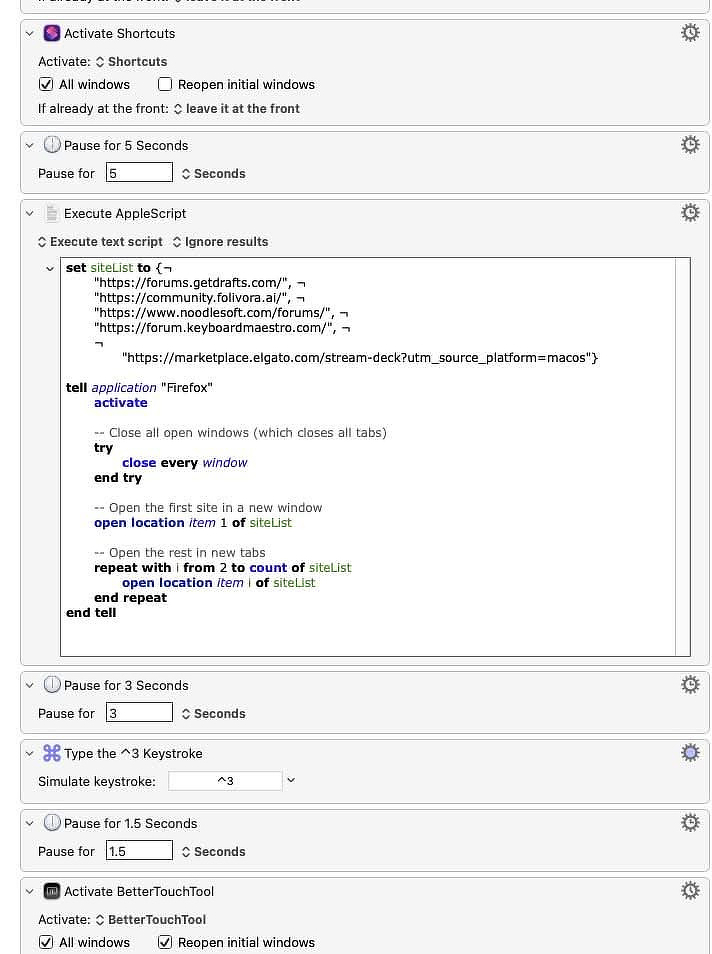
I spent most of my computer using life on a Macbook and only recently started using a dual display setup. I didn’t start this process until after the release of macOS 26, Tahoe. Quite possibly, that may be the absolute worst time to be experimenting with this in the history of the Mac. This is not my favorite version of the operating system. I’ve found that some relatively common applications are resistant to window management across Spaces: Calibre, Obsidian, Better Touch Tool, System Configuration, and Elgato Stream Deck Configuration are all consistently problematic. In addition, having windows from the same application open on more than one desktop creates issues for most window-management applications. Instead of using multiple windows from one browser, I’ve found it easier to just run two different browsers.
I am 100% open to suggestions from anyone who’s been down this road before me. Tell me what apps you use and why. If you have suggestions for best practices, please pass them along. Here’s a list of the tools and applications I’m currently trying to adapt to the way I use my Mac.
Bunch
Bunch manages windows and Spaces indirectly through easy-to-use scripts. The developer, Brett Terpstra, is a Mac legend, and he very kindly helped me troubleshoot some weird problems I ran into—specifically losing the required file association to run the scripts. Imagine Word telling you it can’t open .docx files. That’s what Bunch kept doing to me.
Moom
The folks at Many Tricks are also legendary and genuinely nice. Moom is an award-winning app that lets you move and resize windows using hotkeys or menus. Theoretically, a setup like mine—two displays, twelve apps, eight Desktops—can be triggered with a single shortcut that launches everything and puts the windows exactly where I want them. I say theoretically because, with the apps I use, the results aren’t consistent, and it never gets everything right.
Spencer
Spencer doesn’t have Moom’s window-management depth. It’s designed for saving layouts for groups of Spaces/Desktops or for whatever is currently on screen across multiple displays. The developer is extremely responsive and even sent me a custom DMG that could control Calibre after learning I was having trouble with it. Unfortunately, like Moom, it doesn’t consistently place my apps and windows where I want them, so I end up making manual adjustments every time.
Snaps of Apps
The developer of Snaps of Apps is actively working on adding better Spaces support and improving responsiveness on laptops running in clamshell mode. I’ll continue testing every version he sends me.
Keyboard Maestro
This workhorse can actually do what I want, but it turns what other apps promise to do with a single click into a 50-step macro I have to build manually. That may simply be the price I have to pay to get things set up exactly the way I like them.
Better Touch Tool
For anyone fluent in Better Touch Tool’s action set, building the same kind of workflow as Keyboard Maestro is absolutely possible. It looks something like this:
- Navigate to the Space where you want to launch an app
- Insert pauses when switching Spaces
- Launch the app
- Pause
- Move the app’s window where you want it
- Pause
Elgato Stream Deck
I’m new to this gadget. It provides a physical interface that ties together Shortcuts, Keyboard Maestro macros, Moom hotkeys, and scripts of all types. There’s simply no way I can cram many more hotkeys and trackpad gestures into my brain. I’m full.
Raycast
Raycast is another daily driver with window-management capabilities. I love the “almost maximize” command and invoke it instantly whenever an app tries to force full screen on me.
Stay
Stay remembers where your app windows live and puts them back there when displays change, apps relaunch, or the system restarts. It’s a persistence tool, not a controller—you arrange things once, and Stay enforces that memory. Unfortunately, it doesn’t work consistently. It’s effectively abandonware and seems better suited for people who constantly connect and disconnect external monitors.
My Basic Stack
The mysterious and obscure stack I’m using that’s causing me all these issues (/s) is listed below, If you are interested in why I use these apps, click the links.
- Fastmail (Display 1, Space 1)
- Mona for Mastodon (Display 2, Space 5)
- Things 3 (Display 2, Space 5)
- Messages (Display 2, Space 5)
- Obsidian (Display 1, Space 2)
- Firefox (Display 2, Space 6)
- Drafts (Display 2, Space 6)
- Calibre (Display 1, Space 3)
- QSpace Pro (Display 2, Space 7)
- Vivaldi (Display 1, Space 4)
- Ghostty (Display 2, Space 8)
- QuickGPT (Display 2, Space 8)
Background
My career was in educational technology, and I moved from school to school with a MacBook to put out fires and manage networks. I had one 15- or 16-inch display, and that was it. Now that I’m retired and have a desk of my own—complete with two 27-inch displays—I’m trying to create some new habits. As part of that, I’m attempting to use Spaces and Desktops in my workflow for the first time.
On a laptop with a single display, I was in the habit of running every app in full-screen mode and switching back and forth as needed. Now, with all the screen real estate I have, duplicating that workflow feels absolutely wasteful.
I settled on using four desktops per display, for a total of eight. I typically run around a dozen non–menu bar applications at a time, and I change them up depending on what I’m doing. I have one set of apps I use when I’m writing, another set for media management, and a third set for experimenting with automation tools and my self-hosted server.