
Desktop Workflow Apps
There are a number of apps that can help you incorporate your Desktop into your workflow in useful ways. You can adapt your desktop to be an information dashboard, a centralized launcher for applications, shortcuts, folder access, and bookmarks, and a space for multiple project-based setups with access to relevant folders, files, and applications.
Here’s how it works.
Accessing the Desktop
Almost everything I do can be triggered with a hotkey. I use so many hotkeys that I have trouble remembering them all, so I use ExtraBar to keep a handy menu of them that I can access from anywhere if I can't bring a particular combo to mind immediately.
Supercharge is a multi-purpose tool from uber-developer, Sindre Sorhus. It has dozens of tweaks, shortcuts, and utilities. One of these hides all open applications, revealing your desktop. Another toggles the visibility of your desktop widgets, allowing you to hide or show them with a hotkey. (Also available on SetApp)
I also have a Keyboard Maestro macro that runs two AppleScripts: one shows (unhides) any hidden applications, and the other shows (unminimizes) any minimized windows. macOS treats these as two different states, so one command won't cover both.
Information Dashboard
Using the right combination of widgets, you can quickly access information about the current state of your workday without having to toggle between applications. I use widgets for:
- Things 3 for tasks
- Fantastical for calendar events
- Weather — the stock app is fine
- Dropover for recent files
- Batteries — to track my keyboard, mouse, watch, laptop, and AirPods (on sale at BundleHunt and on Setapp)
- System info for RAM, CPU, disk space, and network throughput with Menu Bar Stats from the App Store
Multiple Desktops for Spaces Users
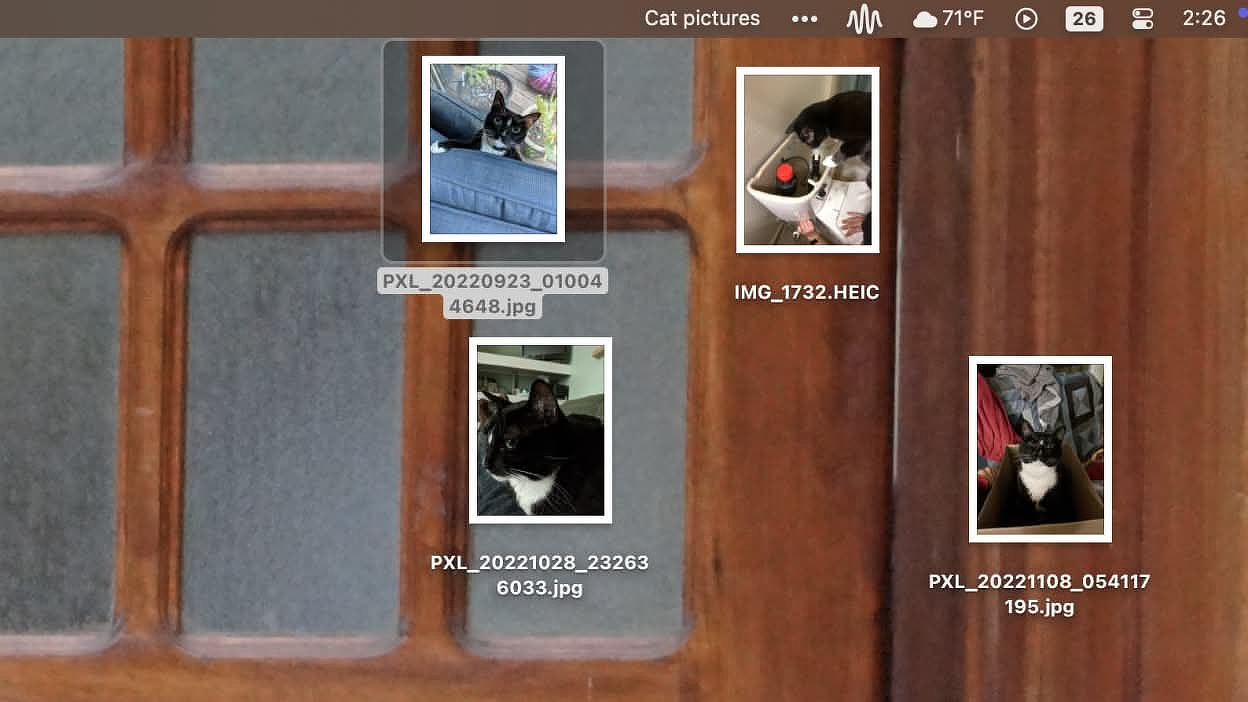
Infinidesk is an app that lets you create multiple desktop layouts that you can switch between. When I use my desktop as a workspace, I just toggle off the desktop widgets to give myself a blank slate. Each desktop can have its own set of shortcuts, files, and wallpaper. I use Spaces extensively with multiple displays. Other elements of my workflow require the System Setting that assigns a separate Space for each display. When combined with Infinidesk, this limits the toggling of desktop layouts to a single space, which is perfect for me. When I need to use a specific desktop layout, I just switch to that space with a simple hotkey. (Usually $12.99. On sale at BundleHunt for $3.00)
Building a Control Center
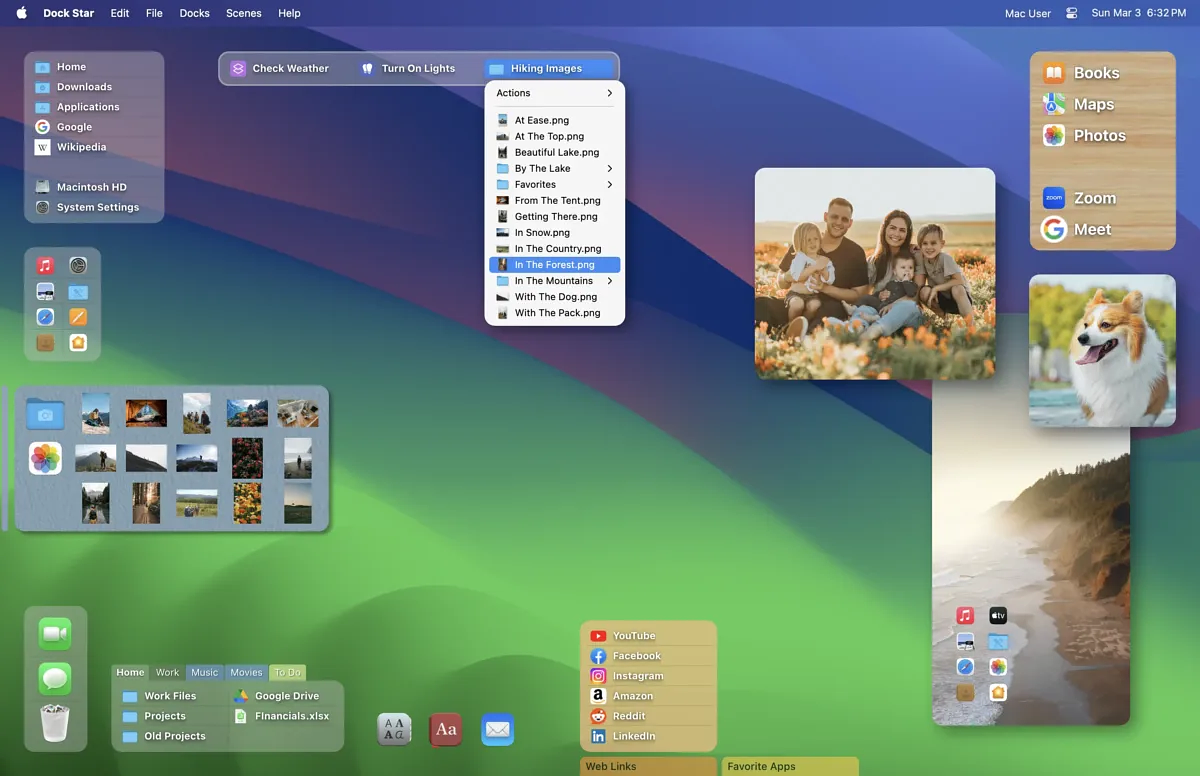
Dock Star is an app that creates desktop menus that function as independent docks. It's a visually pleasing app with a variety of formatting options to make each dock stand out. You can easily access your docks from the keyboard and move between them without ever using the mouse. I created four docks with distinct purposes, but you can combine different elements into the same dock if you want:
- Application launcher
- Shortcut launcher
- Folder access
- Bookmarks
You can also make docks for specific projects or checklists. I have one I use first thing in the morning to quickly access things I need to check:
- Open Fastmail to my inbox
- Check unread messages
- Check Mastodon and Bluesky (via bookmarks)
- Check backup logs
- Run Updatest
- Check in at Reddit to keep my 600+ day streak alive
- Create my daily note in Obsidian
- Log into the GUI for my self-hosted server to check the status of the drives
- Get a daily music recommendation at Crucial Tracks
Dock Star docks appear on all the spaces on your primary display. I just open and close it when needed. It's normally $20 but it's on sale now at BundleHunt for $4.50.