
Why I'm Ditching Third-Party File Managers
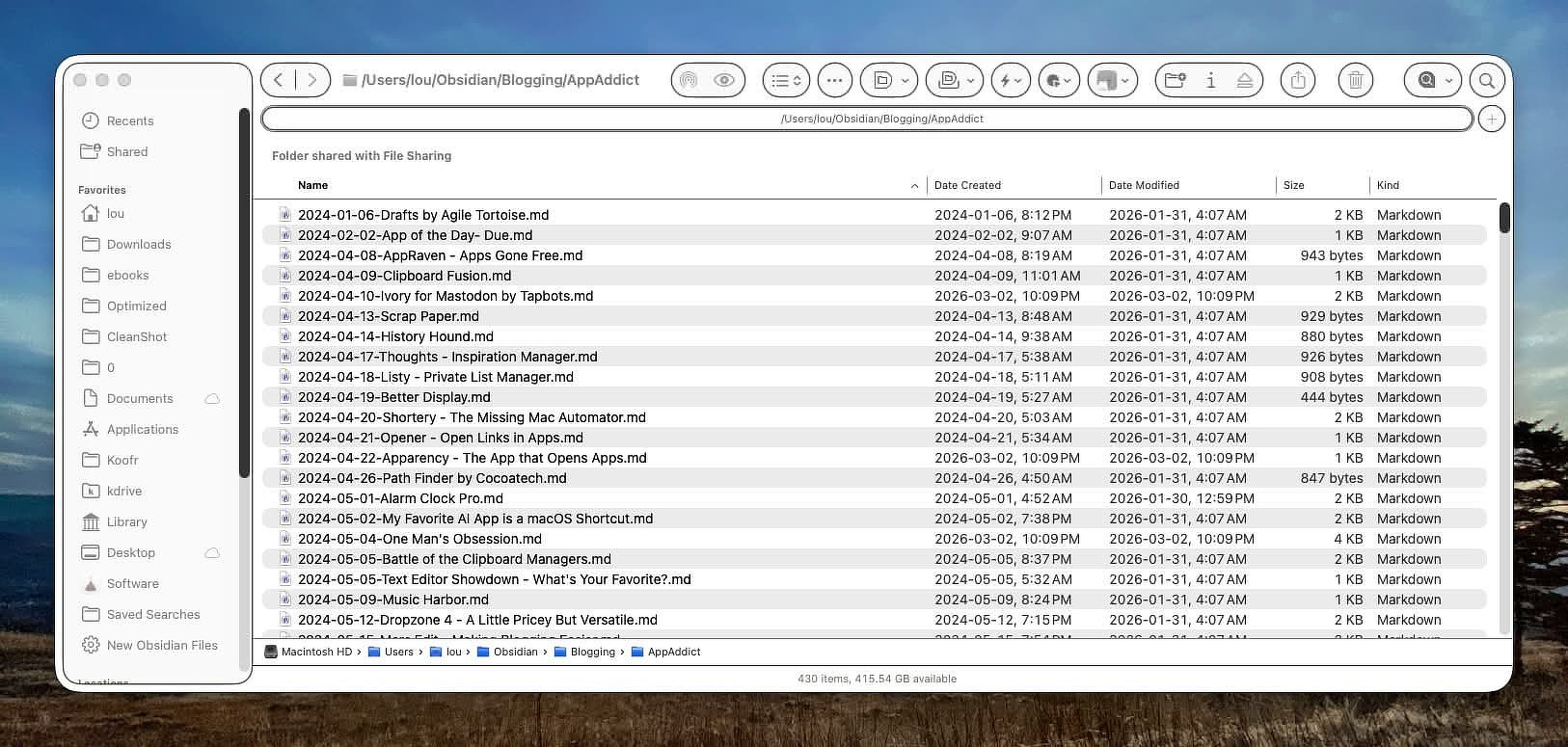
I’ve long been in the habit of using third-party file managers on macOS. I used Pathfinder for years, then switched to Qspace Pro a couple of years ago. I also bought Bloom during a Black Friday sale last year to see what it could do.
Recently, though, I’ve grown tired of paying the RAM tax these apps demand. Both Qspace and Bloom routinely use over 1 GB of memory. In my setup, they are often the most RAM-hungry applications running other than Chromium- or Gecko-based browsers.
I still don’t understand why Apple hasn’t implemented an optional dual-pane interface in Finder. But if the goal is freeing up system resources, there are workable alternatives.
The approach that’s been working for me is simple: keep using Finder, then add a handful of small utilities that extend it. Apps with Finder extensions can restore many of the features people install full replacement file managers to get in the first place.
You won’t replicate every feature found in Qspace Pro or Bloom, but you can get surprisingly close by layering a few focused utilities on top of Finder.
Supercharge
Supercharge adds optional buttons to the Finder toolbar for actions like toggling hidden files or opening the current folder in Ghostty. It also extends Finder’s right-click context menu with a number of genuinely useful commands.
Examples include:
- Cut & Paste
- Copy Path
- Copy To…
- Move To…
- Open in Ghostty
- Toggle Hidden Files
- AirDrop
- Inline Share Menu
- Show File Size
- Show Image Dimensions
- Open In App
It also adds a set of Finder behavior tweaks, such as:
- Allow quitting Finder with ⌘Q
- Open files with the Return key
- Create new text files
- Invert Finder selection
- Automatically resize columns
None of these features are individually groundbreaking, but together they noticeably improve day-to-day Finder usability.
Menuist
Menuist is primarily a right-click context-menu extender, though it includes a few extra utilities as well.
It overlaps somewhat with Supercharge, but it also adds capabilities that normally require separate utilities. For example:
- Folder history
- Run shell scripts on selected files
- Remove files from disk (bypass the Trash)
- Create many types of new files
- Set folder covers
- Favorite folders submenu
- Copy file or folder name without copying the full path
Menuist also replaces a couple of small utilities people often install just to color folders or paste clipboard images as files.
Other apps in this category include MouseBoost, which is fairly capable, and MagicMenu, which in my experience is best avoided.
HoudahSpot
One of the traditional advantages of third-party file managers is a more capable search interface.
Finder’s built-in search is decent but limited. Pairing Finder with HoudahSpot gives you something much more powerful.
HoudahSpot can add an optional toolbar button to Finder that launches complex saved searches or lets you build new ones on the fly. If you regularly search by metadata, file attributes, or nested criteria, it’s a major upgrade over the standard Finder search UI.
Default Folder X
Default Folder X is best known for enhancing file-open and save dialogs, but it also integrates tightly with Finder.
It adds a navigation toolbar that gives quick access to:
- Favorite folders
- Recent folders
- Recent files
- Open Finder windows
- A fast inline search
It can also add a file shelf to Finder windows. This acts as a temporary staging area where you can collect files before moving them to their final destination. If you frequently reorganize files across multiple folders, this feature is surprisingly useful.
Keka
Keka is a free, powerful compression utility that integrates with Finder. Once installed, its compression and extraction features appear directly in Finder’s context menu and toolbar.
It supports common archive formats and can encrypt archives when needed, which makes it more capable than macOS’s built-in compression tools.
BetterTouchTool
BetterTouchTool is primarily known for input automation, but it can also extend Finder.
You can add custom actions to Finder’s toolbar or context menu and trigger scripts directly from them. In practice, this turns Finder into a launch point for your own automation.
For example, I use BetterTouchTool actions to:
- Remove quarantine flags from apps
- Fix the “damaged app” warning macOS sometimes shows for unsigned software
- Run quick file-management scripts on selected items
At that point Finder stops feeling like a limited file manager and starts behaving more like a programmable front-end for your own workflows.
The bigger realization for me was this: many of the reasons people install heavy file-manager replacements are really just missing Finder conveniences. A handful of small utilities can fill those gaps while keeping Finder itself lightweight.
If your main complaint about Finder is the lack of a dual-pane interface, this approach won’t solve that. But if what you actually want is faster navigation, better search, stronger context menus, and automation hooks, extending Finder can get you surprisingly far without the 1 GB memory footprint.