
Four Indie Mac Utilities That Quietly Improve Your Workflow
Independent developers continue to build some of the most thoughtful utilities on macOS. These are small, focused tools that solve real workflow problems instead of trying to become the next all-in-one productivity suite.
Here are a few that recently caught my attention.

Stealthly
For anyone whose workday involves frequent Zoom, Teams, or other online meetings, presenting a professional, distraction-free screen matters. The same is true if you record tutorials or training videos. You want viewers focused on the content; not scanning your Dock, desktop, or menu bar for clues about your life.
I installed Stealthly for both myself and my wife as soon as I heard about it.
Stealthly is a $12.99 utility available directly from the developer (recommended) or on the Mac App Store. It automatically hides desktop icons, application windows, Dock items, menu bar icons, and even your wallpaper when you’re sharing your screen. It also enables Do Not Disturb to silence calls, alerts, and notifications.
When your meeting or recording ends, Stealthly restores everything exactly as it was.
Automation works in two ways:
- Scheduled automation – Stealthly runs at specific times
- Application triggers – Stealthly activates when certain apps launch, such as Zoom or Teams
The app includes a two-week free trial and is available in six languages.
If you regularly share your screen, this is one of those utilities that solves a problem you didn’t realize you had until someone else built it.
File Minutes
When I started doing IT support at a small private university, I was shocked to discover that many students and even junior faculty dumped every document into a single folder and relied entirely on search to find things later.
I still can’t wrap my head around that approach.
I prefer a defined file structure with folders that have clear roles in my workflow. It isn’t complicated, and most of the time I can navigate directly to what I need.
Search still has its place, though.
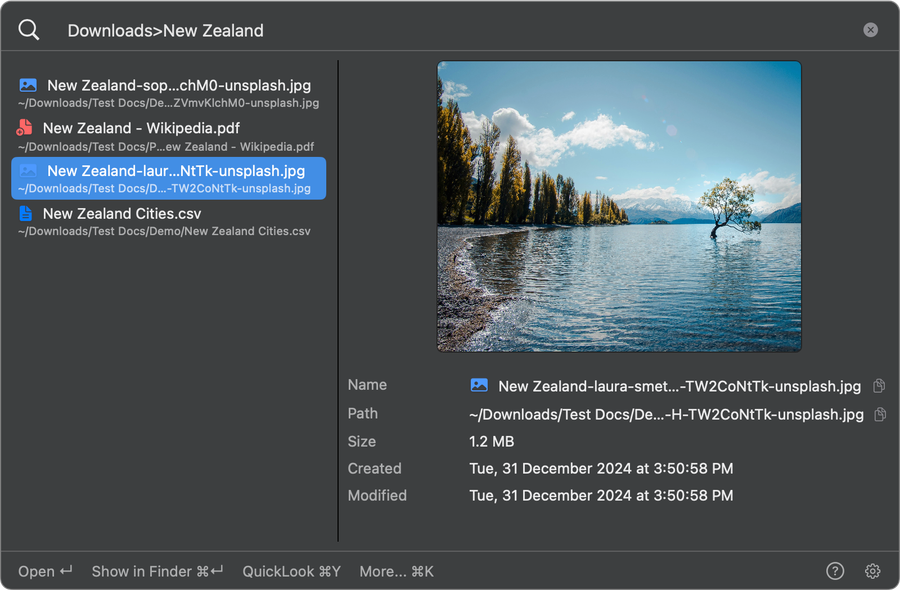
File Minutes sits somewhere between a search tool and a lightweight file manager. It’s keyboard-driven, easy to learn, and extremely fast when you need to locate images, Markdown files, archives, or other documents across your system.
Once you find the file, you can either open it in its native app or reveal it in Finder.
Some features I particularly like:
- Filter browsing by file type
If I’m looking for a PDF, my view isn’t cluttered with unrelated file types.
- Save favorite folders
Jump instantly to locations you use frequently.
- Bi-directional filtering
Search for files named invoice and narrow the results to Downloads; or browse Downloads and filter results to files containing invoice.
- Keyboard navigation
Up and down arrows browse the current branch of the file tree. Left and right arrows move up or down a directory level.
- File actions
Open, copy, or preview files using keyboard shortcuts.
- Content search
Search inside PDFs, Markdown files, documents, and text files.
File Minutes collects no telemetry and performs no data collection. It runs on macOS 13 or later and costs $10 for a single license or $21 for three seats.

MiddleDrag (Free)
MiddleDrag is a tiny free utility (about 2 MB) that adds natural middle-click functionality to your Mac trackpad; whether that’s your laptop trackpad or a Magic Trackpad.
If you work without a mouse, this can make a surprising difference.
Some places where it really shines:
- CAD and 3D modeling
Pan and orbit smoothly in Fusion 360, Blender, OnShape, FreeCAD, and SketchUp without reaching for a mouse.
- Browsers
Open links in background tabs, close tabs instantly, and auto-scroll long pages with a simple three-finger tap.
- Coding and terminal work
Paste selections in Terminal (Linux style) and interact more naturally with VS Code multi-cursor editing.
It’s small, simple, and one of those utilities that quickly becomes muscle memory.
Workspace+
If you run a multi-monitor command-center setup with several tiled windows, a browser full of tabs, and a dozen apps open at once, recreating that layout every time you switch tasks gets tedious fast.
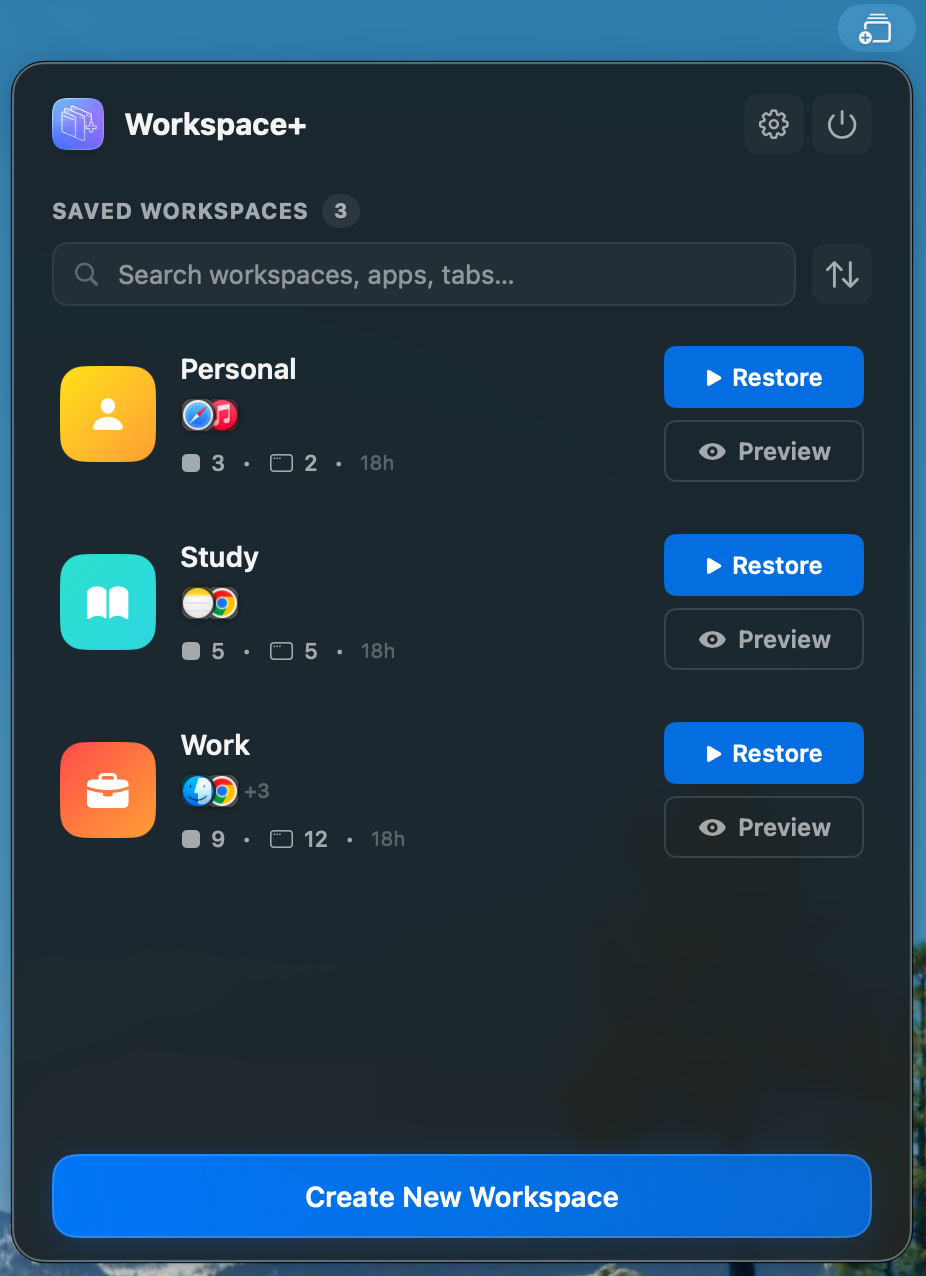
Workspace+ lets you capture an entire workspace and restore it with a single click.
Apps reopen, windows return to their positions, and browser tabs reload as part of the workspace.
This makes switching contexts dramatically faster.
Some useful capabilities include:
- Keyboard access
Navigate and trigger workspaces entirely from the keyboard using hotkeys.
- Multiple browser support
Works with Safari and Chromium-based browsers including Chrome, Edge, Opera, Brave, Arc, and Vivaldi. Firefox is not currently supported due to technical limitations.
- Automatic triggers
Workspaces can restore automatically when displays connect or disconnect; ideal if you move between a desk setup and a laptop environment.
If you already use a window manager like Rectangle Pro, Snaps of Apps, or Moom, you can approximate a similar workflow. There’s also the free utility Bunch, which comes close but requires some basic scripting.
Workspace+ is easier to configure and requires far less setup.
A lifetime license costs $14.99, or you can subscribe for $2.99 per month with a three-day free trial.
One current limitation: the app does not yet restore windows across multiple Spaces in Mission Control. The developer has indicated that this feature is on the roadmap.