
Organizing a 660-App /Applications Folder with AppTela
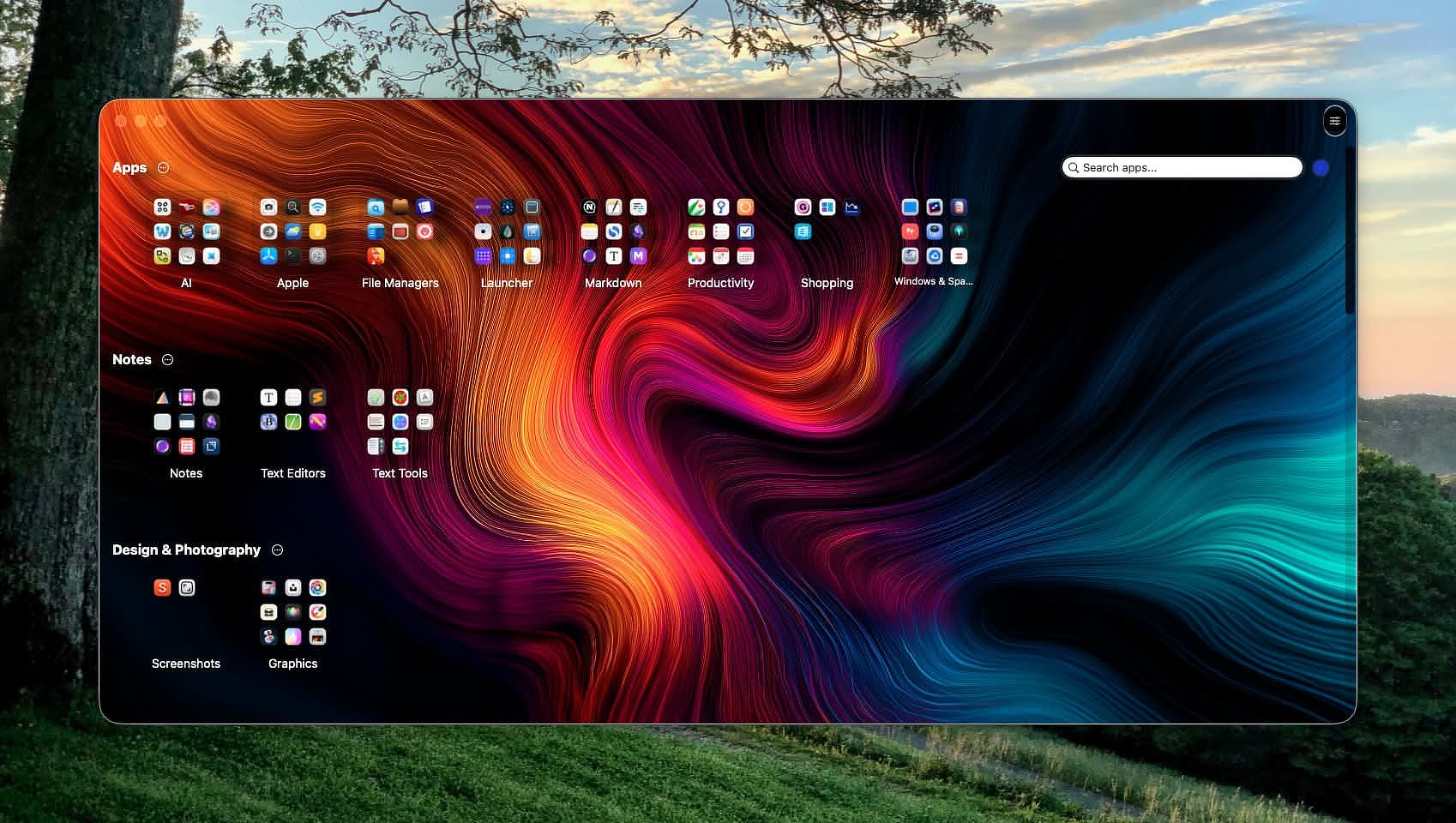
I recently organized my /Applications folder; it contains more than 660 apps. The tool that finally made it manageable is AppTela, a layered, categorized launcher available for $4.99 on the Mac App Store.
I tend to keep an app for every contingency. The problem isn’t disk space; it’s remembering the name of the utility you installed last year to solve a problem that only shows up every few months.
If you’ve ever had the experience of knowing you have an app for something but not remembering what it’s called, AppTela is designed to solve exactly that problem. I still launch the majority of my apps from Raycast. My use case for AppTela is using it's organizational structure, but if you're primarily a mouse or trackpad (nothing wrong with that), then this app will server you well on that front.
Not many days go by without me downloading at least one app. I’ve been doing that for years. Some people golf; some people play video games. My hobby is testing software.
Over time, of course, some maintenance and culling becomes necessary. But I’ve never worried about having too many apps; if that’s even a thing. As long as I stay away from the big bundles from companies like Adobe and Microsoft and keep Electron apps to a minimum, disk space isn’t an issue. Even on a Mac mini with a 256 GB SSD, my very full Applications folder uses less than 20% of the drive.
AppTela is not a Launchpad clone. It’s completely non-destructive. No matter how you organize things inside AppTela, your underlying file system never changes.
The structure takes a little time to understand, but it clicks pretty quickly. And importantly, none of the organizational layers are mandatory. You can ignore the ones that don’t fit your workflow.
Pages
The highest organizational level is the Page.
When you first open AppTela, it places all your apps on a single page. You can create as many pages as you like.
An app can appear on multiple pages. For example, you might create:
- a Side Hustle page
- a YouTube setup page
- a Daily Work page
Safari could appear on all of them.
Categories
Within each page, apps are arranged into Categories.
On the default page, categories appear as headers with apps displayed in a grid beneath them. You can rename, delete, or create categories from the context menu.
The default categories include:
- Design and Photography
- Notes
- Entertainment and Media
- Developer Tools
- Education and Reference
- Internet
- Social and Lifestyle
- Utilities
- Video
- General Applications
You can keep these, modify them, or replace them entirely.
Groups
If you have a lot of apps in a category, Groups become useful.
For example, instead of having a giant Utilities grid containing 100 apps, you can break that category into smaller groups.
Here are the Utility groups I created:
- Automation
- Backup
- Clipboard
- Disk Tools
- Dock Utilities
- File Maintenance
- File Transfer
- File Search
- Hardware
- Maintenance
- Menu Bar
- Network
- Shelf
- Shell
- Shortcuts
- Speech
- System
Groups can also be nested up to five levels deep, which gives you a surprising amount of flexibility if you want a very structured layout.
Stacks
The lowest organizational level is the Stack.
There are two kinds.
Regular Stacks
A regular stack is simply a way to group up to 10 apps inside the space normally occupied by a single icon.
This is useful when you have clusters of related tools you only use occasionally.
Launch Stacks
Launch Stacks look similar, but behave differently.
Clicking one launches every app inside the stack simultaneously.
This is perfect for starting a workflow where several tools always open together; for example:
- a writing environment
- a development setup
- a media editing session
Stacks can be placed directly inside a category or inside a group.
Aesthetics and Customization
AppTela is extremely customizable.
Almost every visual element can be adjusted; borders, colors, fonts, and backgrounds.
It includes:
- 26 display themes
- 29 color schemes
- 7 animated backgrounds
You can run it:
- full screen
- as a sidebar above the Dock
- on any display
- on any Space
If you spend time dialing in a layout you really like, you can lock, save, and back up the configuration.
Wish List
There are a few things I’d still like to see added.
The biggest one is the ability to launch things other than applications, such as:
- Shortcuts
- Folders
- URLs
- Files
I would also like something similar to the notes feature in Start (by Innovative Bytes). Being able to attach a short reference note to an app would be genuinely useful.
Not every app name is descriptive. And if you happen to have six clipboard managers installed (hypothetically speaking), it would be helpful to leave yourself a reminder about which one supports cumulative copying.
App Details
Developer Website
AppTela for Mac – Customizable App Launcher & Launchpad Alternative
Privacy Policy
AppTela collects no personal data.
The app runs entirely on your device and requires no network connectivity.
Price
$4.99 on the Mac App Store