
Learning and Using GitHub As a Non-Developer with Tower
For years I assumed GitHub was only useful if you were a developer.
Turns out it's actually one of the best tools I've found for managing text-heavy Mac workflows.
I now use Git repositories to version and back up things like:
- my 13K-file Obsidian vault (private)
- ~700 Keyboard Maestro macros (public)
- Hazel and BetterTouchTool configs (public)
- writing projects and scripts (private)
- ~500 Markdown documents with my quotes collection (public)
No coding required.
I recently switched from GitHub Desktop to Tower, which exposes a lot more of Git's capabilities without forcing you into the command line.
If you're a Mac power user managing large folders of Markdown, scripts, or automation configs, Git is basically Time Machine for specific folders — and Tower makes it easy to use.
Why This Matters for Mac Power Users
If you work with text-heavy workflows on macOS — Markdown notes, scripts, automation configs, or documentation — Git gives you something Time Machine doesn’t:
• version history for individual files
• the ability to roll back one specific edit
• an off-site backup of critical working folders
• synchronization between multiple Macs
For people managing large Obsidian vaults, automation libraries, or documentation projects, that combination becomes extremely useful.
Let's Speak the Same Language
Here's a quick translation of common Git terminology:
- Repository
A folder tracked by Git that contains files and their complete change history.
- Commit
A saved snapshot of the repository at a specific moment, along with a message describing the change.
- History
The chronological record of all commits.
- Branch
A parallel line of development that lets you experiment without affecting the main version.
- Merge
Combining changes from one branch into another.
- Remote
A copy of the repository stored somewhere else; typically GitHub.
- Push
Send your local commits to the remote repository.
- Pull
Fetch changes from the remote repository and integrate them into your local copy.
- Clone
Download a complete copy of a repository, including its history.
- Diff
A comparison showing exactly what changed between two versions of a file.
Why I Use Tower
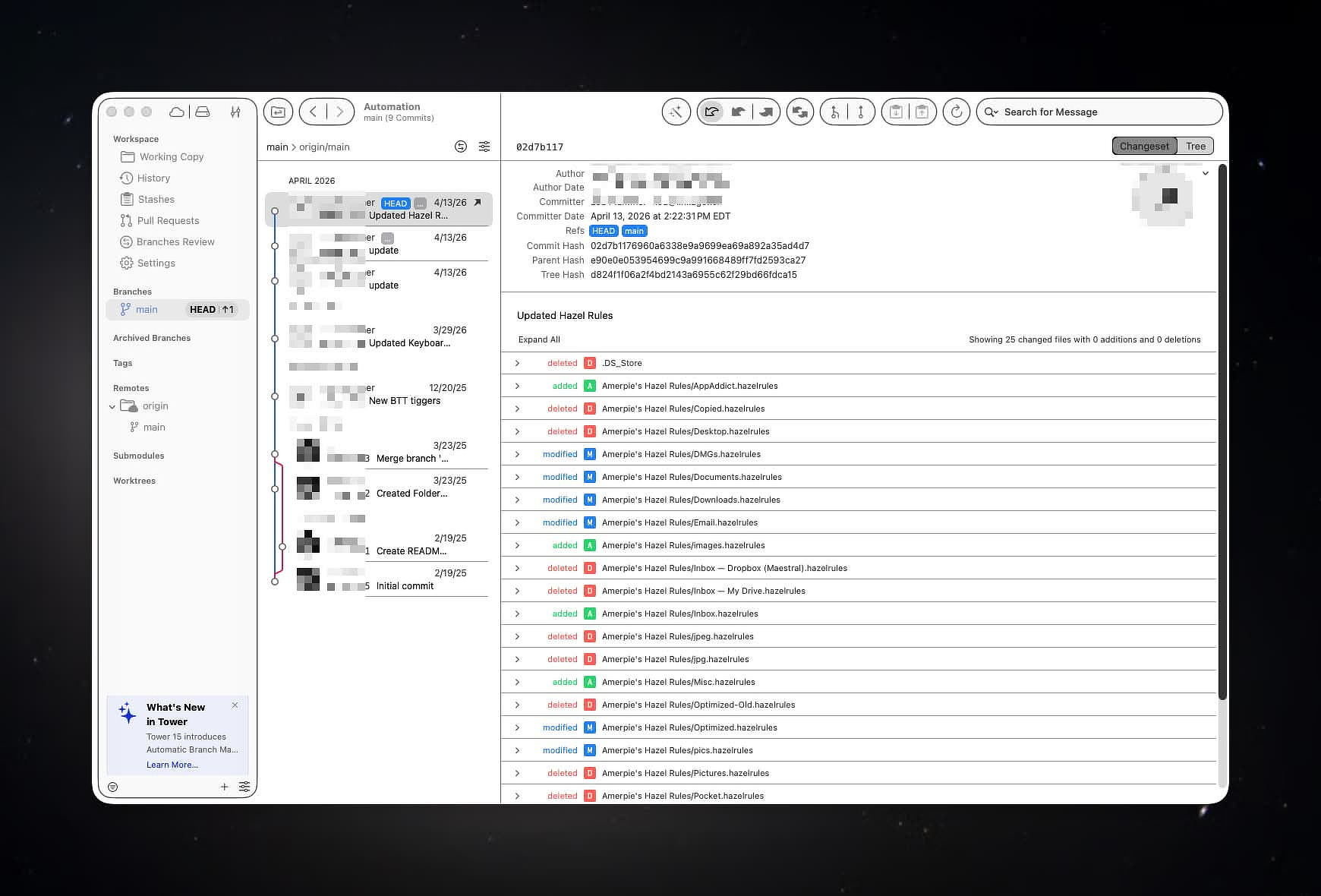
Tower provides a graphical interface for Git repositories and remote services such as GitHub. Instead of memorizing commands, you interact with commits, branches, and history visually.
For developers this manages source code. For everyone else it manages collections of important files.
Git tracks the complete history of a folder. Every time you make a commit, Git records a snapshot of the repository. Tower simply exposes that system visually. Instead of typing commands like:
git add
git commit
git push
Tower gives you:
• checkboxes to stage files
• a commit message box
• push / pull buttons
• a visual timeline of changes
The idea is so simple it's easy to miss how powerful it is.
Every commit becomes a permanent historical snapshot.
For writers, note-takers, and automation nerds, Git effectively becomes Time Machine for specific folders; but with far more precision. Instead of restoring an entire folder, you can restore a single edit inside a single file. That capability becomes extremely valuable once your knowledge base grows large.
I regularly use Tower to manage:
- Markdown notes
- scripts
- documentation
- configuration files
- knowledge bases
- writing projects
Using Tower with GitHub adds a few major benefits: - complete version history
- off-site backup
- synchronization between machines
- detailed change tracking
Tower Features Worth Highlighting
Rebase
Tower includes a visual interface for rebasing, which allows you to reorganize commit history. The GUI makes operations that are intimidating on the command line much easier:
- reordering commits
- editing commit messages
- combining commits
Stashing
Suppose you're halfway through editing files but need to switch branches. You don't want to commit unfinished work. Stashing temporarily saves those changes so you can switch contexts and return later.
Conflict Resolution
I'll admit I tend to use more computers than I should. That occasionally creates conflicts. When multiple versions of a file diverge, Git produces a merge conflict. Tower provides a visual interface for resolving these conflicts instead of forcing you to edit raw conflict markers. For non-developers, this feature alone removes a lot of confusion.
Getting Started in Five Minutes
You can realistically start using Tower on macOS in about five minutes.
- Create a repository
Pick a folder; your Obsidian vault is a good candidate. Initialize it as a Git repository in Tower.
- **Make the first commit
Tower will show all files in the folder. Select them and create the first commit.
- Connect to GitHub
Create a repository on GitHub and link it to your local repository. Push the files.
- Adopt a simple daily workflow
Open Tower; review the files that changed; write a short commit message; push to GitHub.
That's really all most non-developers need.
Details
Tower Website
Privacy Policy
https://www.git-tower.com/legal/privacy-policy
Price
$5.75/month billed annually