
Dockside Turns Drag-And-Drop Into a Real Workflow
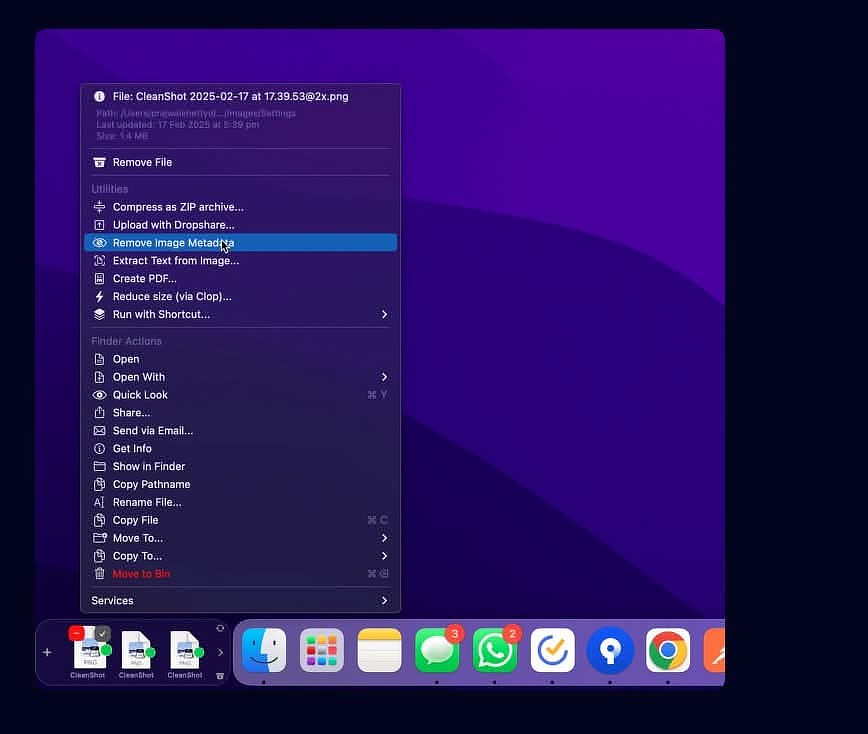
Most Mac users already rely on drag-and-drop constantly, but macOS never really gave us a good place to stage things temporarily. Finder windows work, but they’re clumsy for quick hand-offs between apps.
Dockside turns that gap into a system. It acts like a permanent drop zone beside your Dock where you can park files, preview them, batch them, trigger actions, and move them between apps without juggling Finder windows.
Turning Drag and Drop Into a System
Just because you want to use a file shelf utility doesn’t mean you should have to manage yet another window cluttering your workspace.
Shelf location is a feature; an important one. With Dockside, the shelf lives beside your Dock or on any edge of your display you choose. It’s always where your muscle memory expects it. It’s definitely not another window you have to manage.
Dockside’s strength isn’t just acting as a landing strip for files. It includes multiple purpose-built shelf areas, a secondary space for screenshots, downloads, recents, and clipboard history, plus stacks, Quick Look, utilities, and; this is where the real power lives; drop zones that can trigger Shortcuts, scripts, or file actions based on what you drop.
What Dockside Is and Isn’t
Dockside is a native-feeling macOS file shelf and Dock companion. You drag in files, folders, apps, images, video, links, or text; park them temporarily; preview or batch-select them; then drag them out to Finder or into apps.
It’s not a “Dock replacement.” It’s more like a workflow lane; close enough to the Dock to feel like it belongs to the OS, but customizable enough to act like a small command center.
Multi-Shelf Layout
Dockside gives each side of your Dock a different purpose.
-
Files shelf
The primary area where you drag files, folders, apps, images, video, links, or text. -
Secondary shelf
By default this displays screenshots and downloads, but it can be configured to show several other categories:
- Recent files (with exclusions and limits)
- Clipboard history (with capture toggles, exclusions, and regex rules)
- Media controls (Spotify or Apple Music)
- System info (CPU, memory, disk, network, battery, uptime, temperatures)
Dragging; Opinionated in a Good Way
Dragging items out of Dockside is sophisticated in a way that shows how much thought went into its design.
- Smart drag activation: open when dragging starts, when the cursor nears the shelf, or when it approaches the cursor; user choice.
- Adjustable sensitivity: tune the delay and drop-zone height so it feels fast without triggering accidentally.
- Store by alias or copy: keep lightweight aliases or store real copies inside Dockside.
- Remove items after drag-out: great for true hand-off workflows.
The attention to detail is clear in the modifier-key behavior while dragging. You can remove items on drag-out with Option, use Finder-style move vs copy behavior, ignore activation with Fn, and more.
It’s the kind of app that gets noticeably better once your muscle memory kicks in.
So Many Features
I’ve been using Dockside for over a year. During that time the feature set has grown quite a bit without drifting into feature bloat.
Project Scratchpad
You can create and manage up to three separately configurable work zones in Dockside (for example: working copies, archive, future projects), each with its own automation rules based on tag filters or watched folders.
Clutter isn’t much of a problem because Dockside includes a stack interface and lets you create folders directly from selected files.
Drop Zones
You can configure multiple drop zones that appear when you drag items. Each zone has a user-definable primary action (Shortcut, Email, Copy or Move, AppleScript, shell script, CLI command, utilities, or none) and a post-drop action (keep in shelf, move or copy elsewhere, trash, or permanently delete).
Utility Suite
Dockside includes a set of file utilities available from menus, hover actions, or assignable drop zones:
- Compression and extraction
- Image to PDF
- Image metadata removal
- Rename
- Move or copy to predefined folders
- ShareSheet
- Cloud uploads
- Clop integration for file size optimization
- Finder integration via a Finder Sync extension
What Makes Dockside Stand Out
The problem with many apps in this category is inconsistent behavior. Elements move around unexpectedly, or panels hide and unhide randomly.
Dockside has been rock solid in my experience.
You can configure which display it appears on and which edge it attaches to. You choose how it hides or shows itself, either through settings or a global shortcut. Once configured, it behaves predictably. It just works.
It’s 100% a Mac-ass Mac app. Standard keyboard shortcuts work as expected: ⌘C, ⌘V, ⌘A, ⌘⌫, and ⌘Z to restore. Multi-item selection is built in. There are trackpad and mouse gestures for expanding shelves and paginating items. The right-click context menu is practical and thoughtfully designed.
Dockside is also Terminal friendly. It supports Apple Shortcuts and custom URLs. Not only does it work with Clop, it also includes a PopClip extension and sharing via Dropshare.
This is a power user’s kind of utility. The developer is friendly and responsive, and the app fits into your workflow without forcing you to change how you work. It’s particularly well suited to juggling multiple projects at once. There’s also a two-week free trial, which is plenty of time to see whether it fits your workflow.
Real-World Uses
After a few weeks of using Dockside, certain workflows start to feel natural.
Temporary file staging
Drag files from Finder, Mail, or Safari into Dockside while collecting materials for something. Once everything is there, drag them out together into the destination app.
Screenshot triage
Screenshots land in the secondary shelf automatically. From there you can preview them with Quick Look, drop them into an image tool, or send them directly to a drop zone action.
Automation trigger pad
Drop a file onto a zone that runs a Shortcut or shell script; resize images, move files to project folders, or trigger upload workflows.
Multi-project juggling
Use separate scratchpad zones for active work, reference material, and future tasks without scattering Finder windows everywhere.
The Details
- Activation on up to three Macs
- Apple notarized
- Privacy policy: no data collection; internet used mainly for license activation and checks
- Homebrew install supported (
brew install --cask dockside) - Cost: $5.99 lifetime; no subscription. I could easily see paying five times that for something this useful.
- Developer website:
Dockside for Mac — native file shelf & Dock companion (drag, drop, done)
The Verdict
Dockside is one of those tools that feels small at first and then quietly becomes part of your daily workflow.
If you move files between apps constantly, collect materials for projects, or run file-based automations, it’s an easy recommendation. It behaves like a natural extension of macOS rather than another utility window competing for your attention.