
Language Tool - Free is Good, Paid is Better, but Expensive
Mac apps have had rudimentary built-in grammar checkers for a
while. Grammarly was the first
well-know commercial product to elevate the capabilities of that tool
genre, becoming extremely popular with students in particular. Lately,
LanguageTool has surged in
popularity. It is integrated into many well-known writing apps across
multiple platforms, including macOS and iOS.
Professionally, I am tasked with composing Confluence (knowledge base) documents for Jira, the ticketing system my job uses. Personally, I maintain three blogs as a non-monetized blogs as a hobby. I write a lot as a result. I have been using the free version of LanguageTool for a couple of months. It does a better job than the native spell checkers I previously used, and it helps with things like missing commas and omitted words. I took advantage of a Black Friday sale to sign up for a year on the Pro Plan. As a result, the app now has a much larger range of tools for me to use.
LanguageTool has a plugin for Safari, Firefox and Chromium browsers. It has a tool specifically built for Microsoft Office, Google Docs, Apple’s Pages and LibreOffice. For email users, it works with Apple Mail, Outlook, Thunderbird and Gmail. It even has a plugin for Obsidian, where I do most of my writing. On a Mac, it is also optimized for uses in other apps like Messages and Notes. There is a native editor app for Mac users.
Language Tools’s capabilities are sizable.
-
Grammar
- Word order
- Verb tenses
- Subject/verb agreement
- Commas and in-depth punctuation
-
Style
- Repetition
- Over-used words and phrases
- Wordiness
- Foreign terms
-
Semantics
- Lack of clarity
- Word confusion
- Double negatives
-
Format and Typography
- Consistency for numbers and letters
- Spacing
- Time and date formats
-
Spelling
- Misspelled names and acronyms
- Casing errors
- Easy to import your Mac's personal dictionary
LanguageTool works not just with English, but with many other languages as well. It provides detailed stats on what it has done to aid you in writing. You can use a limited feature set or turn on what it calls "picky mode" for more frequent suggestions to strengthen your writing. It does not duplicate what macOS and ChatGPT offer in so far as it does not change the tone of your writing, but it will paraphrase sentences for you.
I am pleased so far with the suggestions I receive from LanguageTool. It definitely makes what I write more polished. It is not a cheap tool. Without the Black Friday discount, it is $5.83 a month, or $70 a year. Casual users can get plenty of benefits from the free plan, while students or more serious writers can benefit from deciding to go pro.
Folder Tidy - On Demand Fast Power

Folder
Tidy by Tunabelly Software is a tool anyone can use to perform quick
sorts on any giant directories of files that seem overwhelming to tackle
manually. It has built in sorting rules for 19 different types of files,
including folders. These rules can be toggled on or off, but you cannot
edit them. In addition, you can make your own very granular rules. The
example they give is representative of the power of the app. “Move all
files with the extension “DOCX” that contain the word “invoice” and were
last modified in the past year to a folder labeled “Invoices.”
What’s remarkable is the speed at which Folder Tidy operates. It uses macOS technology called Grand Central Dispatch to use all available cores to accomplish the tasks you assign it. In my case, it took about a second to sort and move directories with hundreds of different media files to subfolders on a different drive. I had to do some troubleshooting after it failed to move all the files on the first try. It turns out that my Spotlight database needed to be rebuilt, a problem I’ve had before which also affects some search utilities, like Houdah Spot, that rely on it.
Folder Tidy is not a replacement for Hazel. While it does what it sets out to do quickly and well, it is a file sorting utility that doesn’t have the depth of actions that Hazel does. If you already own Hazel, there is no reason to add Folder Tidy. One other important thing to know is that Folder Tidy is a manual app. It doesn’t watch folders and run action on the enclosed items automatically.
I paid $2.49 for the app on Black Friday. It is ordinarily $9.99.
Black Friday Software Sales

It’s time for all the AppAddicts out there to load up during the
yearly bargain day called Black Friday. The sites listed below have some
repetition, but take a quick look through all of them. Some contain
software for specialty roles, like devs, creators and designers.
So far this year, I’ve purchased:
Sales
- Rare Deals and Discounts on Software, Apps & SaaS
- Black Friday - Indie Goodies
- Black Friday WordPress Deals 2024 - wpbfdeals
- Awesome-Black-Friday-Cyber-Monday: Awesome deals on Black Friday: Apps, SaaS, Books, Courses, etc.
- Best Black Friday & Cyber Monday 2024 Deals for Developers & Designers
- SaaS Black Friday 2024
- Awesome-Black-Friday-Cyber-Monday-deals: 🟢 2024 Deals Live - Black Friday & Cyber Monday, Christmas & Holidays Deals for Developers, Techies, & Entrepreneurs,
- Black-Friday-Deals: Black Friday Deals for macOS / iOS Software & Books
- Indie App Sales!
- Discover Launch Deals on Indie Products
- DealHunt - Free Curated Deals with Savings up to 80%
- Black Friday Times, unmissable deals on software, services and more.
- Creator Black Friday Deals
MacWhisper - Transcription Powerhouse

I made my first purchase of the 2024 Black Friday season by
purchasing the transcription app, MacWhisper by
indy developer Jordi Bruin for 40% off of the usual price of €49.99.
This app uses OpenAI’s Whisper technology to transcribe all types of
audio files with quickness and accuracy into text.
It requires macOS 14 or higher and works best on Apple Silicon, although it is functional on Intel processors. You can use any type of input device, including your Mac’s built-in microphone. MacWhisper can, if you choose, replace the built-in dictation on your computer. Transcription is done on your device, not on a remote computer. The default output is a .whisper file containing the original audio and the transcribed text, however it has numerous export choices:
- SRT and VTT subtitles
- CSV
- DOTE
- DOCX
- Markdown
- HTML
The transcription speed is remarkable, happening up to 30X over real time using metal and GPU technology. Transcripts may be easily searched. Filler words (um, ah, etc.) are automatically removed. You can edit the transcripts to correct spelling of names or other words.
With the Pro version of the program, I get batch transcriptions of multiple files. I can transcribe YouTube video and use my OpenAI key to take advantage of Cloud Transcription and ChatGPT integration. I can take advantage of translation services to convert text into other languages. It also adds a menu bar interface for global transcription and the ability to paste text into other apps.
Students, non-profits and journalists always get 50% off the price by contacting the developer. There is a free version of the app that lacks the AI integration of the Pro version. It is available on Gumroad.
Clotski - A Clever Tool for Your Image Management Workflow

Clotski is a 99 cent menu bar app available in the
Mac App Store. Its simple menu lets you designate watched folders
where you keep images accessed as part of your workflow, for instance
screenshots and downloads. You can view thumbnails of the images, the
size is customizable and get info on them which includes name, size,
dimensions, creation date, tag, caption and modification date. Tags and
captions can be added from with Clotski. The information presented can
be customized, and other metadata can be added if you wish. You can open
the image with your default app or choose from other compatible apps
from an “open with” menu. When viewing the list of images in a folder
you can choose a list, grid or gallery view, and you can choose the sort
order based on date or file size in ascending or descending order.
One feature that is especially helpful is Clotski’s ability to automatically download any images you copy to the clipboard into a folder you designate. You can set your own naming convention, as well as choosing to save them in either jpg or png formats.
For keyboard warriors, Clotski can be summoned with a custom shortcut, and it can be navigated without the use of a mouse. For further organization, Clotski lets you create collections of photos along with tags and folders. Collections can be accessed from a drop-down menu within the program If desired, you can designate an automatic tag to be applied to images you add to newly collected images. You can use the tags just with Clotski, or you can sync them with the Finder.
While working with images in Clotski, you can copy or drag them into documents on which you are working. Clotski does not have any native editing functionality,
Notesnook is the Best New App I've Seen in a While

There are many, many notes apps available for Mac users, from simple plain text notebooks to complex PKM managers. I thought I was familiar with the main players, but I just discovered an app with which I was unfamiliar, and I am blown away by its features. The app is Notesnook, and it reminds me very much of Evernote before it was enshittified. It’s a privacy lover’s dream app with features that anyone can love:
- Notes importer
- Automatic 2FA
- End to end encryption
- Mac, web and iOS apps
- Web clipper
- Pro plan is 34% of what Evernote costs and $10 for educational users
Notesnook provides real time syncing for free and paid accounts. The free plan offers plain text exporting and the pro plan lets you export notes to other apps as PDF, Markdown or HTML, unlike Evernote which has a proprietary format. It has unlimited storage and offers unlimited notebooks and tags in the pro plan.
Other notable features include:
- Offline access
- Unlimited devices
- Images and attachments
- Wikilinks
- Three different 2FA options
- Shortcut integration
- RTF and Markdown formatting
- Tables
- Callouts
- Reminders
- Encrypted backups
- Widgets
- Shares extensions
- Mobile web clipper
I will continue to use Obsidian for journaling and as an automated life record, but I'm moving my work notes, serial numbers, financial info and other reference material over to Notesnook.
The Top 25 Most Downloaded Mac Apps
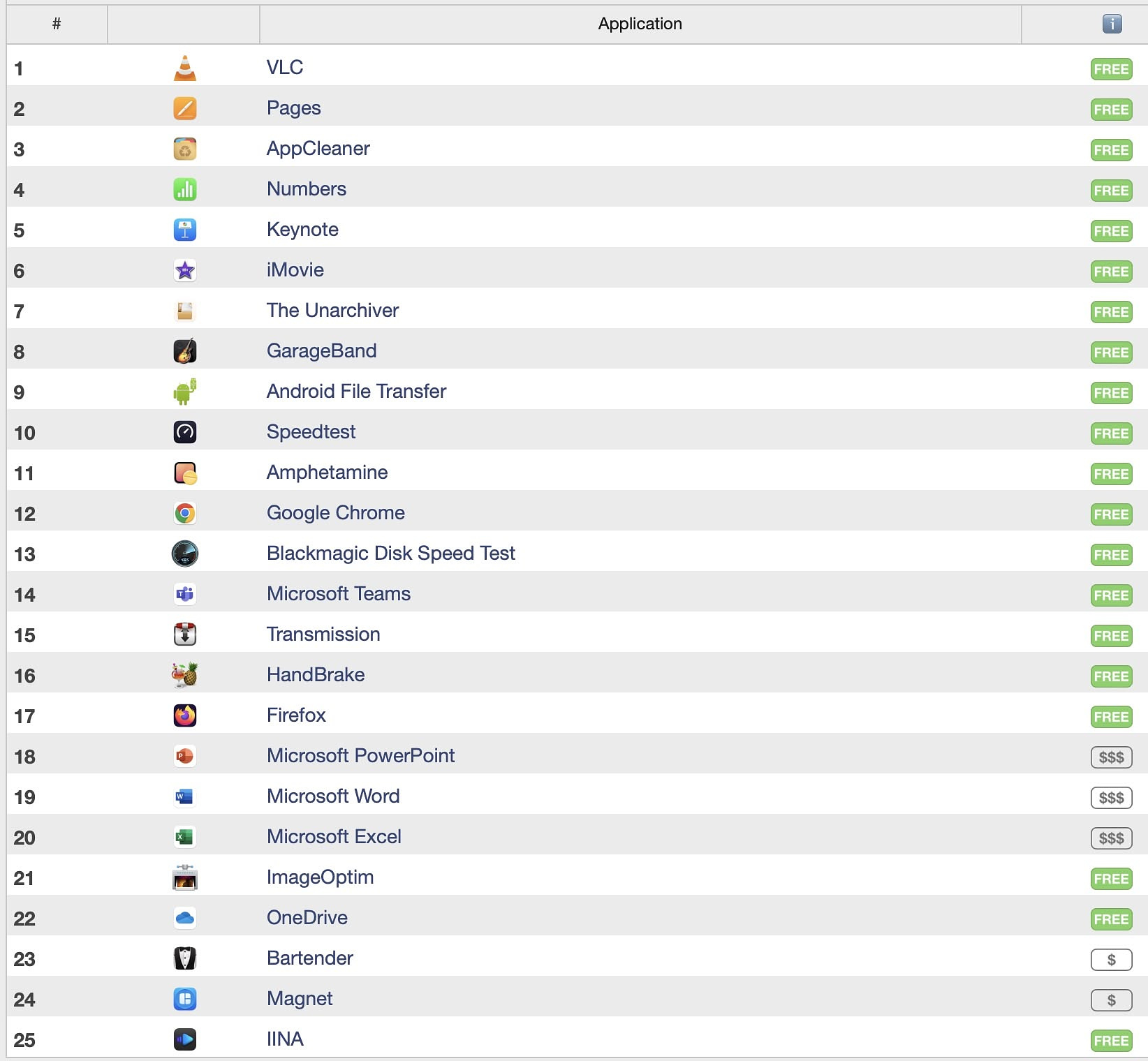
I looked at the list
of the top 25 most downloaded apps as compiled by MacUpdater, who I
figure are as good a source as any and drew a few conclusions.
- VLC
- Pages
- AppCleaner
- Numbers
- Keynote
- iMovie
- The Unarchiver
- GarageBand
- Android File Transfer
- Speedtest
- Amphetamine
- Google Chrome
- Blackmagic Disk Speed Test
- Microsoft Teams
- Transmission
- HandBrake
- Firefox
- Microsoft PowerPoint
- Microsoft Word
- Microsoft Excel
- ImageOptim
- OneDrive
- Bartender
- Magnet
- IINA
Only five of the apps in the list are paid apps. They are the big three in Microsoft Office, the menu bar manager, Bartender and the window manager, Magnet.
The vendor with the most apps on the list is surprisingly, Microsoft with five.
For it' market share to be as small as it, Firefox must have a higher proportion of Mac users employing it than PC users.
I would wager that VLC’s popularity is due to its longevity and because of enterprise deployments. I know I have been putting it on images in the educational space for as long as I can remember. IINA seems more popular with more knowledgeable users,
Despite all the predictions made about Bartender’s future after the botched handling of its sale, it is the most downloaded paid app in the ecosystem after Microsoft Office.
I have never been a big user of window management tools, and I had no idea Magnet was as popular as it is. It has 165,000 reviews in the App Store and a 4.9 rating.
I find it interesting that the top 25 apps did not include a single notes app, automation tool or clipboard manager. The only messaging app is Microsoft Teams, and I hesitate to say that is its primary function.
The presence of the six-year-old Android File Transfer app is mind-blowing. I suspect this indicates that the download figures are worldwide and include countries where Androids have huge market share.
The high ranking of App Cleaner is good for two reasons - it demonstrates that an app doesn’t have to be updated constantly to be useful (last update was 2023-07-05). It also shows that lots of people believe in doing more than just dragging unwanted apps to the trash.
Using Supercharge

Although I use a lot of apps that have a menu bar interface, most
of them are hidden by Bartender. An app has to be super useful and be
something I use frequently to remain visible at all times. The latest
addition by Sindre Sorhus, Supercharge is an instant add. It has a great
many uses and has replaced other utilities that have narrower focus.
More tools are being added regularly, so if you have this app, make sure
to install updates as soon as they are released to get new features. I
won’t cover them all, just the ones I use personally.
From the Menu Bar
The menu bar icon presents the following option in a drop-down:
- Hide all windows
- Show Desktop
- Quit All Apps
- Hide My Email (opens this buried item in System Settings)
- Private Relay opens this buried item in System Settings)
Tweaks
- Unminimize windows when app becomes active
- Dim icons of hidden apps in the dock
- Create new text file with Option+N
- Open new files after naming
- Auto-adjust column widths in Finder
- Quit an app when closing its last Window (I don't usually like to mimic Micro$oft behavior, but I like this feature)
- When clicking on an active icon in the dock, hide app
- Add to Finder's context menu
- Copy path
- Copy file name
- Image dimensions
- Make symlink
- Move to...
- Copy to...
- Open in Terminal (for folders)
The ability to make those modifications in the Finder makes it much more powerful.
Shortcuts
- Toggle desktop widgets
- Open Passwords from menu bar
- Hide all windows
- Quit all apps (except menu bar apps)
- Show desktop
I was using the beta feature to close visible notifications which definitely had a beta feel to it, until I discovered that Better Touch Tool's implementation of this feature closes not just visible notifications, but all existing ones. I'm sure Sindre will get this working similarly in future releases.
Tools
I work on an MBA at home and an iMac for work. For apps that don't have iCloud sync, using the export and import settings tool has been extremely useful and has saved me a ton of time. It's also useful when I want to experiment with how an app is set up, allowing me to revert settings if I don't like what I get after changing things around.
You can get a fully functional copy of the app here. The only limitation is a reminder to buy the app every 12 hours, and no automatic updates. All data and settings carry over if you buy it.
I suggest you just go ahead and buy the app. If there was ever an Instabuy, this is it.
Mac Compression Utilities

When it comes to opening compressed files in just about any
format, the most downloaded utility is The
Unarchiver from MacPaw. There’s not much you can throw at it that it
can’t handle, including old files from StuffIt and DiskDoubler. It can
even extract files from some Windows .exe installers. The problem with
The UnArchiver is that it does decompression only. If you want to make
your own archives, you need another program. Natively, macOS can create
ZIP and DMG files but that’s it.
BetterZip 5 from macitbetter is a much more full-featured app, although it isn’t free. It’s $24.95 for use on up to five Macs for personal users. It is also available on Setapp. Better Zip has some pretty cool superpowers:
- Quicklook extension for viewing files inside archives without opening them
- Edit archived files in an external application, and BetterZip can save the changes back and update your archive.
- Open and extract winmail.dat files.
- Open, extract, and modify ePub files.
- Extract images and sounds from PDFs
- AES-256 Encryption, password manager, password generator
- Finder Integration and share menu
- Filtering - only extract certain files from archives
- Integration with Alfred and Hazel
Keka is a perennial favorite of many Mac users. It has a free version on the developer's websiteand a $5 version on the Mac App Store. Keka has compression and decompression tools. Keka can divide large files into multiple parts that will automatically reassemble after decompression. You gain the ability to use 256-bit encryption. You can also take advantage of a drag and drop interface into the Keka main window, or by simply dropping files onto the Keka icon in the dock.
For those who want scripting and a CLI as well as a GUI, Peazip is probably the best bet. A free app, it also has the widest array of security features.
- Offers two-factor authentication
- Opens 200 types of compressed files in the GUI
- Multiple file management features: convert archives, search in archives, bookmarks, tabbed browsing,
- Portable - can be run from a USB or other external drive
- Open Source
- Cross platform (Linus, macOS Windows)
Some Finder alternatives offer compression and decompression, including:
MarkEdit - A Pure Markdown Editor for Free

Markdown documents are written in plain text and generally saved
with a .md file extension. Various apps like Obsidian and Bear use Markdown by default. There is a
whole ecosystem of tools around the easy-to-use language where you use
various keyboard elements to create styles that can be interpreted by
browsers and other apps. Markdown lets you add:
- Bold
- Italic
- Quotes
- Lists (numbered, bullets, and checklists)
- Links (to web pages and images)
- Code blocks
- Headers
- Tables
There are different flavors of Markdown, but the most commonly used one is referred to as GitHub-flavored Markdown. As a blogger, I prefer to write in Markdown to format my posts for the web. The free app, MarkEdit uses 100% pure GitHub Markdown. Out of the box. The interface is pretty bare bones, but you can customize the toolbar to use the various tools on selected text. MarkEdit permits the insertion of multiple carats, so you can highlight disconnected blocks of text. MarkEdit is intended to be a minimalist writing tool. It has a good feature set. There isn't any bloat. There are plenty of other editors that have preview, different flavors of Markdown and more. It's just a matter of taste and what your needs are.
The latest version incorporates Apple’s writing tools, allowing you to use proofreading and AI rewriting tools to change your text. Although I am not personally a fan of AI-generated content, there probably isn’t any harm in letting it make a business email more professional if need be.
MarkEdit does not contain a viewer to show your text with the formatting enforced. I suggest Brett Terpstra’s app Marked 2 if you’re not going to be looking at your content in a browser.

Recents App for Mac - A Free Intelligent File Launcher

The Recent Items section of the Apple Menu lists your 10 most
recently opened documents. There are some apps that let you increase
that number, but not by much. At most, you’ll have a couple of days work
to refer back to. The app, Recents, will trace you work back by
months in some cases.
Recents breaks your workflow down on a per-app basis and provides the most recently used documents for each one, even if the app itself doesn’t have a recent files menu. For example, I use Rapidmg to open disk images. The program normally opens the disk image, moves the contents to my Applications folder, and then dismounts and closes without any intervention from me. There is no menu. Using Recents, I can see a list of the last 15 DMGs I’ve opened, and reopen them at will.
Recents works with a wide variety of apps and file types. In the admittedly confusing file structure we use at work, I often can’t remember the exact path of saved documents, but I know the app I created it with. Using Recents, I can easily find and open what I am looking for in a centralized location. Some of the apps with which I use Recents are:
- Microsoft Office
- Console
- Preview
- PDF Expert
- VLC
- Obsidian (opens vaults, not documents)
- Motrix
The app has a light and dark mode and can be set to mimic your system preferences. Recents can be access three ways:
- From the dock
- From the menu bar
- Hidden and summoned from a hot key
Recents can be downloaded from the developers website. It is a free app.
Two Free Apps for Mac OS Installation Ease

On most modern Macs, the later Intel builds and all Apple Silicon
models, you can boot into recovery mode, access disk utility and
download and install a new operating system. Unless you can’t. Then you
have a problem. Or, maybe you are experimenting with Open
Core Legacy Patcher to install a later version of macOS on a device
that doesn’t officially support it. In that case, you are going to need
a copy of an OS, preferably bootable, and some sort of media to copy
that OS installation onto. You can do the installation through other
methods, like target disk mode or various imaging applications too, but
they take some know how. The other thing you can use these files for is
when experimenting with virtual machines in something like Virtual Box,
UTM or VMWare Fusion.
Mist
To get a copy of the firmware and OS you need, I know of no easier method than using Mist, a free app available on GitHub. With Mist, you can get everything from the latest beta, all the way back to Mac OS X 7.5. You can get Intel or Apple Silicon installers, or the universal installers available for macOS Big Sur and later.
Balena Etcher
If you are planning to use an SD card or a USB drive, things work better when you flash the media than when you try to fiddle with partitions and permissions on your own from the command line. Luckily, there is an app for that. It is Balena Etcher, a free app with built-in safeguards to keep you from erasing the wrong drive. Balena Etcher will also create bootable media for Windows and various Linux builds too.
Bluesky Apps for Mac Users

The social media platform, Bluesky, has been getting a lot of press lately as a mass migration from X has taken place over the past two weeks. Bluesky has added nearly five million new users. For any Mac users wanting more than the default web interface, there are a few tools available.
Deck Blue
To mimic the old Tweetdeck experience, Deck Blue is your best bet. Best run as a progressive web app through any browser that supports the feature, Deck Blue offers a customizable multi-column interface. You can set how often you want the page refreshed, and you can hide certain types of posts. For a minimum of $1 a month, you can have up to four feeds and use post scheduling.
Skeets
Skeets is an iPad app that also runs on Macs with Apple silicon. It has more features than any other Bluesky client. Some features require a subscription, $1.99 a month, $17.99 a year.
Features
• Hold reading position when
refreshing
• Edit posts
• Post notifications ($)
• Thread
Unroll ($)
• Bookmarks ($)
• Drafts ($)
• Push
Notifications filter ($)
• Trends in Search
• In-App
Translations
• VoiceOver-friendly
• iOS Shortcuts support
• Actionable Push Notifications
• Alt-Text Generator (for images
with text)
• Hide like/repost/comments numbers
• Async video
upload
• Search within user profiles
• Shorten user handles
• Low data mode
• Customize main app color ($)
Sky.app
Sky is a free app available on GitHub. It looks very much like the iOS app, but it does add keyboard shortcuts for those that rely on them.
Shareful - A Free App I Use Every Day

There are certain apps that really should be incorporated into the operating system. One of those is Shareful by Sindre Sorhus. The share menu on the Mac seems like an afterthought when compared to the comparable menu in iOS. Many developers fail to implement the feature in their apps, and Apple itself leaves it purposefully underpowered for some reason. Thankfully, Shareful exists with three supremely useful functions.
Copy
Copy the shared item to the clipboard and so you can quickly paste it into another app. This is my most frequent use case. I have a number of Apple shortcuts that have text output. I use Shareful to copy that output to use in other places. Without Shareful, I'd have to use the text to create a file, then open the file and copy from there. Another useful option is to use this app to copy a screenshot to the clipboard through the share menu.
Save As
Choose a directory to save the shared item to.
Open In
Open the shared item in any app. You can open the current Safari URL in a different browser. In Safari, click the share button, select "Open In…", and then select a browser. There is a Raycast extension that also does this if you are a Raycast user.
Frequent use cases:
- In Photos, use the “Open In” share service to open one or more photos directly in Photoshop.
- Quickly copy content from an app that doesn't normally support copying.
- In Safari, right-click an image, and use the “Open In” share service to open it directly in another app.
Shareful is available on the Mac App Store. If you do not have access to the App Store, you can download a version from the developer's website, although it is not updated as often.
Another Curated Collection of Free Software

Here’s a list of free software that I’ve tried and liked since the
last
time I posted a similar collection
- ClipGrab, a free alternative to Downie
- Air Battery - A Free App to Monitor Battery Levels
- Keyboard Cowboy - Free and Open-Source Automation Software
- Try PDF Gear, It's Good, It's Free
- Topgrade - Upgrade All the Things
- Activity Watch - Free No Effort Time Tracker
- XnConvert - Free Batch Image Converter and Editor
- Noizio - A Background Sound App for Mac
- Five Free Single Purpose Apps (Dockey, Hyperkey, Hyperduck, Unclack, Cleanup Buddy)
- iTerm - You Don't Have to Be a Developer to Use It
- The Time Machine Mechanic
- Neat Download Manager
- Quitter - A Free Utility That Works
- Reminders Menu Bar
- Opening Batches of Apps, Documents, Folders and Web Pages
- A Folder Plugin for Quicklook
- Notenik - A Well Designed Plain Text Notes Plus App
- Sherlock - Find Usernames from 400 Different Social Networks
- Daily - A Dead Simple Free Task Manager
- The Zen Browser
- Licensed - A Nice Single Purpose App for Keeping Track of Your Software
- Gladys - Free Shelf Utility that Syncs With iOS
- Marta - A Free Dual Pane File Manager
- Five Free Single Purpose Apps (Trash Sweep, Speediness, Justatext, Quick Recorder,KeyCastr)
- Deskpad - A Virtual Monitor for Screen Sharing
- Kiano - A Unique Image Sorter and Viewer for Apple Photos
- Duplicati - Free Encrypted Offsite Backup for Your Mac
- Encrypto - Free File Encryption App
- Good Old Time Machine Editor - A Useful Free Utility
- Virtual Buddy - Run Mac and Linux VMs with Ease on Apple Silicon for Free
- Free Startup Manager with Many Options
- A Different App for Managing Background Items
- FASA - An App to Copy an Image and Paste It as a File
- Task Til Dawn - A Free Mac Automation App
- Three Free Apps for Text and Writing (Nissus Thesaurus, Megawords, Esse)
- Scheduler for Mac - Free Automation Utility
- A Day With Vivaldi Browser
Fedica - Post to Multiple Social Networks at Once, On a Schedule - For Free

There’s been a great deal of buzz recently about an iOS only app
called Croissant that can post to X, Mastodon and Bluesky all at once.
From all reports, it’s a pretty nice app, but it costs $60. There is a
free app, Openvibe, that also works on macOS and adds posting to Threads
to its ability list, but it’s owned by some crypto bros and that may
give some folks pause. I’ve been using a free service/app for a while on
my Mac and iOS devices that doesn’t have those drawbacks, plus it adds a
lot more services and has a built-in scheduler for up to 10 posts.
Additionally, if Mastodon is your jam you can get all kinds of info in your account including:
- Recent follows
- Recent unfollows
- Follower info
The name of the app is Fedica, and it is available on the app store. It also has a web interface. The platforms it connects to are:
- Twitter/X
- YouTube
- TinkTok
- Facebook Pages
- Mastodon
- Bluesky
- Threads
You can post polls and threads on platforms that support them, plus you get unlimited drafts to store posts you may want to make later.
There are some paid options geared more towards business owners than individuals that offer scheduling more than 10 posts and getting more frequent reports, but they are expensive, starting at $29.99 a month. For personal use, the free options are fine for most people.
The Best App for Subscription Tracking

For many, the consumer landscape today includes subscriptions in
lots of areas, for news. TV channels, music services and software. Was
life better when we all just paid a single cable bill instead of cord
cutting? Was it better when you had to pay an upfront price on any
software you wanted to use? I don’t know the answer to that. I remember
when it cost nearly $300 to get a copy of Microsoft Office with Outlook
Included, which didn’t include anything like cloud storage or a free
email account. Cable bills got to be well north of $100 a month. These
days, you can use Office in about five minutes for less than $10. If you
get a good deal and sign up for a full year, you can often get a premium
TV subscription for roughly the same amount per month.
Keeping track of all this is challenging though. An old-fashioned spreadsheet might do the trick, but for a polished experience with a few extra bells and whistles, I use an app from Touchbits, Inc. It’s called (wait for it) Subscriptions, and it cost either $1.99 a year or $7.99 for a lifetime purchase ($14.99 for a family license). It is a universal app, so it works on your phone, iPad and on your Mac.
For me, it ticks all the boxes. It lets me categorize each subscription (entertainment, software etc.). I also have the option of using tags for further categorization. It can handle weekly, monthly and annual subscriptions. There is a place for the URL associated with my account information for each sub. You set a renewal date for when the next bill is due and for what amount. There is a reminders option for those due dates. You can select a payment account if you want to track that. The Subscriptions app saves a price history so you can see what changes vendors make over time. Finally, there is also a notes field.
The app has analytics to help you track spending over time and by category. There are several view and sorting options as well. The data syncs via iCloud across all platforms. You can export your data via a CSV. It has a backup and restore feature, but it is a proprietary database file and there doesn’t look there is a way to import data from anywhere. I’ve been using it for nearly a year, and I’ve recommended to lots of people.
Redact Privacy - An App for Cleaning Up Your Internet Presence

If you’ve been online for a long time, you very well may have
accounts on dozens of services, including social media platforms.
Despite your best attempts at privacy, there may well be old posts
floating around that you wouldn’t want associated with you currently.
People change over time, and comments that seemed clever when you were a
teenager may seem pretty cringe today. There are services out there that
offer to clean all that up for you, but they are expensive and require
that you turn your credentials over to a third party. Luckily, there is
a universal Mac app that can do total or selective removal of your
content from 30+ different apps, websites and services. It’s called Redact Privacy. It removes posts, DMs,
photos, videos, likes, and other unique content on various social
networks. You can delete by keyword, sentiment, content type, and more.
It has a free tier that will :
- Delete unlimited tweets, retweets, and likes from Twitter/X
- Anonymize unlimited Reddit posts and comments
- Delete up to 30 days of content on Discord & Facebook
To access the other services requires a subscription, but paying for a single month for $7.99 should give you adequate time to clean up your posts. Subscribing lets you take advantage of scheduled deletions if for some reason you need that. The app is available on the Mac App Store.
The paid version offers:
- All social media services fully unlocked
- Full access to the automated scheduler
- Deep-scan your posts with the File Importer
- Advanced social media management tools
- Edit and Deletion modes
- Priority, 1:1 support
- Custom text editing options
- Manage entire servers or communities with "Moderator mode"
Included services include:
- Discord
- Anilist
- Slack
- Imgur
- Letterboxd
- Deviantart
- Disqus
- Gyazo
- Skype
- Spotify
- Steam
- Github
- Pixiv
Text Count - An App for Those Who Write

As a person who writes a lot for my job and for fun, I have a need
to make sure I’m not being to verbose and to make sure that what I’m
composing is appropriate for the audience it’s aimed at. I found a
simple tool by indy developer Arthur Smith, Text Count,
that makes it easy to get character, word and sentence counts and to get
a readability score on the Flesch-Kincaid scale. It analyzes sentence
length and word length, plus syllable count to assign a score from 1-100
to the text. The higher the score is, the better. Most business
communication should fall in the range from 60-70. A low score indicates
that you need to simplify what you’ve written.
Another useful element of Text Count is an estimated reading and speaking time. The app does not require you to paste the text anywhere. It analyzes what you copy to the clipboard. For people like me, who do their writing in a text editor instead of something like Microsoft Word, it’s a handy tool.
Some high-end writing apps like iA Writer have some of these tools built in. Obsidian offers a word and character count out of the box, and you can download a plugin for a readability score.
Text Count is $2.99 at Gumroad.
Search Selected Text with Snapsrch

Snapsrch is a utility that lets you conduct searches on selected text in a convenient popup. Out of the box, it is preconfigured to search Google, Bing, Wiktionary, Google Translate and Wikipedia. Adding other search options is a breeze. I included AllMusic, YouTube, Amazon, Max, DuckDuckGo and Reddit in just a few minutes. I have not included any AI searches in my setup, but they are just as easy to set up.
Using it is as easy as selecting the text and opening Snapsrch with a hotkey. If you don’t have any text selected, and you invoke the hotkey, you can type a query into the popup. You can choose the window size you want for the popup, by selecting user elements for iPhone, iPad, Mac or custom. You can also choose to invoke Snapsrch with a mouse or trackpad gesture. If you are a Popclip user, there is an extension available to add Snapsrch. This allows you to consolidate any search terms you are using into one icon, decluttering the Popclip interface.
Other Snapsrch options allow you to hide custom elements of any search page you create and to have them load to a specific location on the page. Snapsrch has OCR capabilities in several languages, so you can even search for text in images and videos. There is a built-in history of your searches you can toggle on or off. It is helpful when you need to refer back to a previous search.
Snapsrch is available on the Mac App Store for $5.99. You can use the trial version as much as you want. You just get a popup asking you to purchase it every 50 uses.